Surveillance System, Security Cameras, and CCTV Equipment Articles & Videos

Geovision

Articles & news related to Geovision surveillance systems.
GeoVision Desktop Mode – Windows Lockup

Posted November 12th, 2009.

The GeoVision Desktop feature helps you to secure your PC while away from your workstation. You may lock up the Windows desktop while launching a customized GV-desktop. The GV-desktop is where operators are limited to run the GV-System and the selected programs.

Click Here to view the chapter of the PDF manual and navigate to page 15 of this document entitled “Windows Lockup”.  Or refer to Chapter 11, page 291 – “Useful Utilities” in the printed GeoVision Manual for step by step set-up instructions to enable this feature.

Geovision Desktop Mode

1. Programs
Click the Programs button to see the program menu. The default programs are Multicam Surveillance System (Main System), ViewLog, Backup System, Repair Database Utility, Remote Playback Server, and eMap Editor. You can add or remove new programs to the menu. For the example above, Paint is a new program added to the menu.

2. Settings
This allows you (Valid Administrator Password Required) change passwords, export token files, rename GeoVision System programs and add other (Windows) programs to the Programs menu  (See PDF page for further explanations).

3. Log Off
Click the Log off button to log off GV-desktop.  A valid ID and password are required.

4. Shut Down (icon is different in current version)
Click the Shut Down button to shut down your computer. A valid ID and password are required.

5. Task Manager
Click the Task Manager button to view the programs currently running on your computer. When you minimize a program, it will be hiding and working in the background. Double-click the program listed in Task Manger to bring the program back to desktop.

Bookmark and Share

Geovision iPhone Application GV-iView

Posted July 17th, 2009.

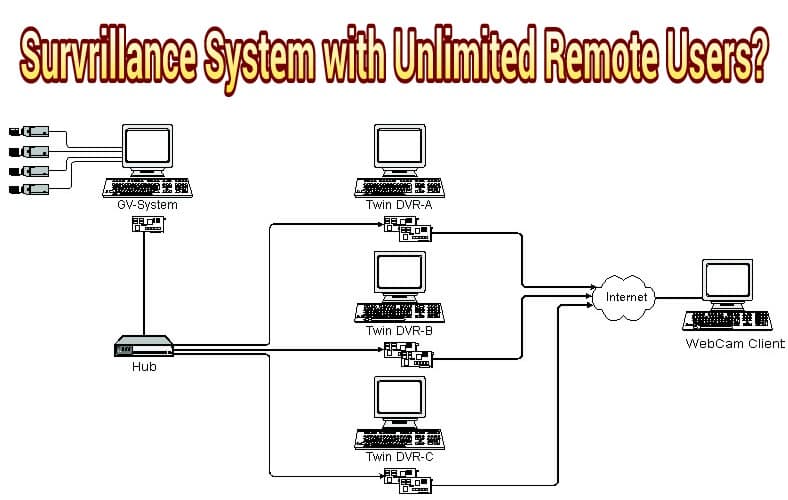
Geovision Surveillance Software supports hybrid security camera systems allowing both IP security cameras an analog CCTV Cameras to be connected to one system.  The strong networking capability enables video and audio data to be transferred over the Internet via the WebCam server for viewing on a remote computer, 3G mobile phones (now including the Apple iPhone), PDA or Geovision remote monitoring applications such a the center V2.

The Geovision GV-iView App for iPhone has been launched. This iPhone app allows users to remotely view live video, control PTZ devices and manually force output devices to trigger alarms directly from their iPhone.  This powerful iPhone remote viewing application makes accessing your Geovision Surveillance System easy while away from your home or office.  You can choose single or multi-channel views of live video streams or recorded playback.  Easily initiate recording of any or all channels.

Geovision iPhone App Features:

1. Connection Management

  • The last connection setting is saved by default

  • Up to 10 sets of connection settings can be added to “My Favorite” list for quick, direct access

  • Two image quality options available

2. Live Multiple Channel Display

  • Finger-drag or click to switch
    between pages

  • Double-click desired channel
    for single view

  • Multiple channel display mode

3. Single Channel Management

  • Take snapshots and save live images

  • Record live video of current channel or all channels

  • Control pan, tilt and zoom functions

  • Manually force output devices to trigger alarm systems

4. Remote Playback

  • Define time period to search recordings for playback

  • Recorded video from GV-System or GV-NVR can be played back remotely

System Requirements:
iPhone OS 2.2 or later
Compatible with iPhone and iPod Touch

Languages Supported:
English

Click here for Geovision iPhone Setup Instructions

Bookmark and Share