Geovision iPhone Application GV-iView
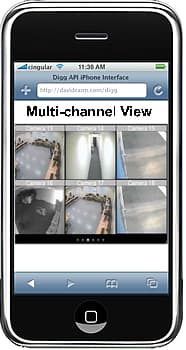
Geovision Surveillance Software supports hybrid security camera systems allowing both IP security cameras an analog CCTV Cameras to be connected to one system. The strong networking capability enables video and audio data to be transferred over the Internet via the WebCam server for viewing on a remote computer, 3G mobile phones (now including the Apple iPhone), PDA or Geovision remote monitoring applications such a the center V2.
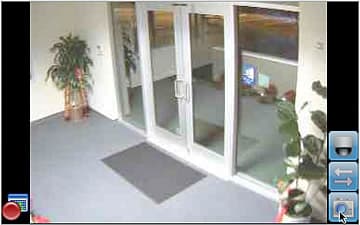
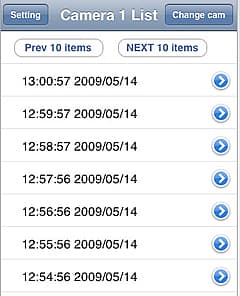
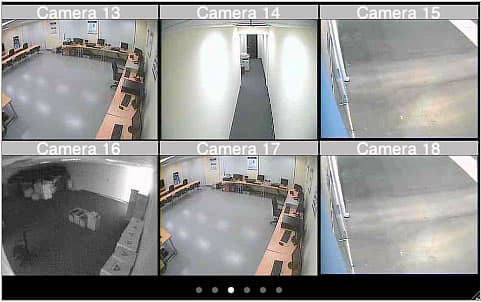
The Geovision GV-iView App for iPhone has been launched. This iPhone app allows users to remotely view live video, control PTZ devices and manually force output devices to trigger alarms directly from their iPhone. This powerful iPhone remote viewing application makes accessing your Geovision Surveillance System easy while away from your home or office. You can choose single or multi-channel views of live video streams or recorded playback. Easily initiate recording of any or all channels.
Geovision iPhone App Features:
1. Connection Management
|
|
|
2. Live Multiple Channel Display
|
|
|
3. Single Channel Management
|
 |
4. Remote Playback
|
System Requirements:
iPhone OS 2.2 or later
Compatible with iPhone and iPod Touch
Languages Supported:
English
Click here for Geovision iPhone Setup Instructions




I don’t usually comment but yes. That was good.
I have a Geovision surveillance DVR connected to my home network and i can access it just fine from my iphone 4 using the GV-iView iPhone app. When i try to use the app on my iphone outside my network using at & t 3g, i can only get the recorded view portion to work. When i select the live view (dvr) using the required same ip address it starts to go to the six camera split screen page, but it is all black and only shows dvr and record button for a breif moment then it crashes and the app clodes completly. I have all the required ports open, 8866. 80, 5511,. I have checked them using “yougetsignal.com” open port tool. The only thing that seems wierd is I cant port forward port 80 to my netgear router. It says it is already being us by other configurations. But the port checker tool says its open. And like i said the app does work with recorded view, just not live view. I am using a Geovision 1480 card with software ver. 8.3.4, and my iphone app is Gv-iView v2.1.1. Do you know how to correct this problem? I see it over and over again on support forumn and I have tried many of the tips I found on the forumn. Let me know if you have a solution. Thanks.
David,
It appears that another IP device on your network may already be using port 80. I recommend that you change the GeoVision “http” port within the GeoVision Main system to something other than 80. I recommend using port 8000. Once you have changed this within the main system, you need to setup port forwarding for the new GeoVision “http” port. Next, check and make sure the port is opened using the tool at http://yougetsignal.com.
Next disable “HTTPS” in the GV-iView app.
Next, since you are using something other than the default “http” port 80, you need to fill add port 8000 in the “IP” field of the GV-iView app. Fill in this field with your IP Address, and then a colon “:” followed by the new http port (8000). So for example if your IP address is 72.53.89.123 and you changed the http port to 8000. In the GV-iView, app you would add the IP address in this format: 72.53.89.123:8000.
Please let us know if CCTV Camera Pros can help further with your Geovision GV-iView iPhone app setup.