D-Link Port Forward Setup (older models)
On older model D-Link routers, port forwarding is referred to as virtual service.
- Open your D-Link router's control panel by going to the IP address 192.168.0.1/ in a web browser. You will be prompt for a password. If you did not setup a password on your router, the dlink default password is blank. Enter admin for the username and leave the password blank.
- After you are logged into your router, 1) click on the "Advanced" tab, then
2) click on the "Virtual Service" button. This will display the
Virtual Server screen as seen below:
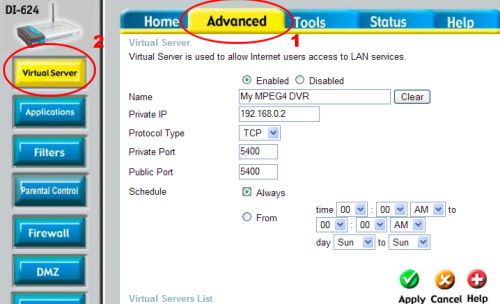
- On the Virtual Server screen:
- Click on the "Enabled" radio button
- Choose a Name for this service. This can be anything that you choose.
- Enter the IP address of your IP camera.
- Select TCP for the Protocal Type
- Enter the port # that your IP camera uses for both the Private Port and Public Port.
- Select "Always" for Schedule
- Click on the "Apply" button
- On success, the screen will display a settings saved screen