This guide shows how to set up a Viewtron auto-tracking PTZ camera to automatically detect and follow a person who enters an intrusion zone. All Viewtron pan tilt zoom cameras support Auto-Tracking. Examples include the Viewtron IP-PTZ-832 (4K / 8MP, 32x zoom) and the Viewtron IP-PTZ-440 (4MP, 40x zoom). The screenshots for this guide come from our auto-tracking PTZ demo video, which was recorded with a Viewtron IP-PTZ-425. The autonomous PTZ auto-tracking and AI human intrusion detection settings are used on our newer PTZs, though menu wording can vary slightly by firmware.
Note: This setup is done through the Viewtron NVR local interface with an attached monitor and mouse. The setup steps are the same if you prefer to use the web browser interface.
What You Need
- A Viewtron PTZ camera, such as the IP-PTZ-832 or IP-PTZ-440
- A Viewtron IP camera NVR with the PTZ camera added
- Access to the NVR menu (local monitor or web browser)
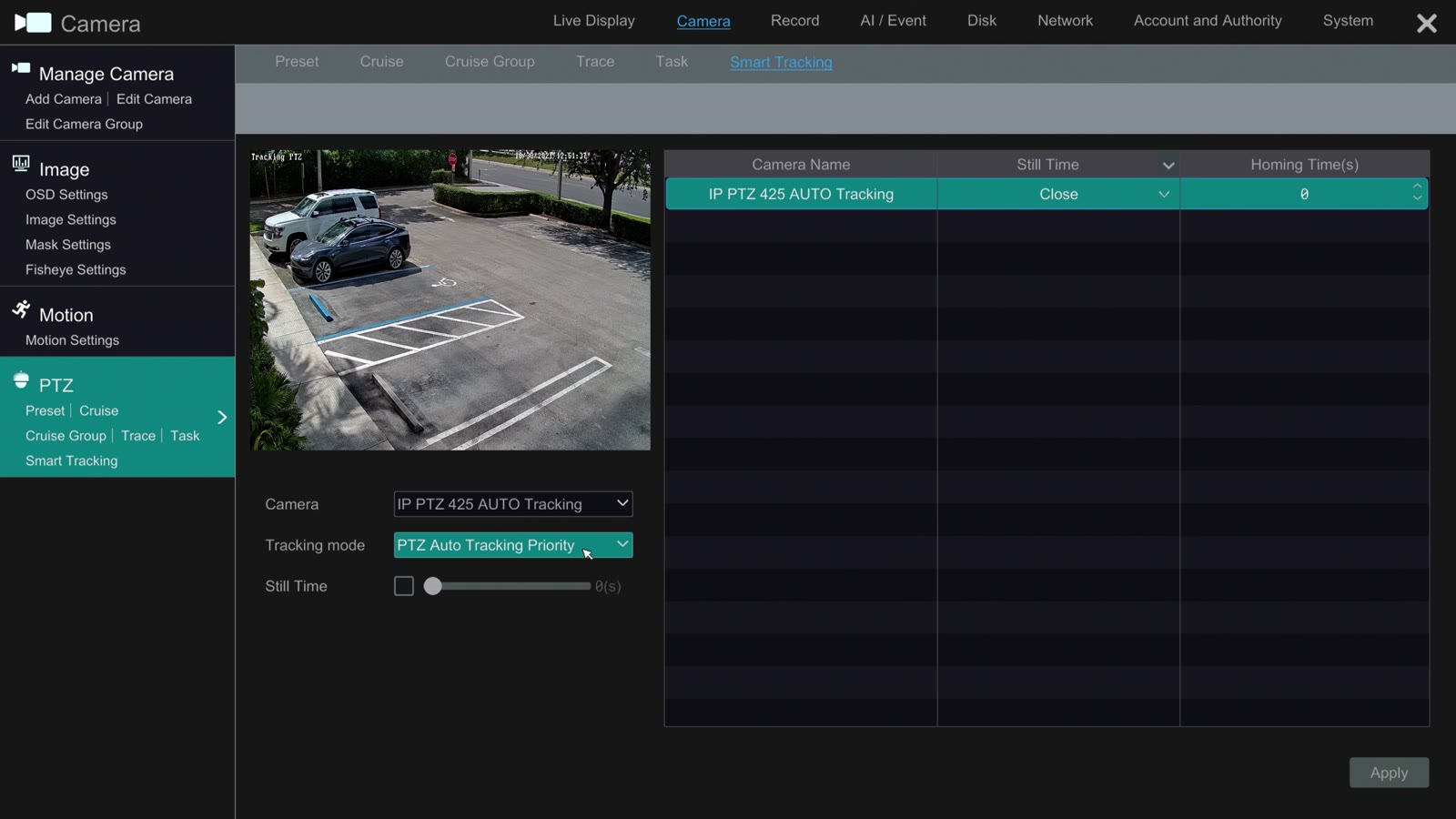
Step 1: Set the PTZ to Auto Tracking Priority
From the NVR live view, open the main menu and select Settings. Go to Camera > PTZ and select Smart Tracking on the left. Choose your auto-tracking PTZ camera from the Camera list, set Tracking mode to PTZ Auto Tracking Priority, and click Apply.
Step 2: Turn on Intrusion detection on the camera
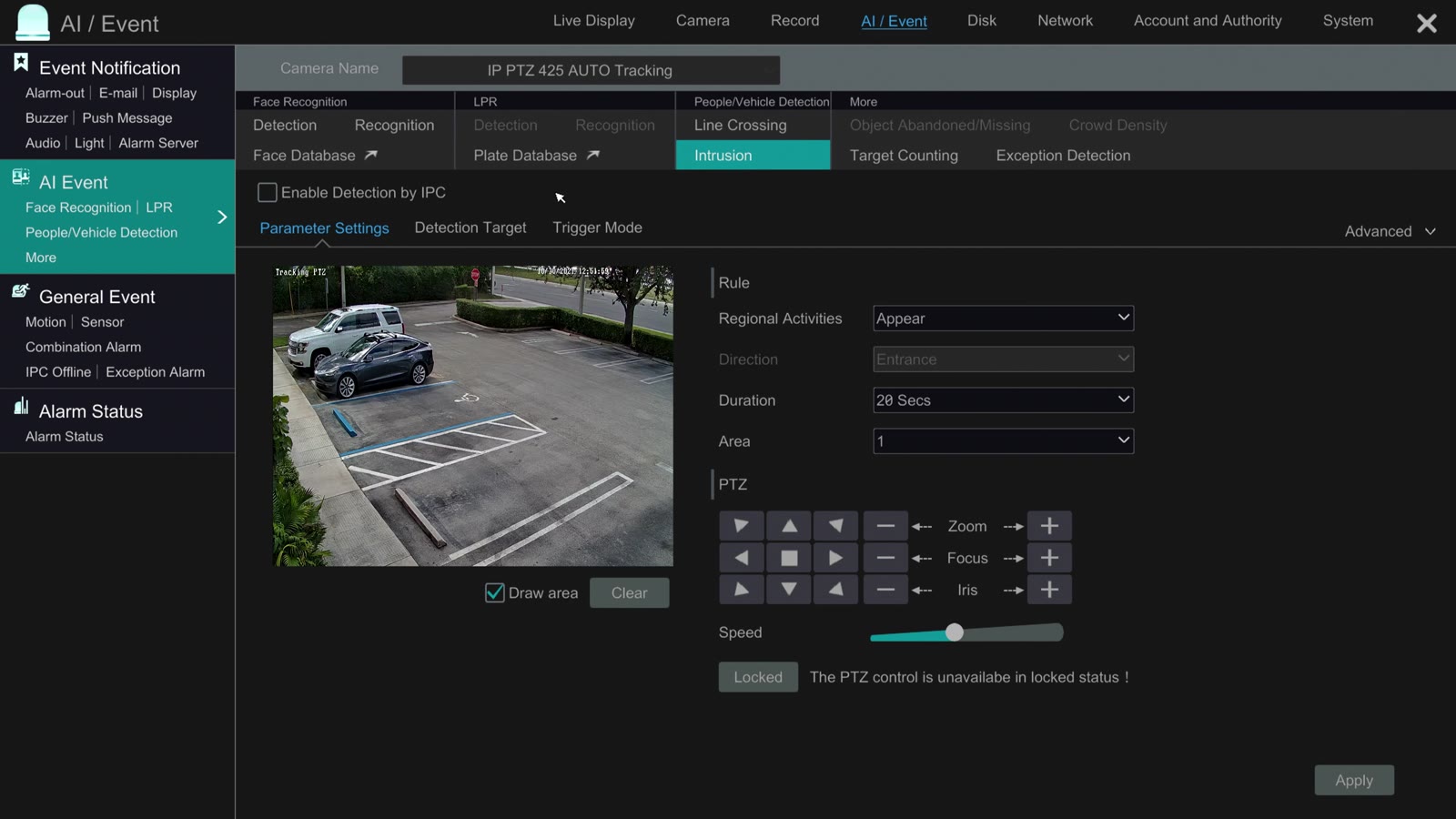
Go to the AI / Event section and select your PTZ camera in Camera Name. Under People/Vehicle Detection, select Intrusion, then check Enable Detection by IPC. This tells the NVR to use the AI detection that runs inside the PTZ camera. Please note, you can also enable PTZ auto-tracking via a line crossing event for human and / or vehicle detection.
Step 3: Draw the intrusion zone and lock PTZ control
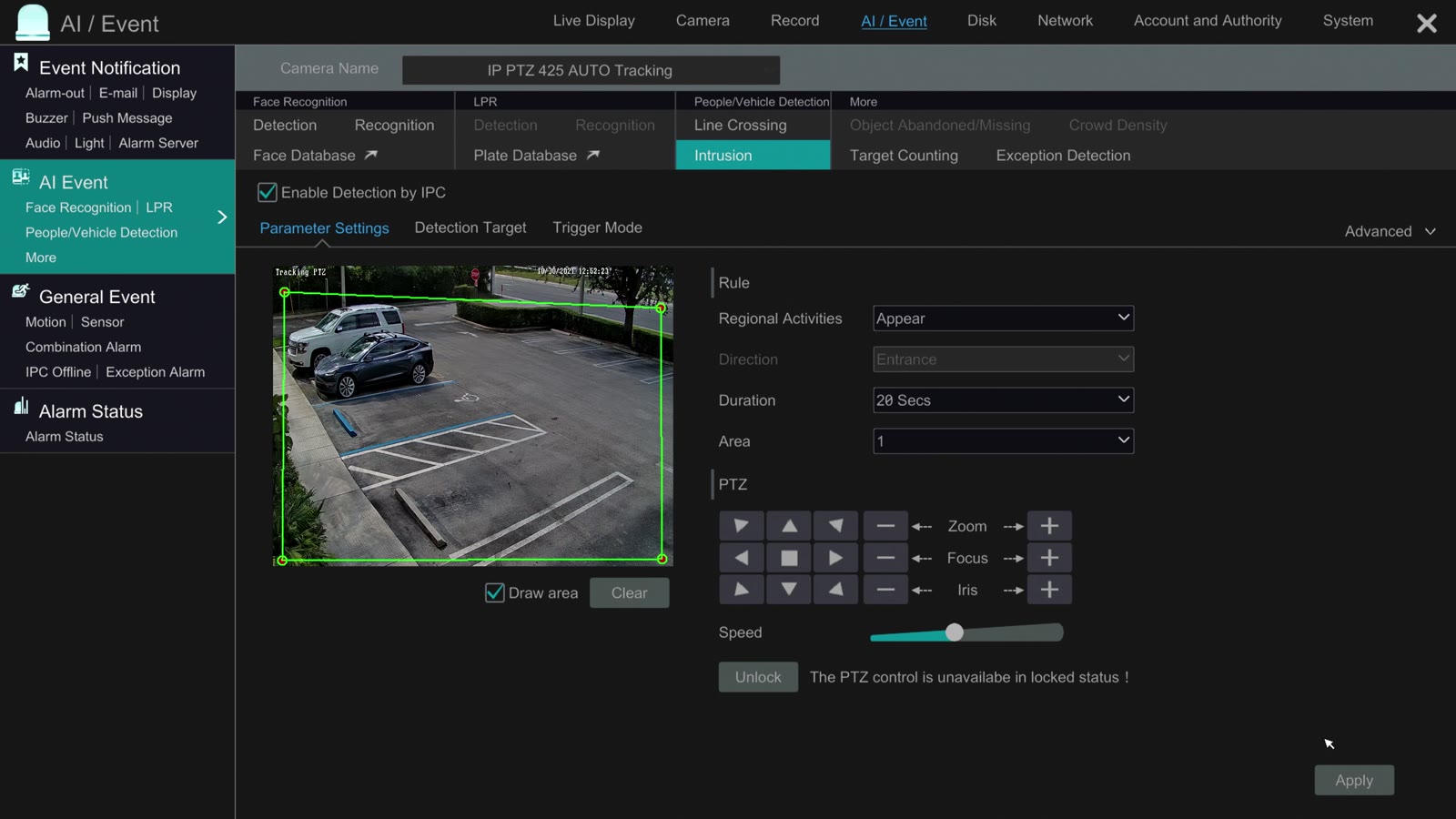
On the Parameter Settings tab, make sure Draw area is checked and click points on the camera image to outline the area you want protected. In the demo, a box was drawn around the entire parking lot. Use Clear to start over.
Next, click the Lock button under PTZ. Once locked, the button reads Unlock and the screen shows that PTZ control is unavailable in locked status. This is expected: manual PTZ control is not available while the camera is auto-tracking.
Step 4: Select Human as the detection target
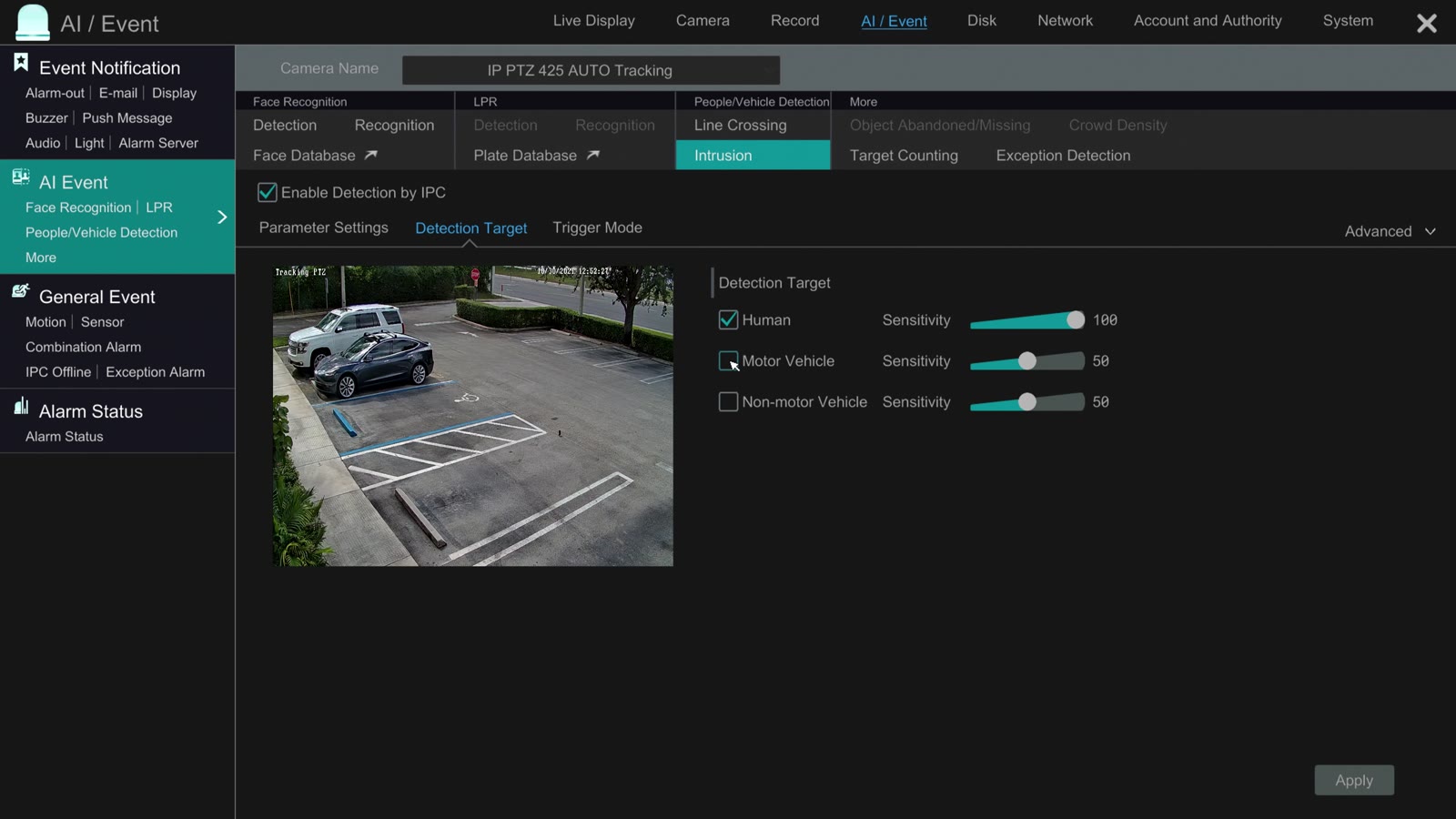
Open the Detection Target tab. To track people only, check Human and leave Motor Vehicle and Non-motor Vehicle unchecked. Adjust Sensitivity if needed. If you also check Motor Vehicle, the camera will zoom in on and track cars that enter the zone.
Step 5: Set the trigger actions (Snapshot and Record)
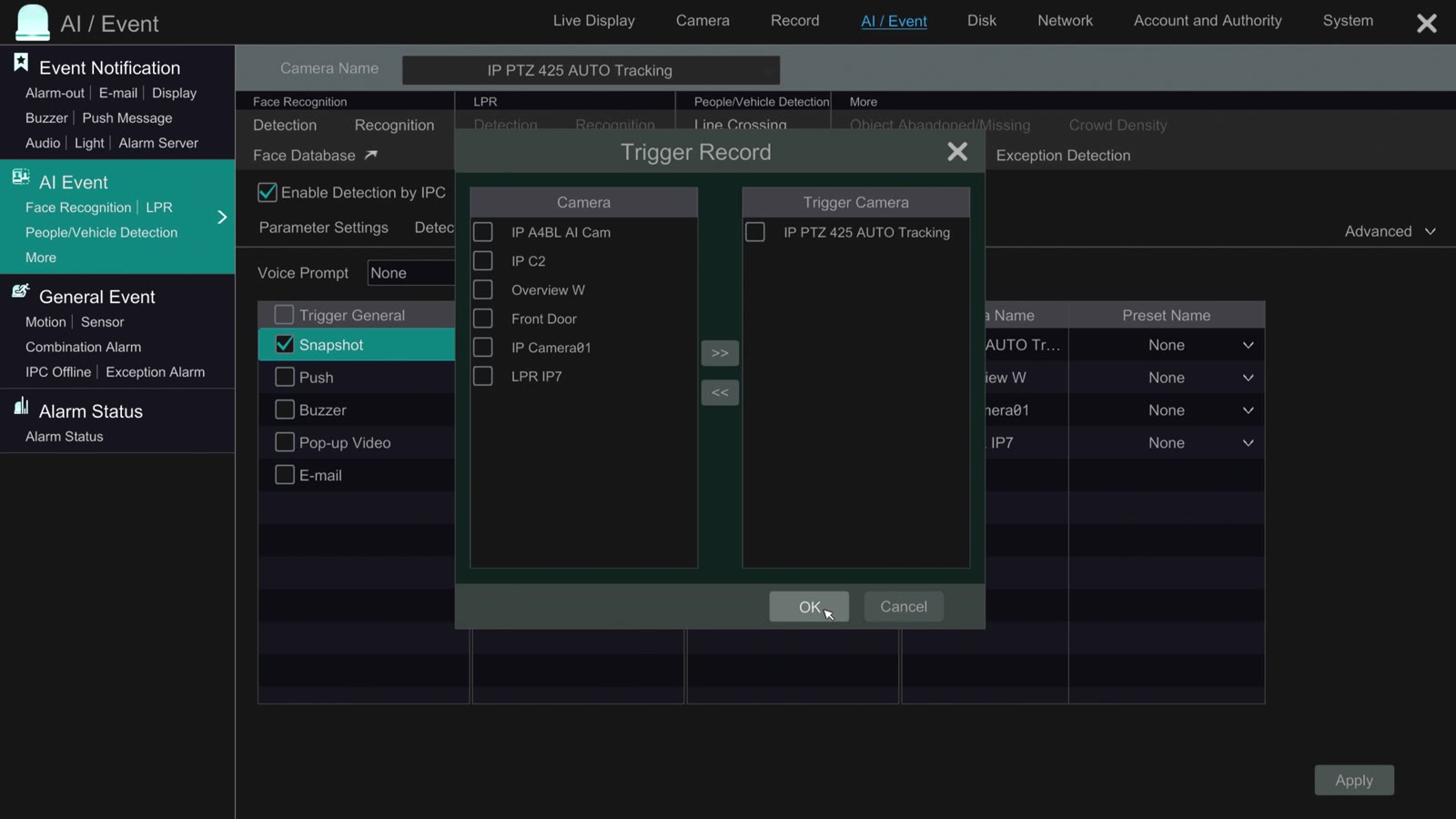
Open the Trigger Mode tab. Check Snapshot, then click Configure in the Record column and select the PTZ camera so the NVR records it whenever an intrusion is detected. Click OK. You can also enable Push, Buzzer, Pop-up Video, or E-mail alerts here. Click Apply to save, then close the menu and return to live view.
Step 6: Test it from live view
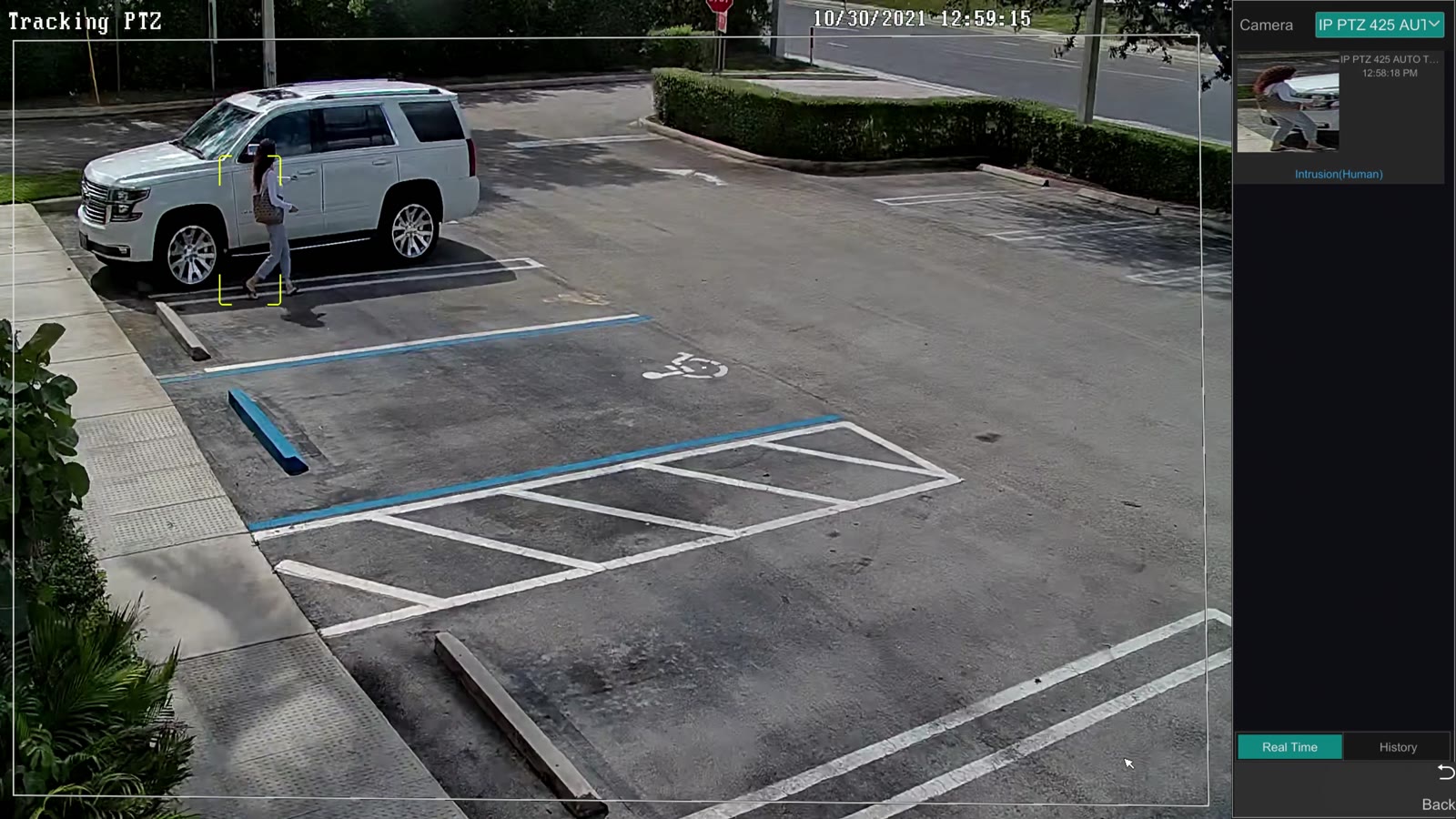
Open the PTZ camera in full screen and select Target Detection. The intrusion zone is shown on the video and an event panel opens on the right. When a person enters the zone, the camera pans, tilts, and zooms to follow them. Once a person is detected, the camera keeps tracking them as far as it can, even after they walk outside the zone. Each event appears as a thumbnail; hover over it and click play to jump to the recorded video on the NVR.
Settings Summary
| NVR Menu | Setting |
|---|---|
| Camera > PTZ > Smart Tracking | Tracking mode: PTZ Auto Tracking Priority |
| AI / Event > Intrusion | Enable Detection by IPC: checked |
| Parameter Settings | Draw zone, PTZ set to Lock |
| Detection Target | Human only |
| Trigger Mode | Snapshot on, Record the PTZ camera |
Auto-Tracking PTZ Setup and Demo Video
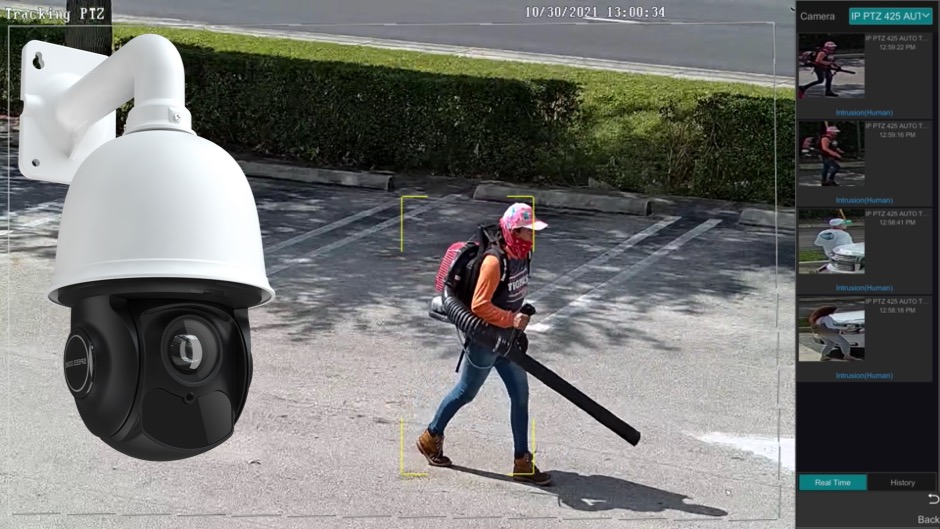 Watch the above video or click here: Auto-Tracking PTZ Camera with Object Detection AI Software
Have Questions / Need Help?
You can always call us at 561-433-8488 or email info@cctvcamerapros.net.