Follow these instructions to install the free Viewtron VMS software on a Windows 11 PC. Viewtron VMS (video management software) lets you watch your Viewtron NVRs, DVRs, and IP cameras live, and play back recorded video from your computer.
I tested these steps on a clean Windows 11 Pro PC with Viewtron VMS version 2.1.4.40411. The Windows download is for 64-bit Windows.
Step 1: Download the VMS Software
Click here to download the Windows VMS software. You can also open our Mac and Windows VMS software setup page, scroll down to App Downloads, and click Windows VMS Software Download.
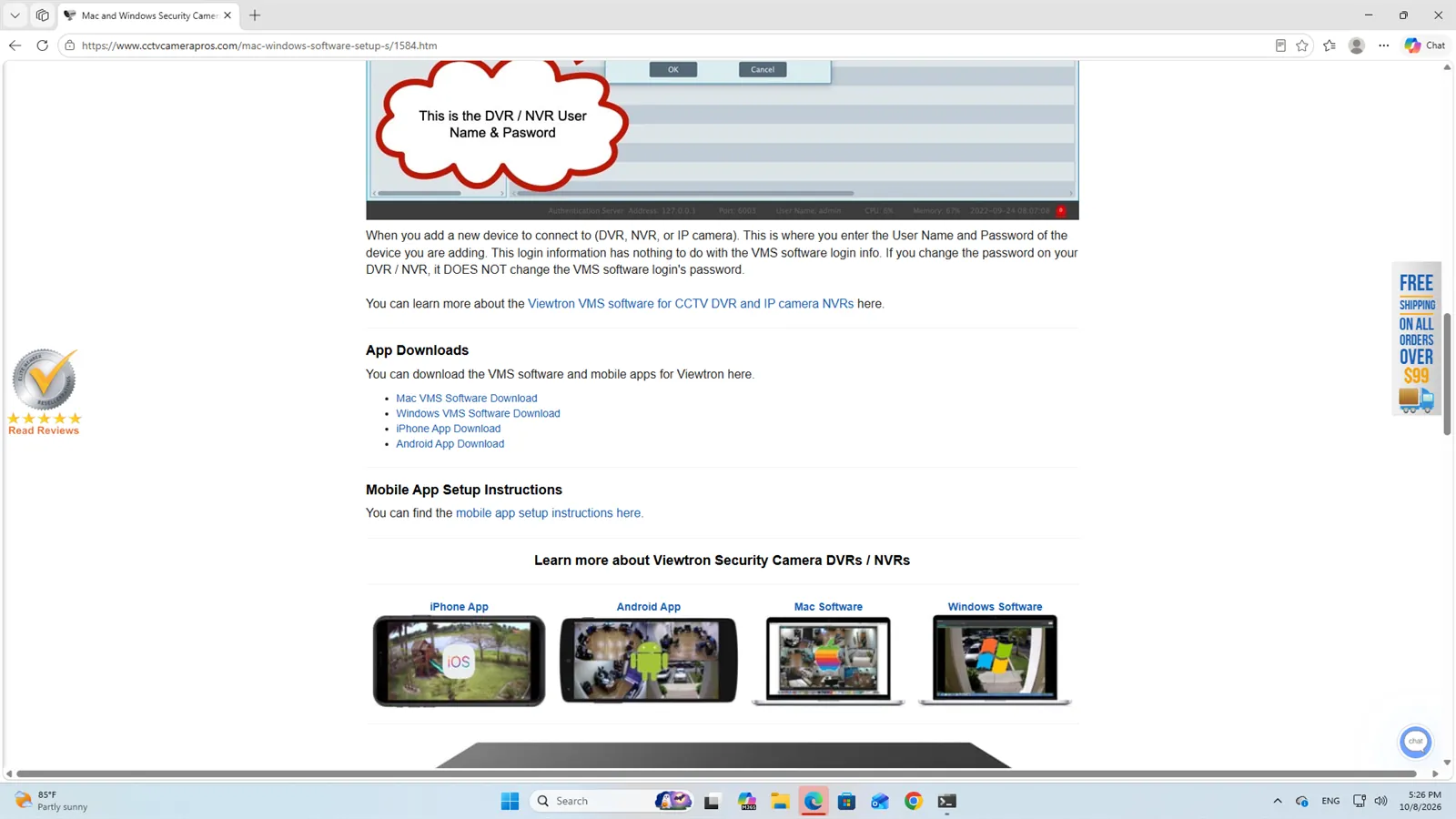
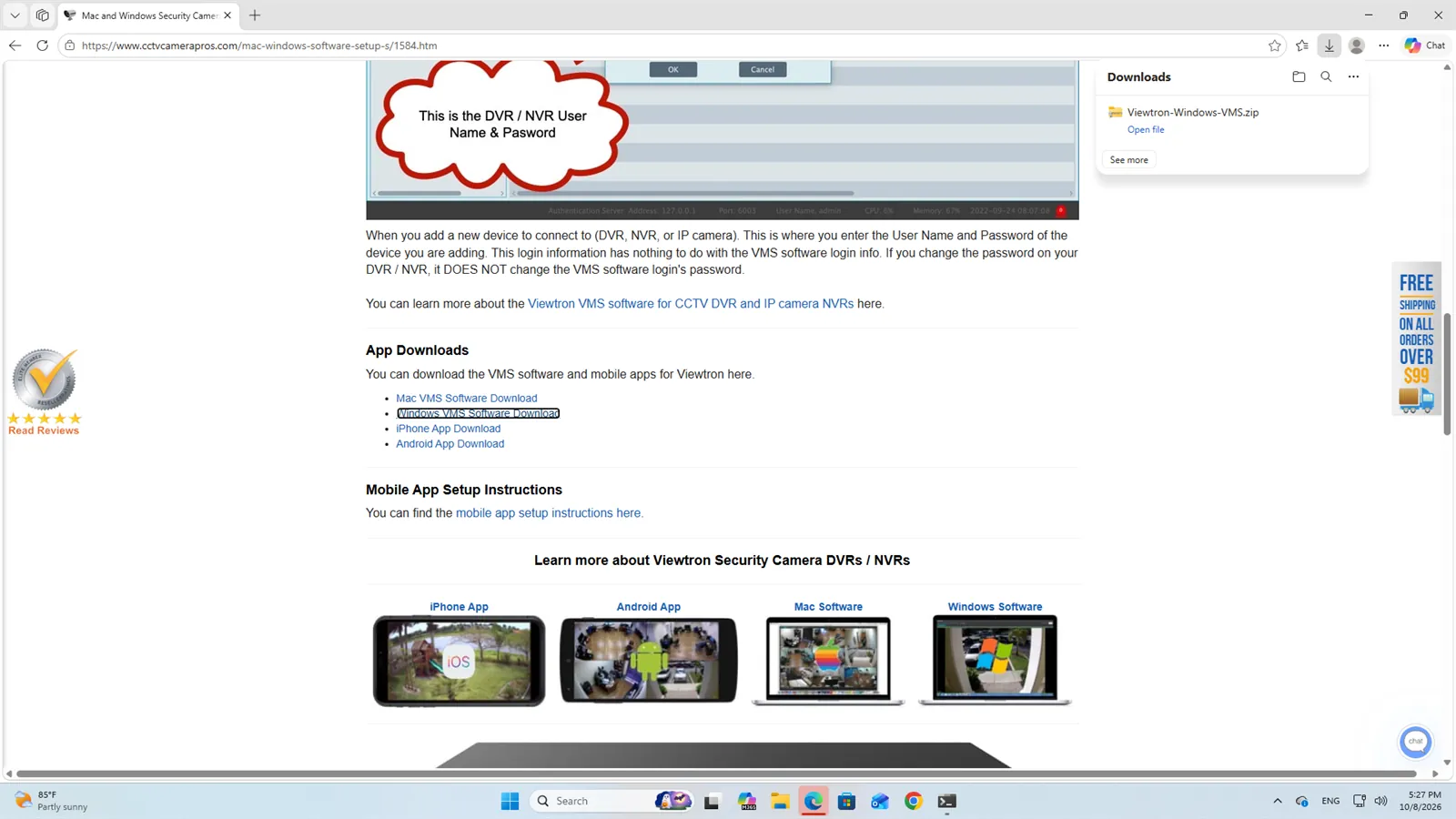
Your browser downloads a zip file named Viewtron-Windows-VMS.zip. The file is about 346 MB, so it can take a few minutes on a slower Internet connection. In Microsoft Edge, the download shows up in the Downloads panel at the top right when it is done.
Step 2: Install on Windows
Extract the Zip File
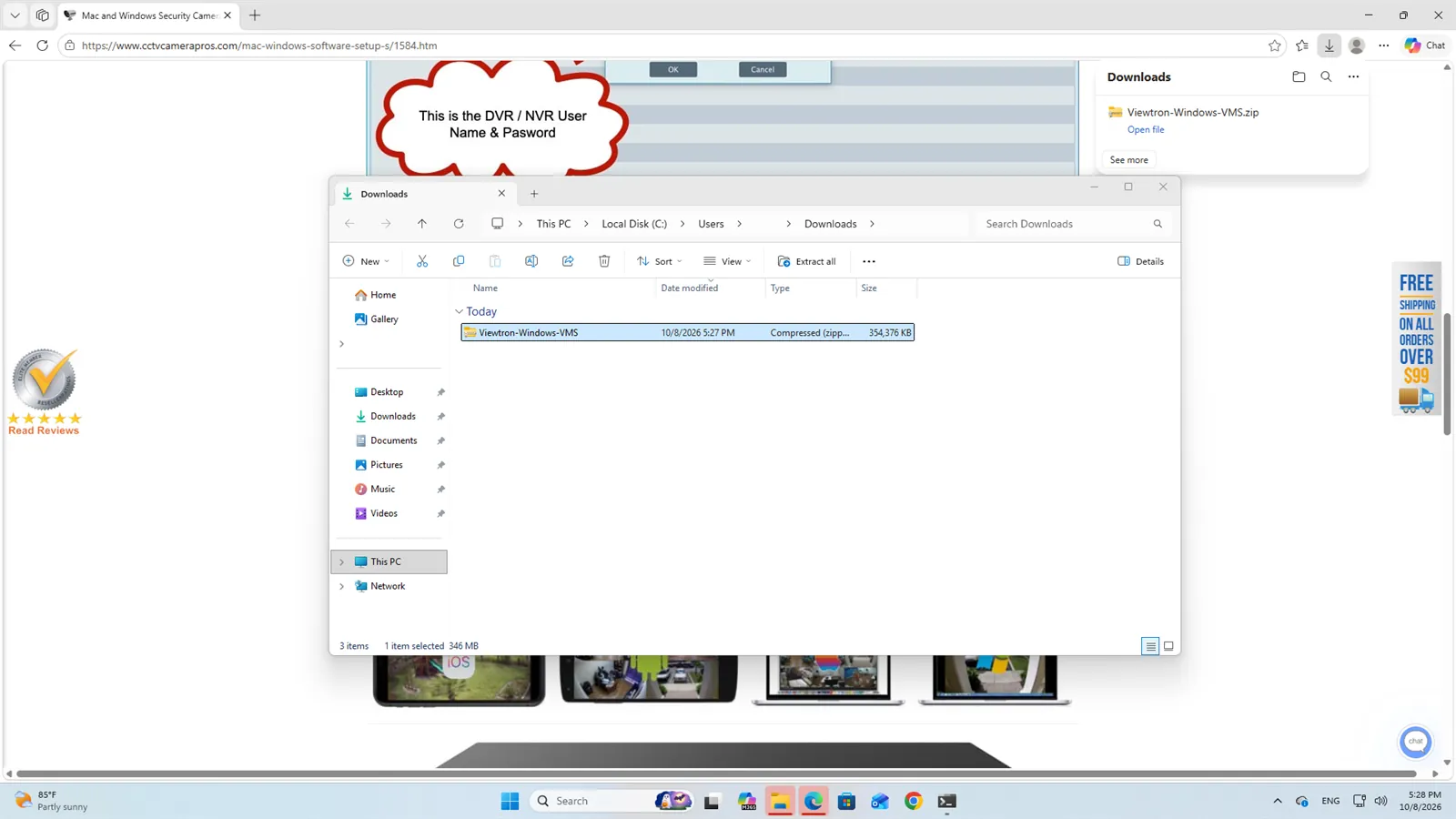
Open File Explorer and go to your Downloads folder. Click on Viewtron-Windows-VMS to select it, and then click Extract all on the toolbar. You can also right-click the file and select Extract All.
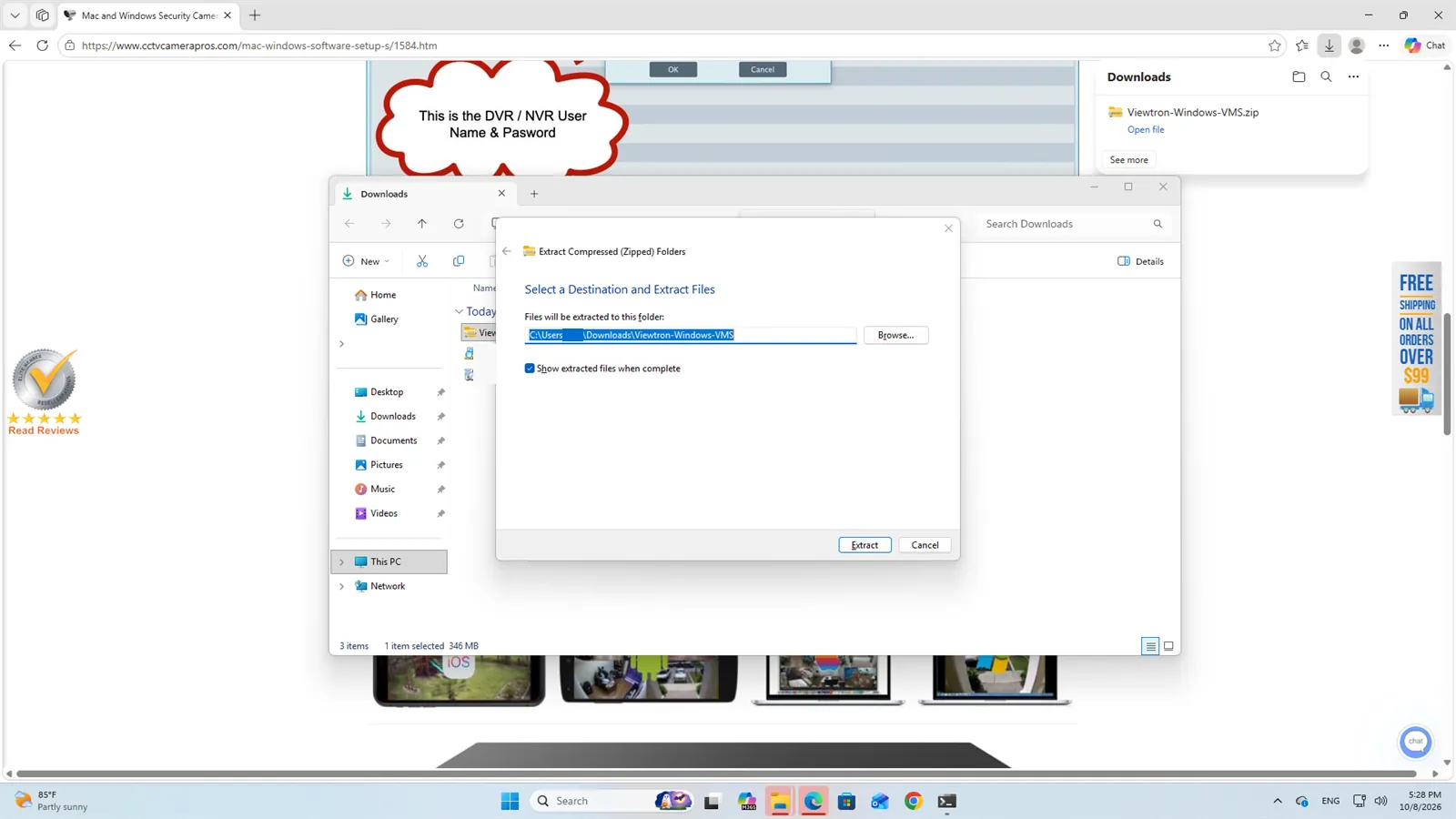
The Extract Compressed (Zipped) Folders window opens. Leave the folder that it suggests, keep Show extracted files when complete checked, and click Extract.
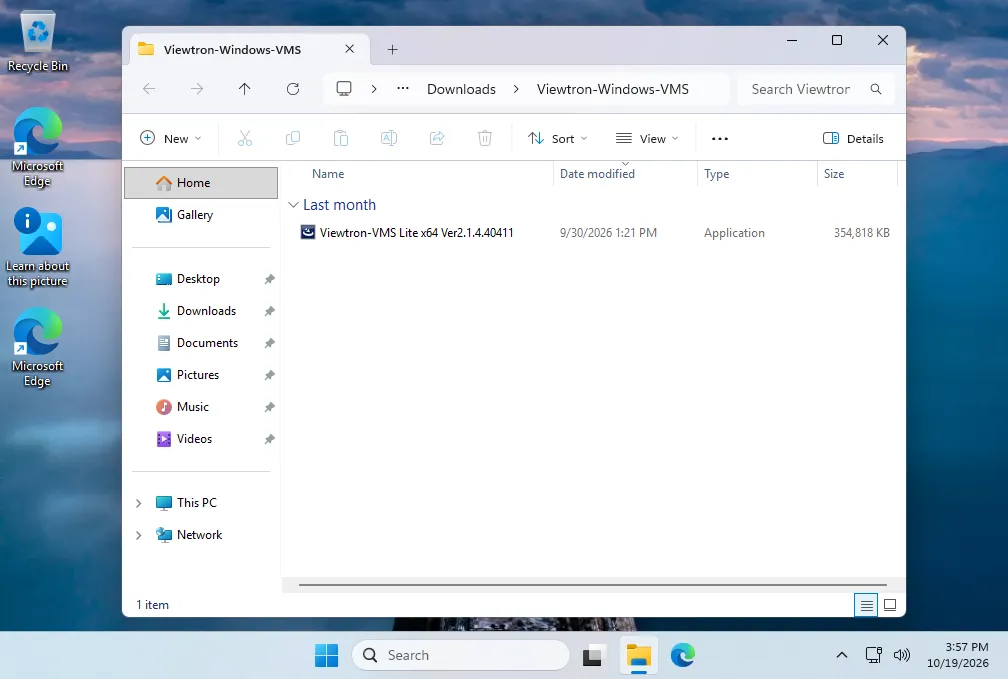
A new Viewtron-Windows-VMS folder opens. The only file inside is the installer, Viewtron-VMS Lite x64 Ver2.1.4.40411. It is an Application file of about 355 MB.
Run the Installer and Allow the SmartScreen Warning
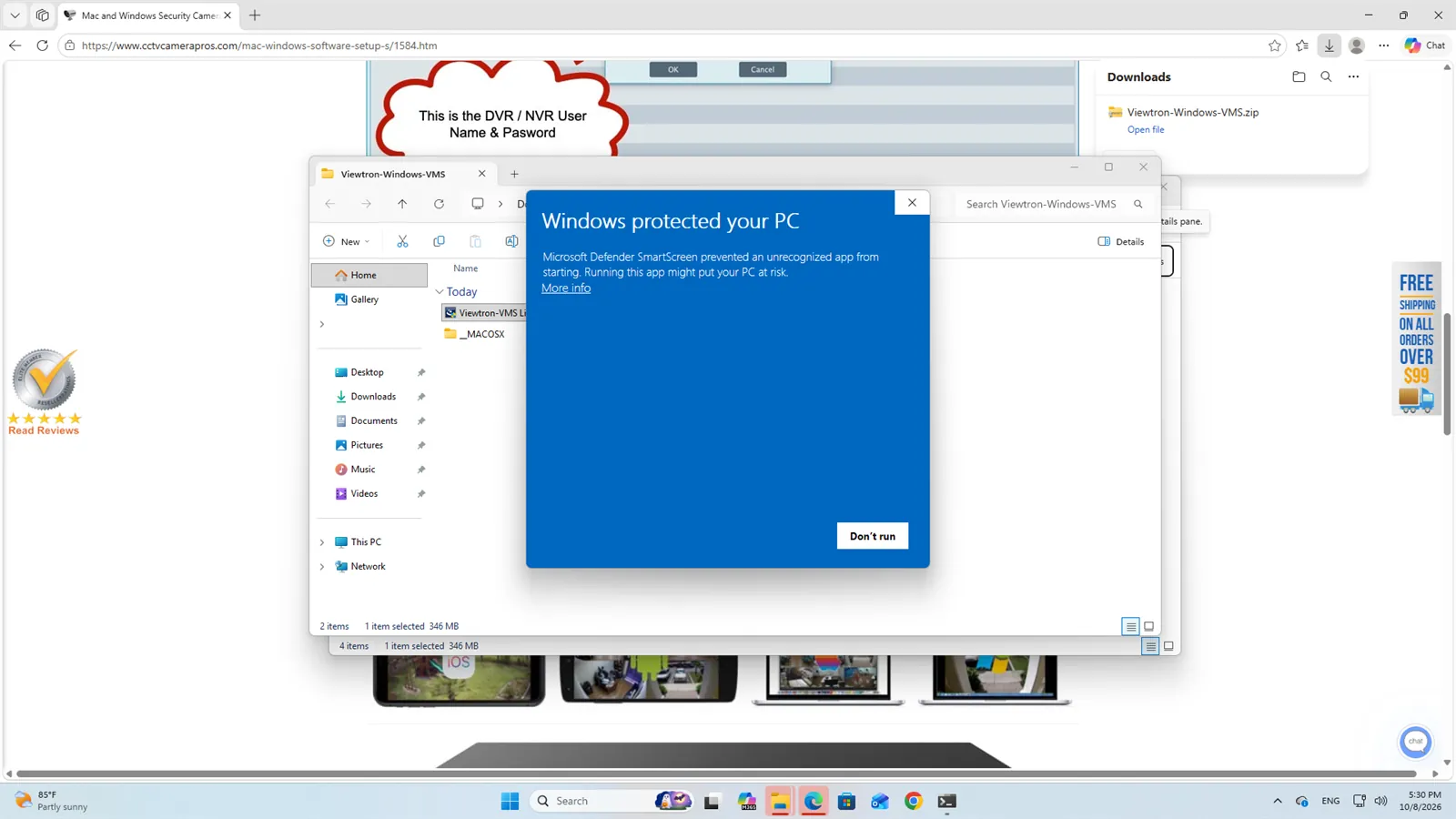
Double-click the Viewtron-VMS Lite x64 installer to start it. Windows shows a blue message that says Windows protected your PC. This is expected for this installer. Windows shows this message because the installer is not from a publisher that Microsoft SmartScreen recognizes, so it lists it as an unknown publisher. Click More info.
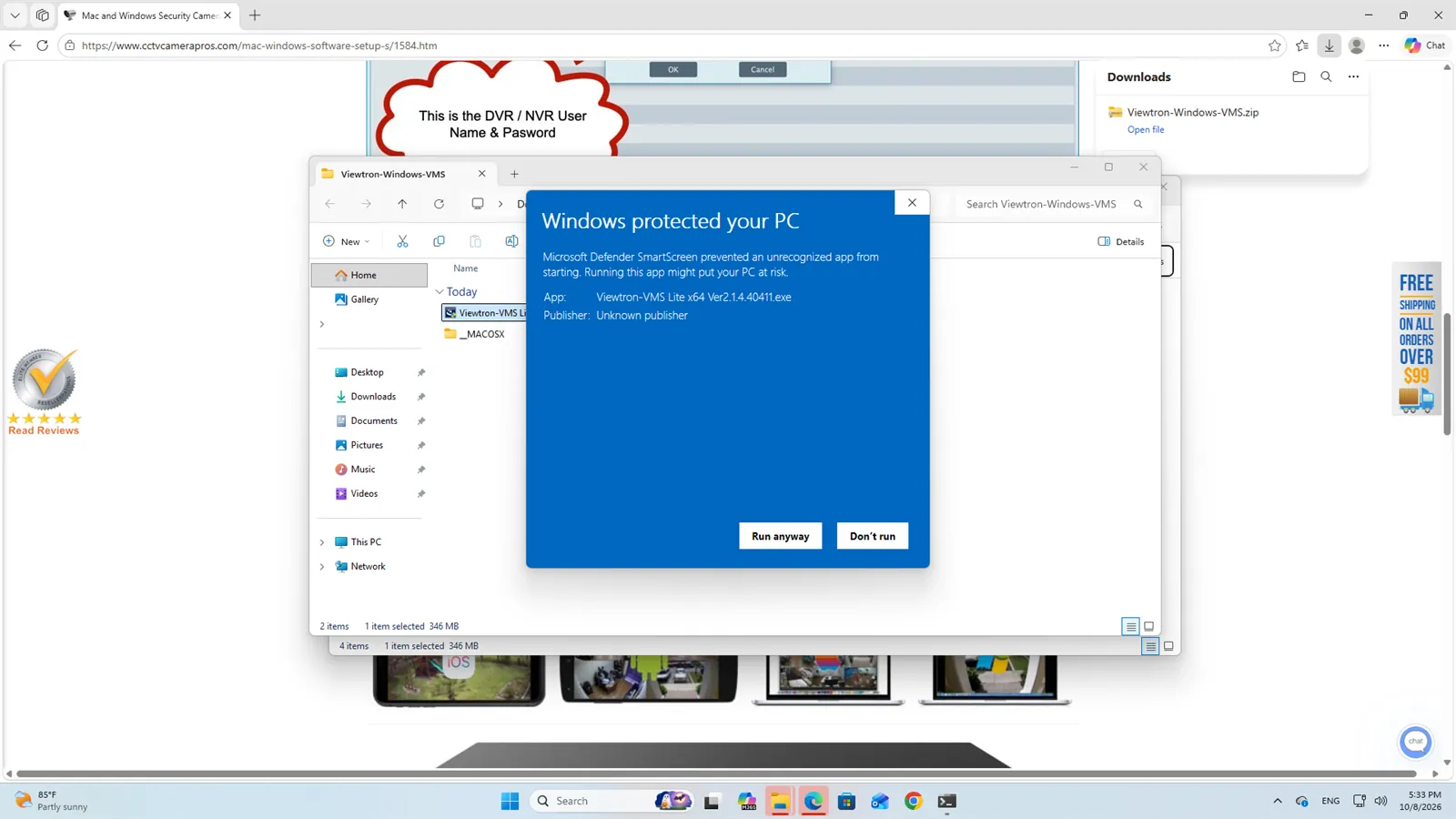
After you click More info, the window shows the app name (Viewtron-VMS Lite x64 Ver2.1.4.40411.exe) and Publisher: Unknown publisher. Click Run anyway.
Next, Windows asks if you want to allow this app to make changes to your device. Click Yes. If you are not signed in to Windows as an administrator, you will need to enter an administrator password here.
Follow the InstallShield Wizard
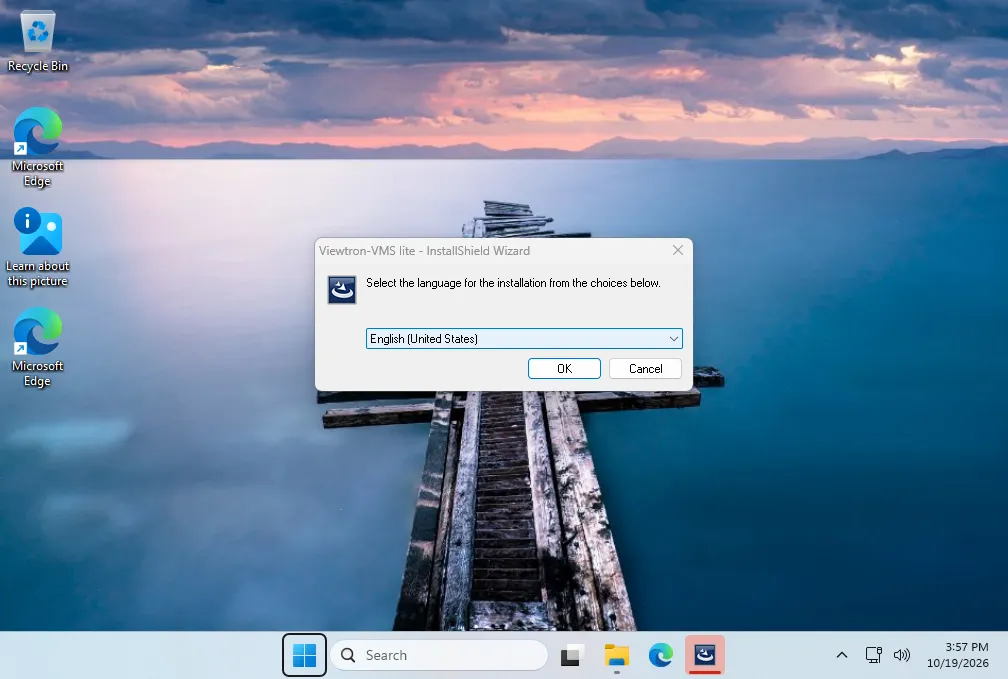
The InstallShield Wizard opens and asks you to select the language for the installation. Leave it set to English (United States) and click OK.
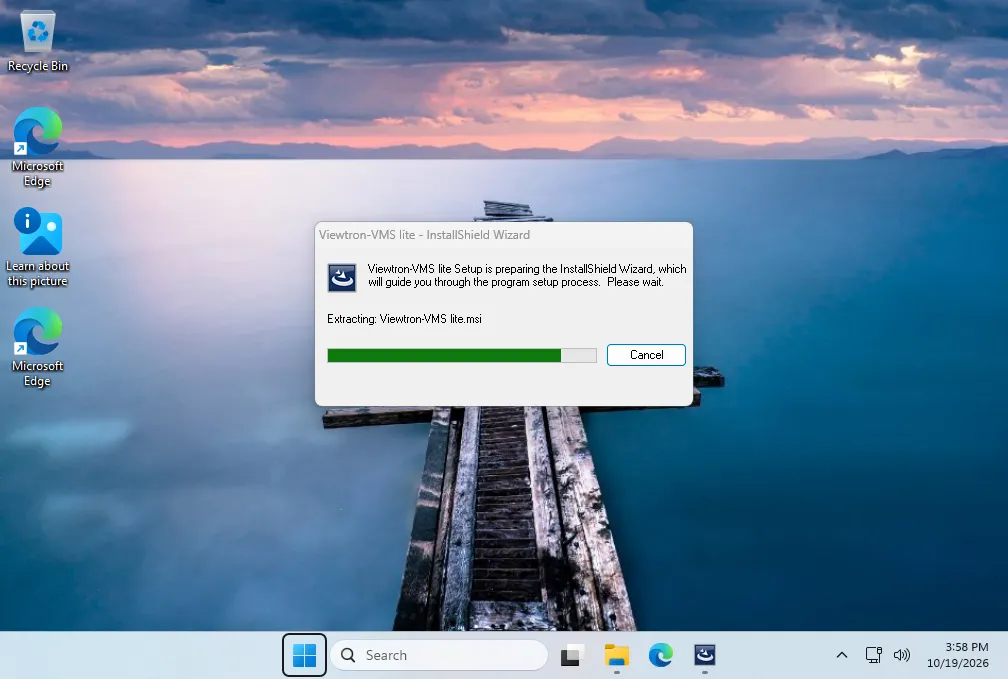
A small window says that setup is preparing the InstallShield Wizard. Wait a few seconds. You do not need to click anything.
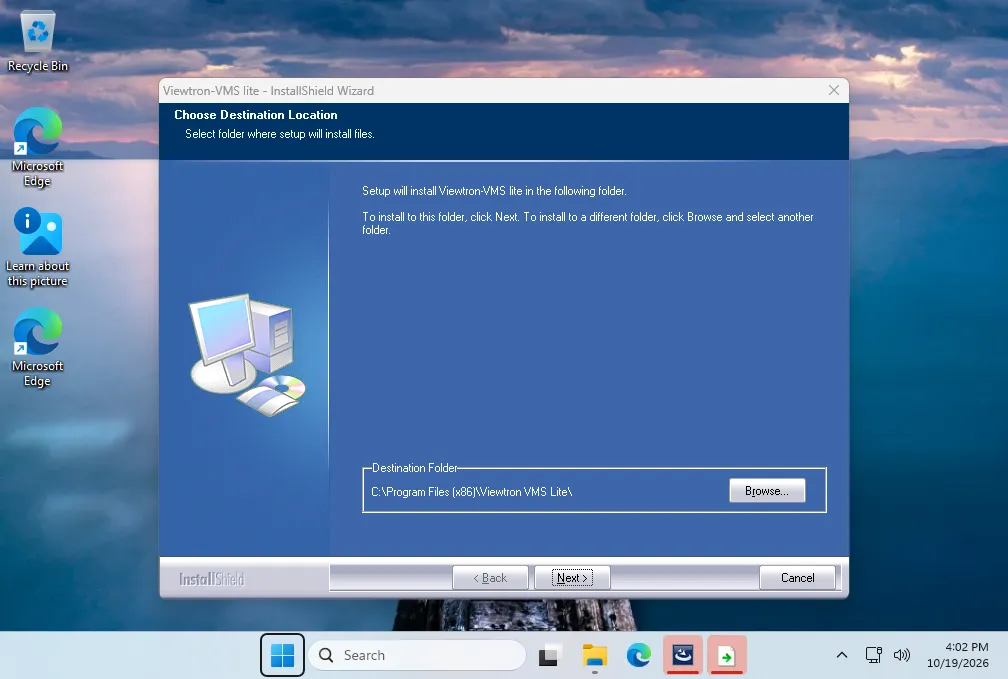
On the Choose Destination Location page, keep the default folder, C:\Program Files (x86)\Viewtron VMS Lite\, and click Next.
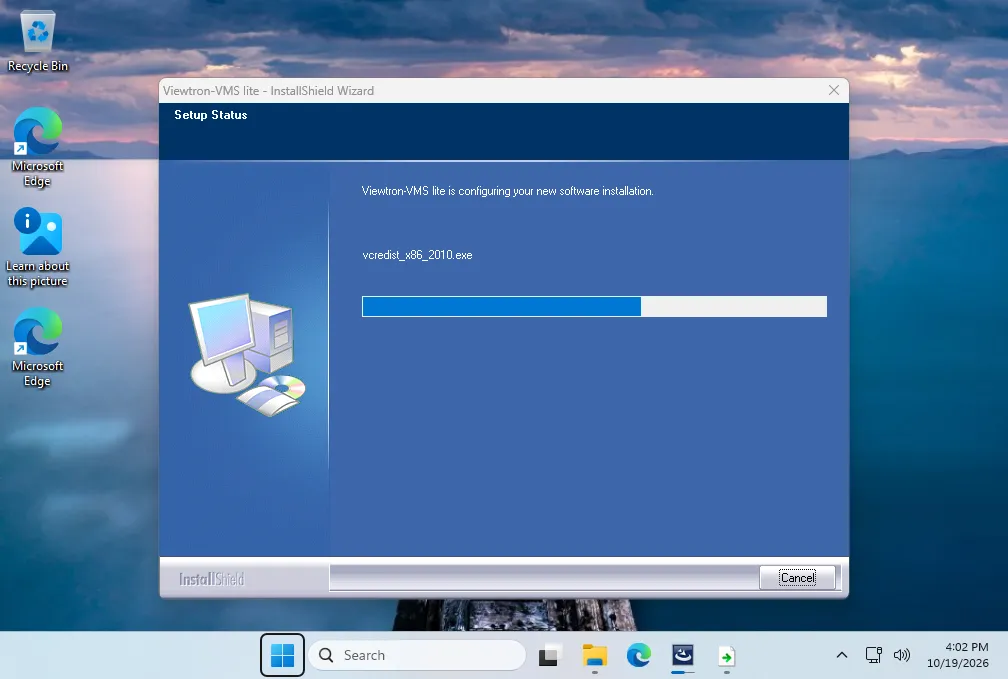
The Setup Status page shows the progress while the files copy. Setup also installs a Microsoft Visual C++ component that the software needs. This takes a few minutes. A ViewtronVMS icon appears on your desktop during the install.
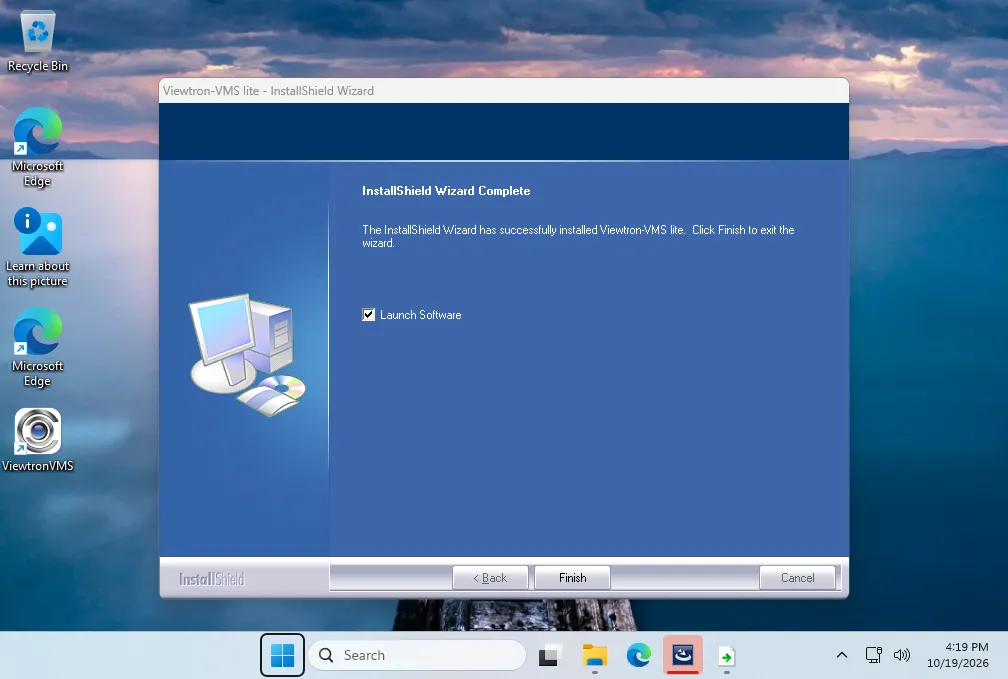
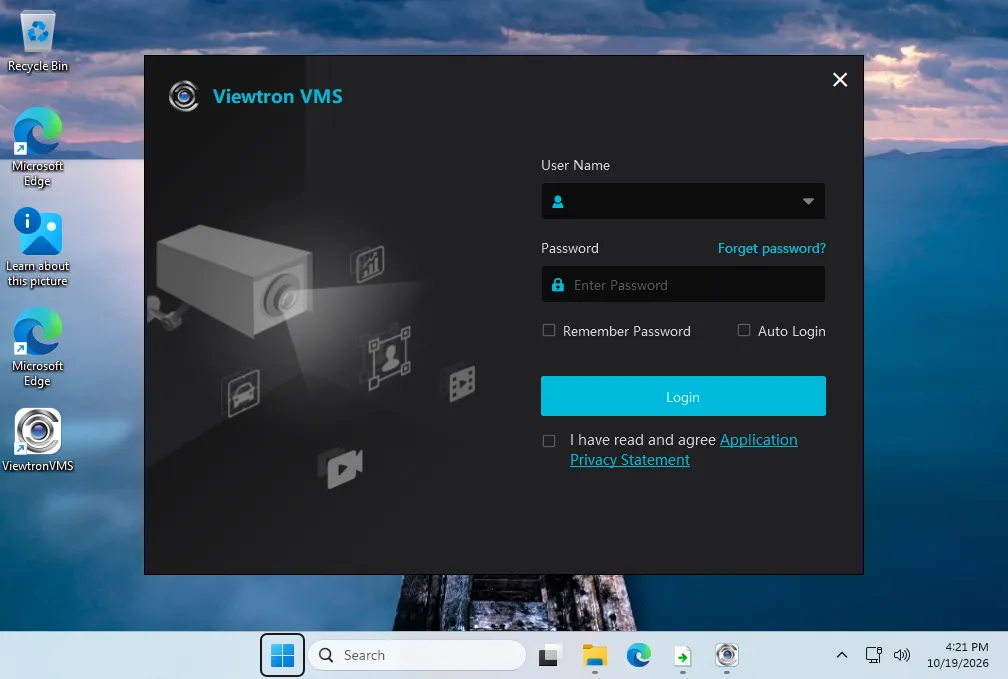
When the install is done, the InstallShield Wizard Complete page opens. Leave Launch Software checked and click Finish. The Viewtron VMS login window opens.
If your antivirus software shows a warning during the install, follow its prompts so the install can finish.
Open Viewtron VMS on Windows
After the first time, open the software with the ViewtronVMS icon on your desktop. You can also click Start, click All apps, open the Viewtron VMS Lite folder, and click ViewtronVMS. The same folder also has shortcuts for ServerTrayUI, the User Manual, and Uninstall. You do not need to open ServerTrayUI to use the software. Its services start on their own.
Step 3: Log In for the First Time
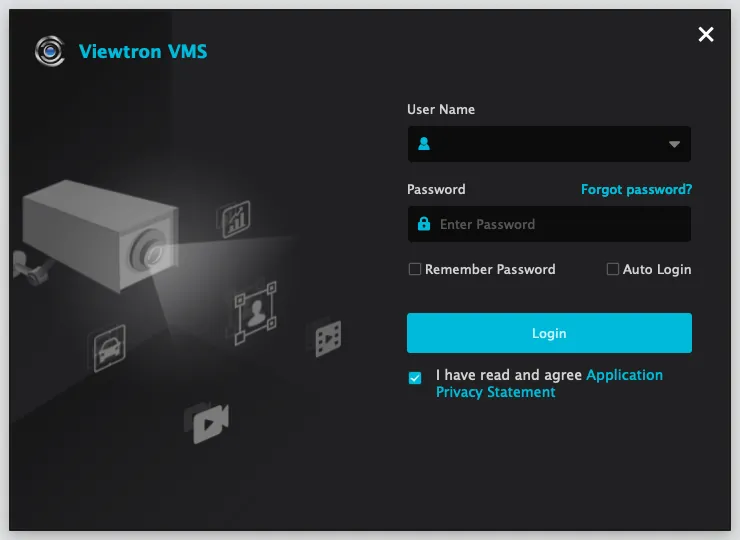
The default VMS user name is admin and the default password is 123456. You can also find them in the Important Login User Name and Password Info section of the VMS software setup page. This login is only for the VMS software. It is not the user name and password of your NVR or DVR, and changing one does not change the other.
- Type admin in User Name and 123456 in Password.
- Check the box next to I have read and agree Application Privacy Statement.
- Leave Remember Password and Auto Login unchecked for now.
- Click Login.
Step 4: Set Your New VMS Password
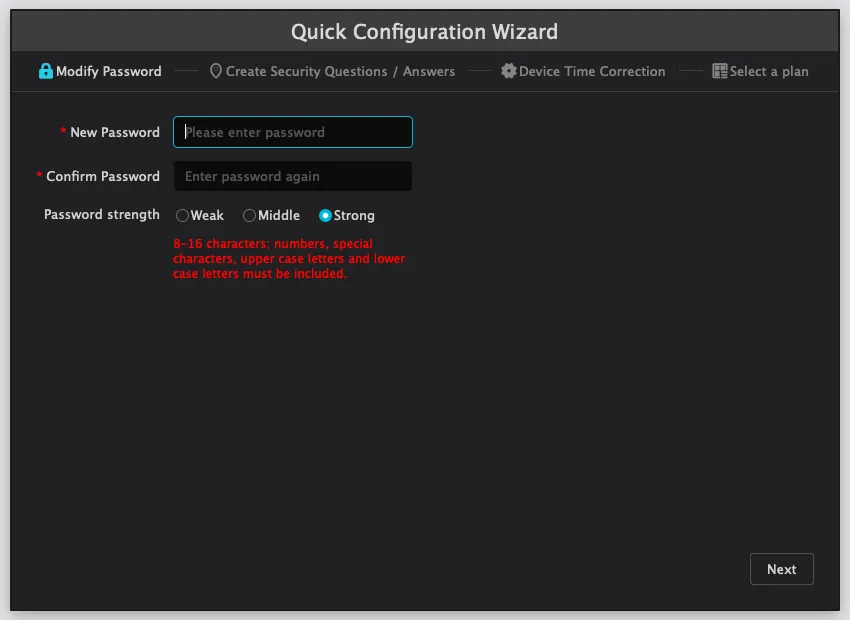
The first time you log in, the Quick Configuration Wizard opens and you must change the default password. Type your new password in New Password, and type it again in Confirm Password.
Under Password strength, there are three levels: Weak, Middle, and Strong. Strong is the default; Weak and Middle accept simpler passwords. A Strong password must be 8 to 16 characters long and must include an upper case letter, a lower case letter, a number, and a special character. We recommend that you keep Strong selected.
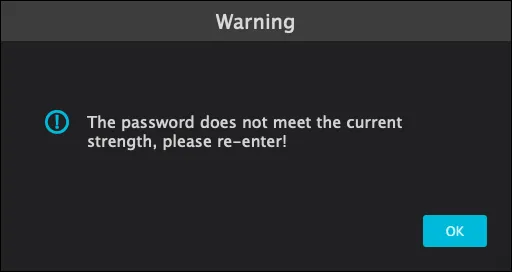
If your new password does not meet the rule for the strength you selected, you will see a warning that says The password does not meet the current strength, please re-enter. Click OK and type a stronger password. The new password also cannot be the same as the old one.
Write down your new VMS password and keep it somewhere safe. You will need it every time you open the software.
Click Next. A message says As the current user password is changed, you need to login again. Click OK, and log in again with the user name admin and your new password. The wizard then continues with the security questions.
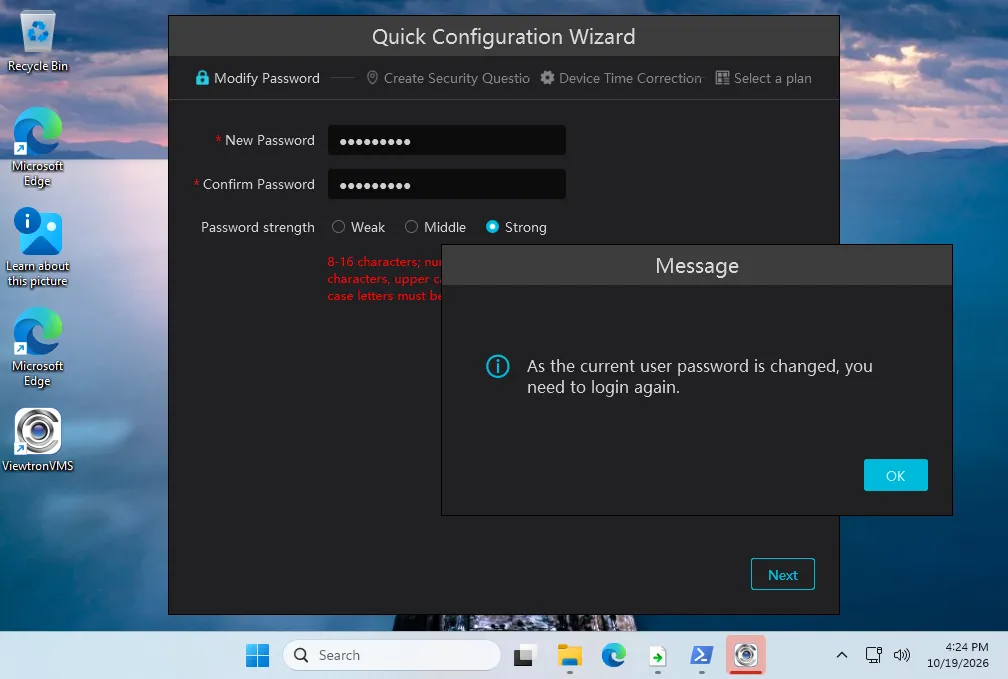
Windows shows the same Weak, Middle, and Strong choices with the same rules. Most screenshots in this section are from the Mac.
Step 5: Finish the Quick Configuration Wizard
The rest of the wizard has three short pages. You can click Previous to go back to a page.
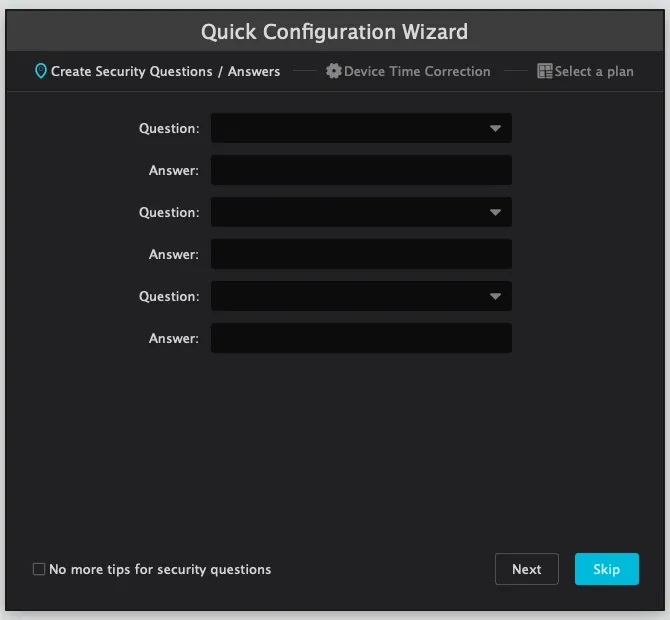
Create Security Questions / Answers. Pick three questions and type an answer for each one. We recommend that you set them, because security questions help you reset your VMS password if you forget it. Click Next. You can also click Skip if you do not want to set them now. If you skip them and later forget your VMS password, contact our tech support at 561-433-8488 for a reset code.
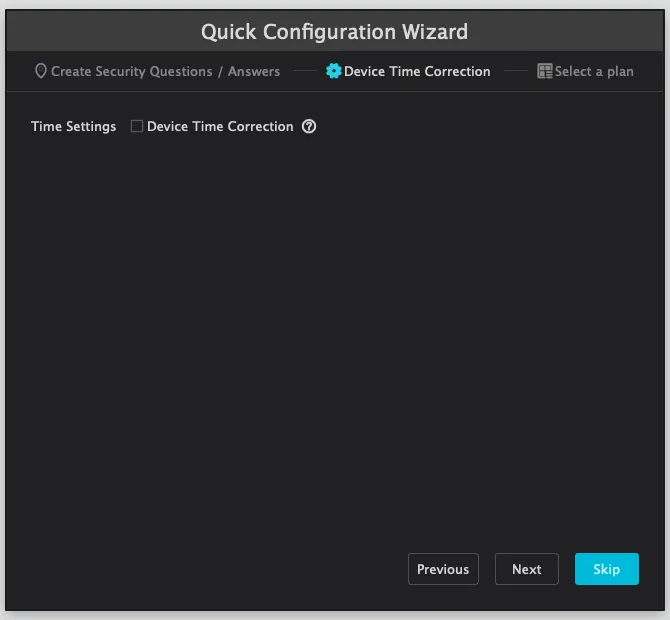
Device Time Correction. Leave the Device Time Correction box unchecked and click Next.
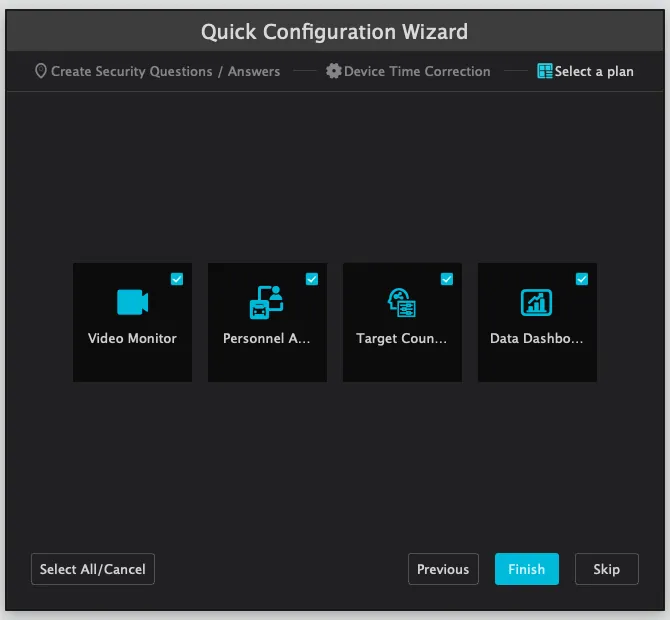
Select a plan. Video Monitor, Personnel, Target Counting, and Data Dashboard are already selected. Leave them selected and click Finish. You can also click Skip to close the wizard.
The Viewtron VMS main window opens. The install and first-time setup are done. You have no cameras in the software yet. That is the next guide.
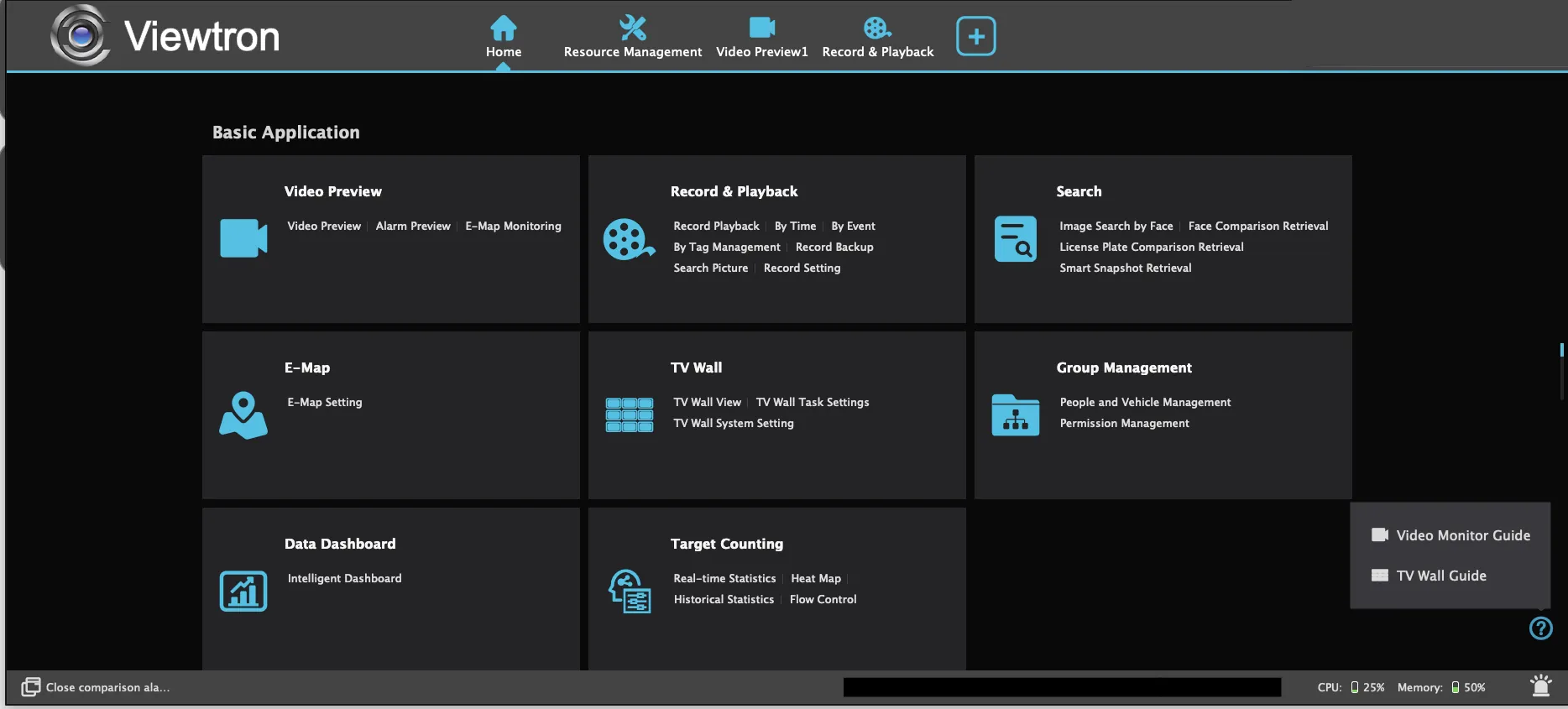
A Record Partition Setting window also opens on top of the main window. It lists your PC’s drives so the software can save recordings on them. If you only use this PC to watch your cameras and play back video from your NVR, click Cancel. Nothing is reserved or formatted, and the window does not come back.
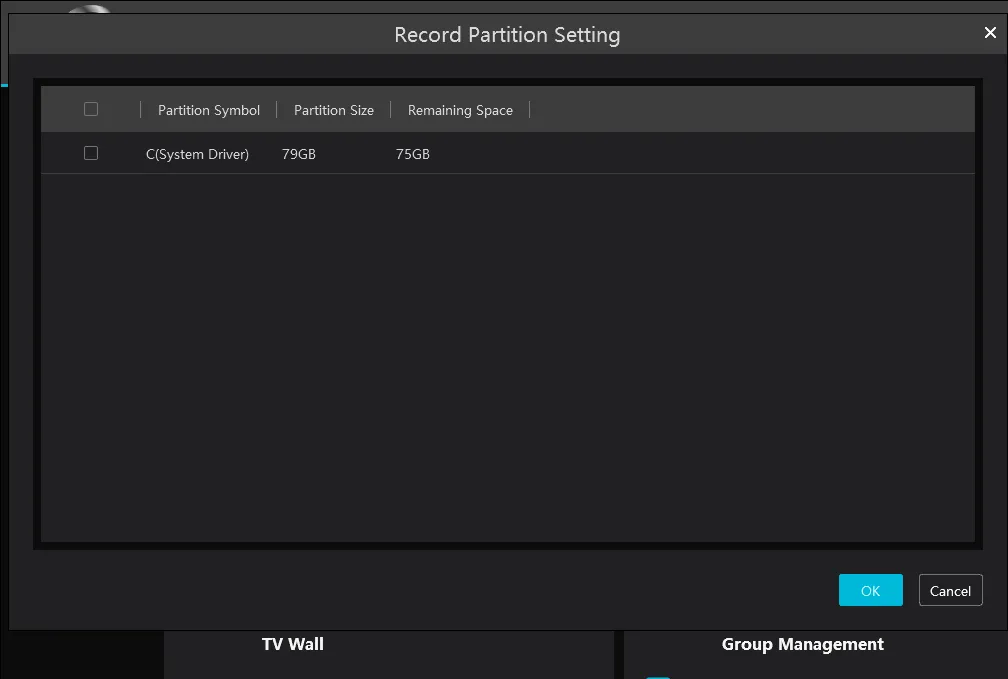
If you clicked OK by mistake, nothing happens to your drive. The Record Partition Setting window simply opens again the next time you start the software, and you can click Cancel then. After you click Cancel, Resource Management may show a tip that no partitions are configured. That is expected on a PC that only views video.
Next Steps: Add Your NVR
Now you are ready to add your Viewtron NVR or DVR to the VMS software. In my next guide, How to Add an NVR to Viewtron VMS, I show you how to add your NVR by its serial number. This uses the P2P cloud connection, so you do not need to set up port forwarding on your router.
Questions?
If you have any questions about installing the Viewtron VMS software, you can text or call me at 561-433-8488.