Follow these instructions to install the free Viewtron VMS software on a Mac with an Apple chip running macOS 27. Viewtron VMS (video management software) lets you watch your Viewtron NVRs, DVRs, and IP cameras live, and play back recorded video from your computer.
I tested these steps on a Mac mini with an Apple M4 chip running macOS 27 with Viewtron VMS version 2.1.4.50421.
Step 1: Download the VMS Software
Click here to download the Mac VMS software. You can also open our Mac and Windows VMS software setup page, scroll down to App Downloads, and click Mac VMS Software Download.
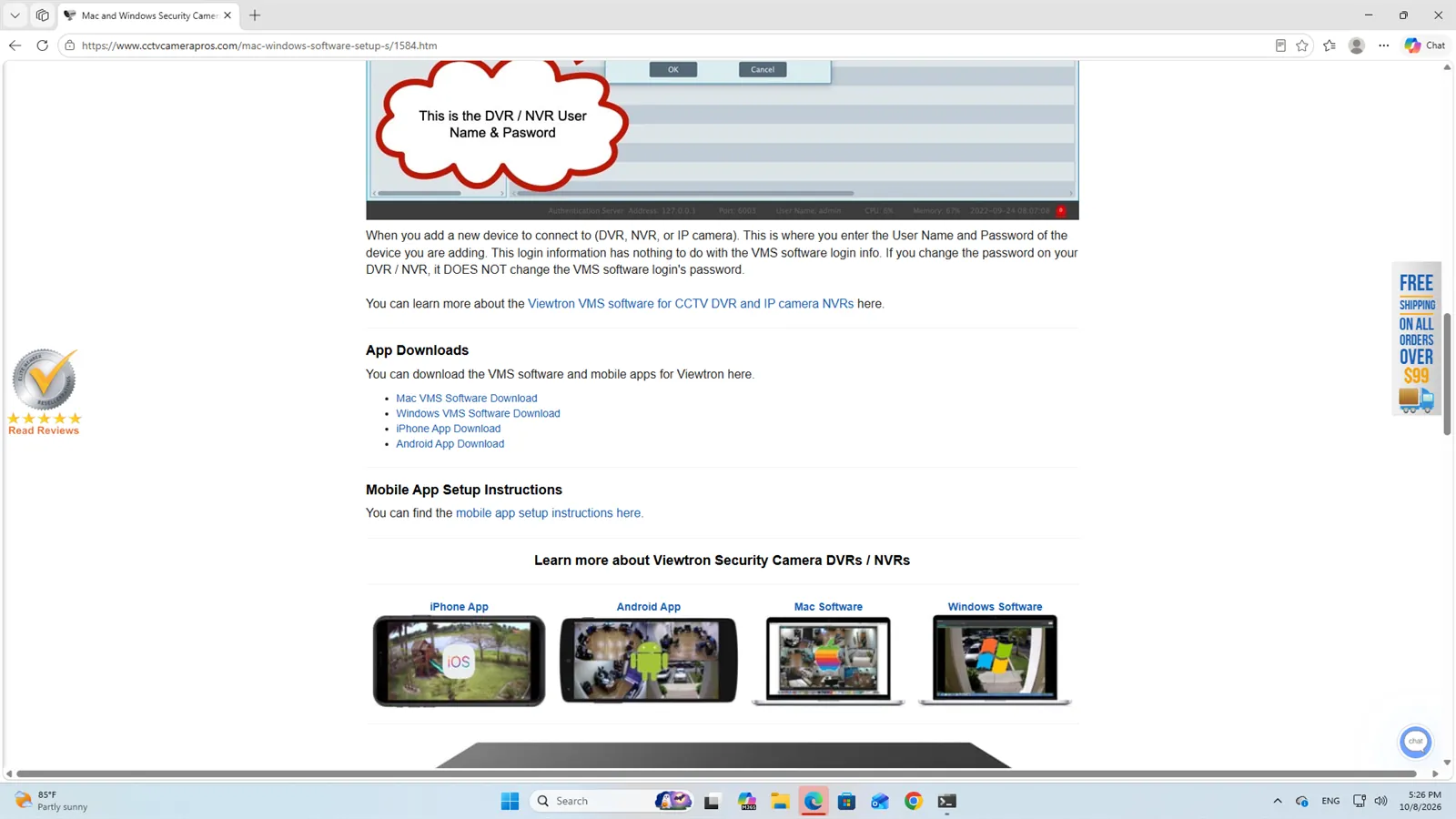
Safari may ask if you want to allow downloads on cctvcamerapros.com. Click Allow.
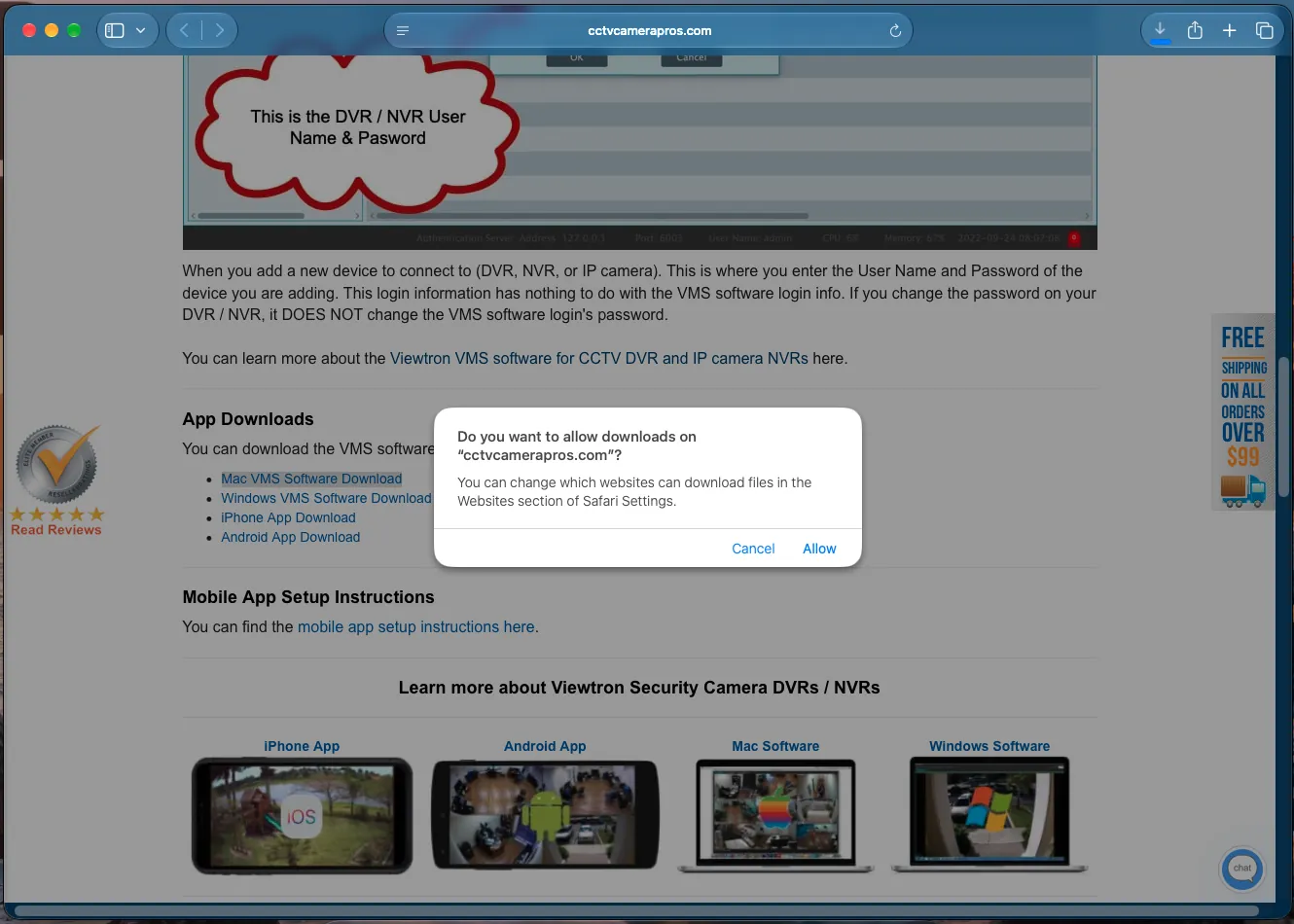
Safari unzips the download for you, so the Downloads folder ends up with the installer package, Viewtron-VMS_Lite_ver2.1.4.50421.pkg. It is about 228 MB. If the Downloads folder has Viewtron-Mac-VMS.zip instead, double-click the zip file to unzip it.
Step 2: Install on Mac
Open the Installer Package
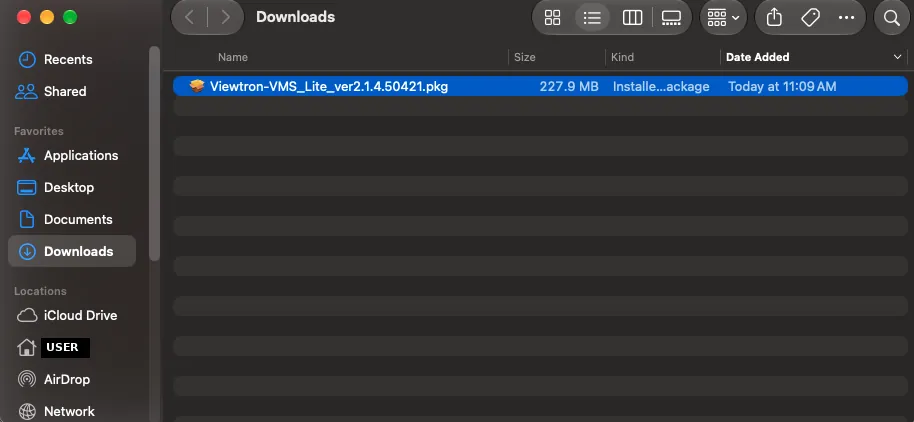
Open Finder and go to your Downloads folder. Double-click Viewtron-VMS_Lite_ver2.1.4.50421.pkg.
Allow the Package in Privacy and Security
The first time you open the package, macOS shows a message that Apple could not verify it. This is expected for this installer. Click Done. Then allow the package:
- Open the Apple menu and click System Settings.
- Click Privacy and Security in the sidebar.
- Scroll down to the Security section and click Open Anyway next to the message about the Viewtron VMS package.
- If your Mac asks for your password, enter the password you use to log in to your Mac.
If the installer does not open by itself after you click Open Anyway, go back to Downloads and double-click the package again.
Run the Installer
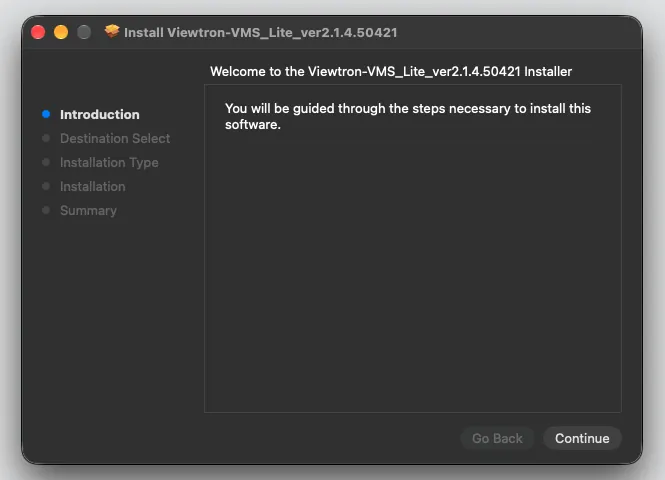
The installer opens on the Introduction page. Click Continue.
The Installation Type page says Standard Install on Macintosh HD and shows how much disk space the software needs (about 547 MB). Click Install. There is no license page and no separate folder page on the Mac.
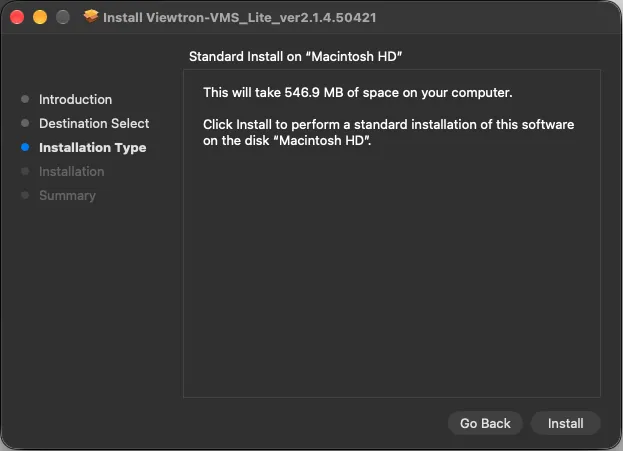
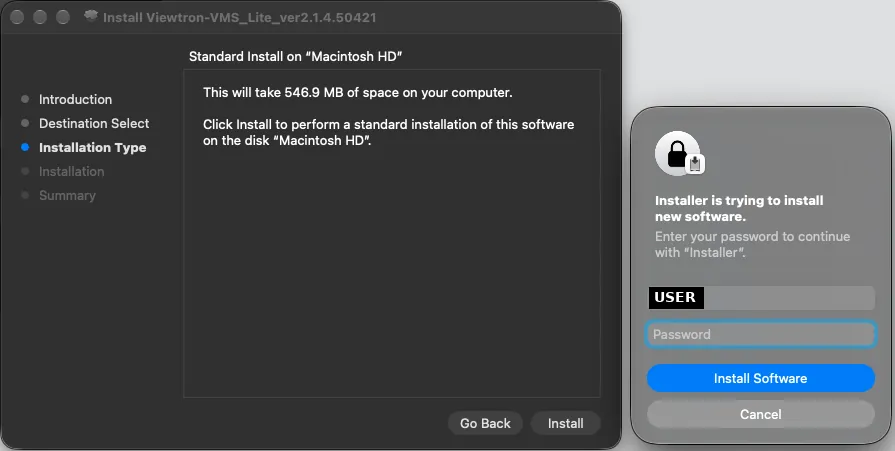
macOS asks for your Mac password so the installer can install new software. Type the password you use to log in to your Mac and click Install Software.
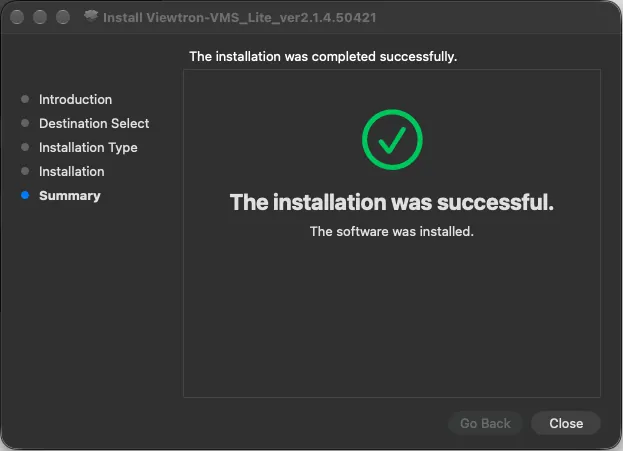
When the install is done, the Summary page says The installation was successful. Click Close. macOS then asks if you want to move the installer to the Trash. You can click Move to Trash, or click Keep to save the package in Downloads.
Install Rosetta and Open Viewtron VMS on Mac
Open Finder, click Applications, and double-click ViewtronVMS. The installer also adds ServerTrayUI to Applications. You do not need to open it to use the software.
The Mac version of Viewtron VMS is built for Intel Macs, so on a Mac with an Apple chip, macOS asks you to install Rosetta the first time you open the software. Rosetta is free software from Apple that lets Intel apps run on newer Macs. Click Install, and then enter your Mac password when asked. You only need to do this once.
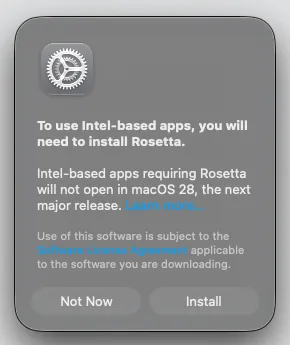
When Rosetta is installed, the Viewtron VMS login window opens.
Step 3: Log In for the First Time
The default VMS user name is admin and the default password is 123456. You can also find them in the Important Login User Name and Password Info section of the VMS software setup page. This login is only for the VMS software. It is not the user name and password of your NVR or DVR, and changing one does not change the other.
- Type admin in User Name and 123456 in Password.
- Check the box next to I have read and agree Application Privacy Statement.
- Leave Remember Password and Auto Login unchecked for now.
- Click Login.
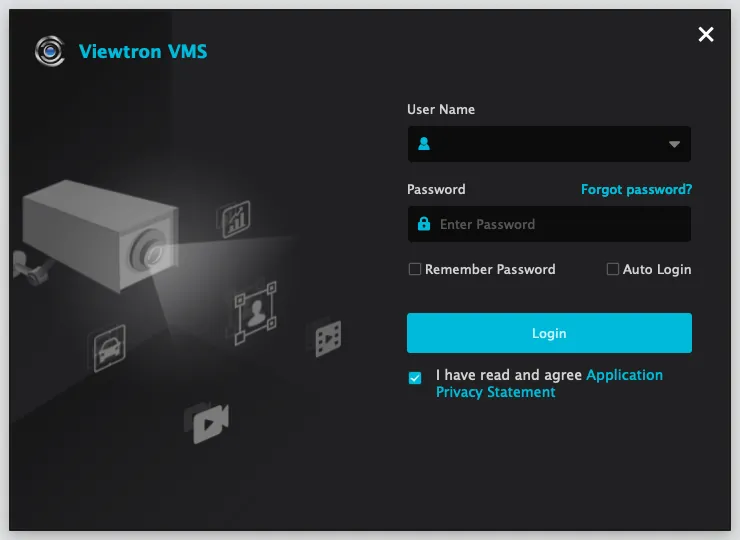
On the Mac, you will briefly see a message that the connection to the Authentication Server was successful while the software logs in.
Step 4: Set Your New VMS Password
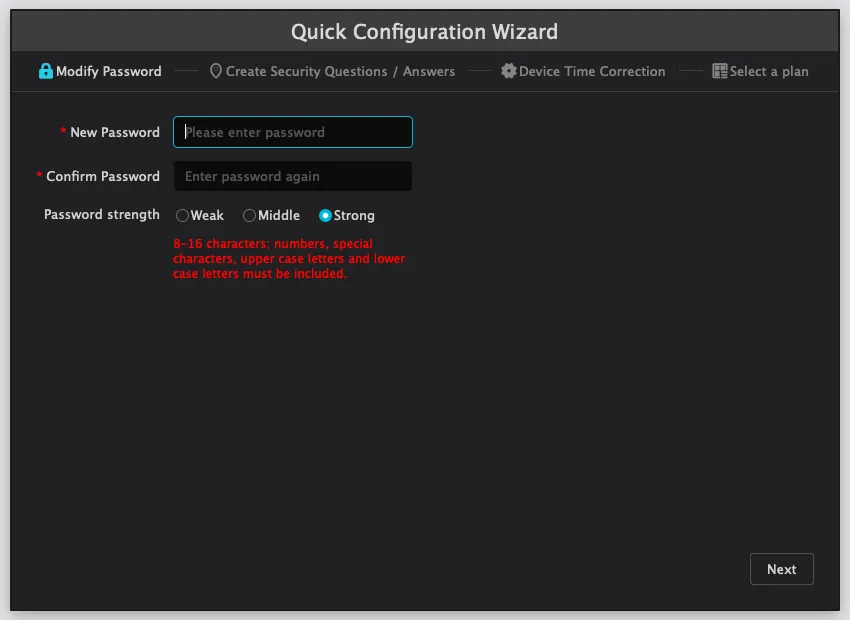
The first time you log in, the Quick Configuration Wizard opens and you must change the default password. Type your new password in New Password, and type it again in Confirm Password.
Under Password strength, there are three levels: Weak, Middle, and Strong. Strong is the default; Weak and Middle accept simpler passwords. A Strong password must be 8 to 16 characters long and must include an upper case letter, a lower case letter, a number, and a special character. We recommend that you keep Strong selected.
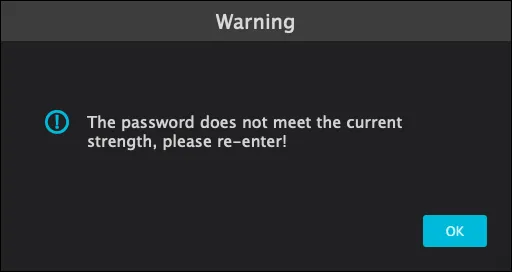
If your new password does not meet the rule for the strength you selected, you will see a warning that says The password does not meet the current strength, please re-enter. Click OK and type a stronger password. The new password also cannot be the same as the old one.
Write down your new VMS password and keep it somewhere safe. You will need it every time you open the software.
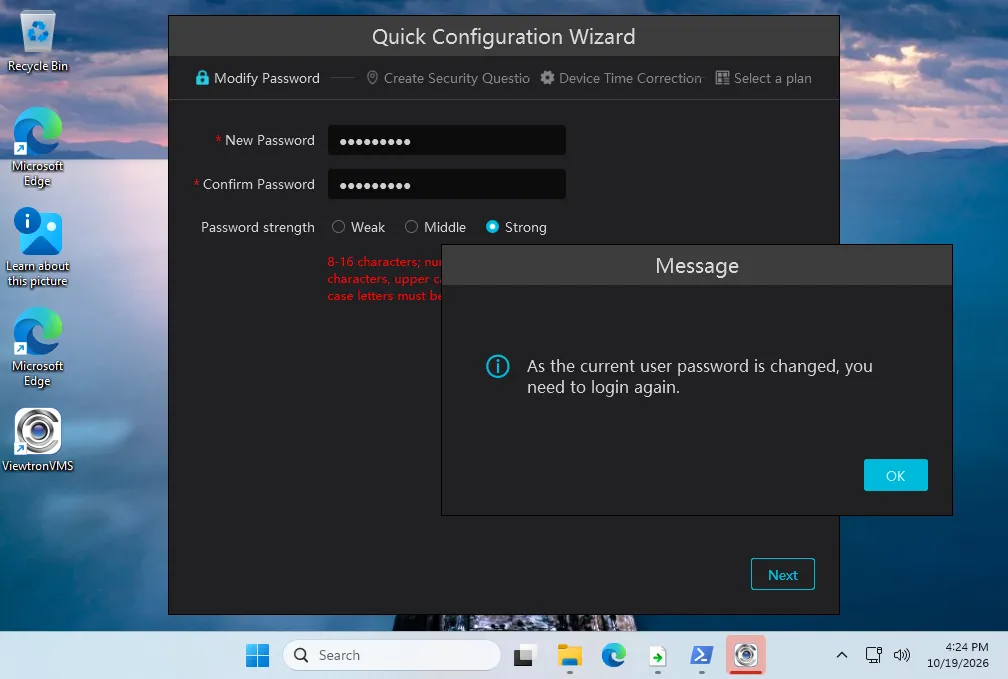
Click Next. A message says As the current user password is changed, you need to login again. Click OK, and log in again with the user name admin and your new password. The wizard then continues with the security questions.
Step 5: Finish the Quick Configuration Wizard
The rest of the wizard has three short pages. You can click Previous to go back to a page.
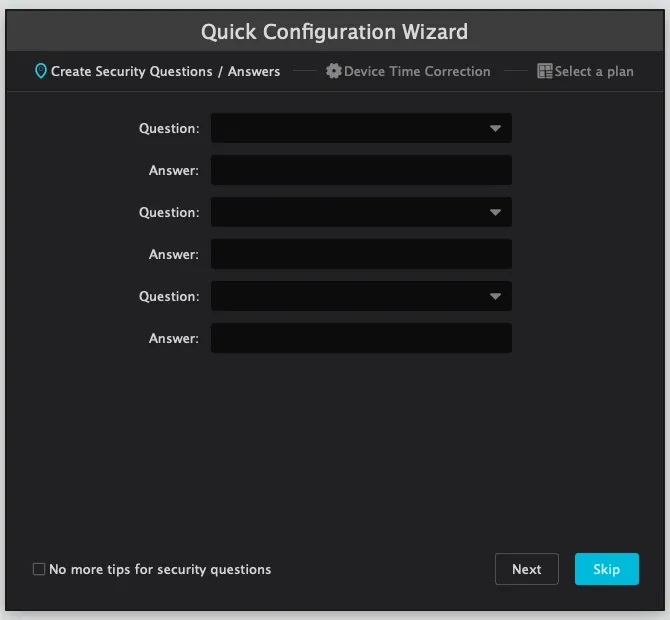
Create Security Questions / Answers. Pick three questions and type an answer for each one. We recommend that you set them, because security questions help you reset your VMS password if you forget it. Click Next. You can also click Skip if you do not want to set them now. If you skip them and later forget your VMS password, contact our tech support at 561-433-8488 for a reset code.
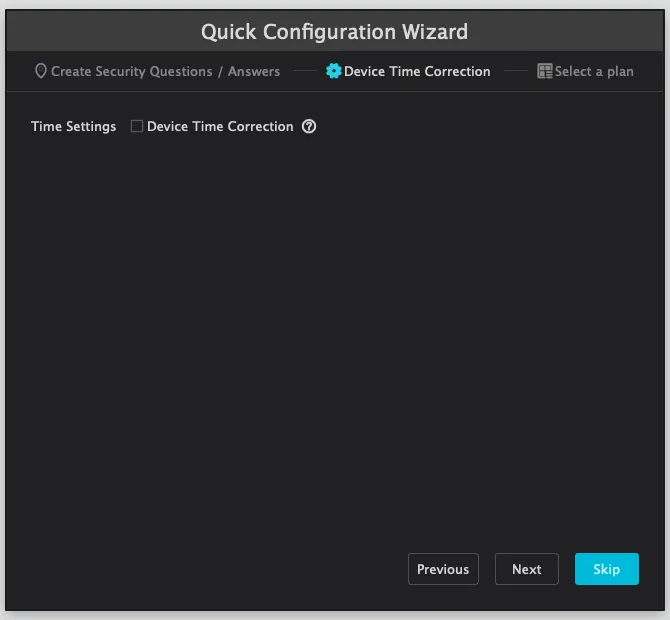
Device Time Correction. Leave the Device Time Correction box unchecked and click Next.
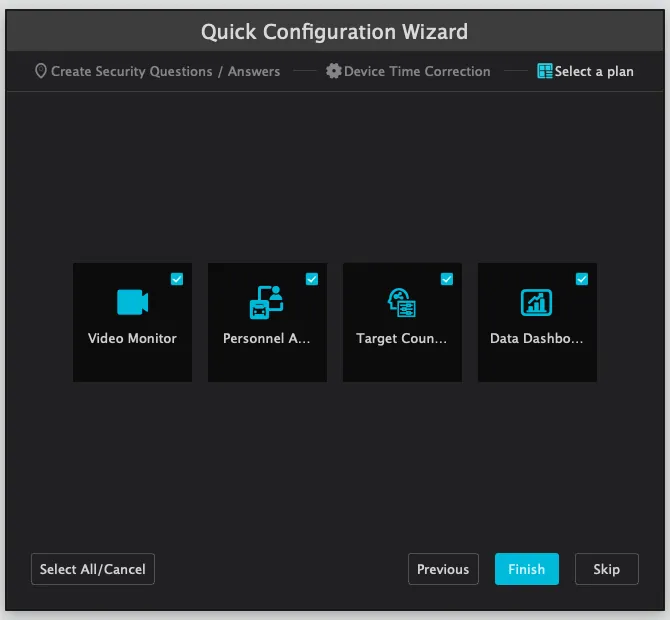
Select a plan. Video Monitor, Personnel, Target Counting, and Data Dashboard are already selected. Leave them selected and click Finish. You can also click Skip to close the wizard.
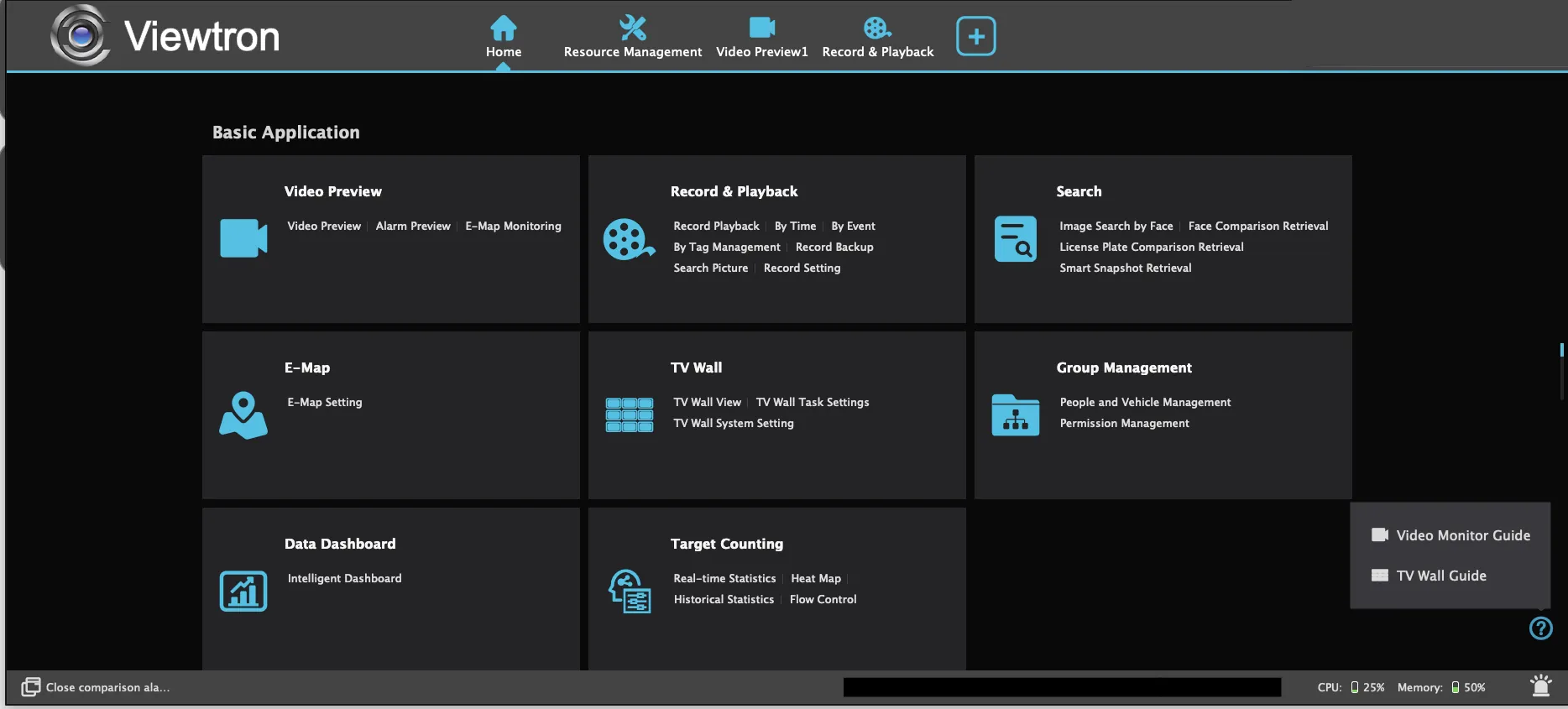
The Viewtron VMS main window opens. The install and first-time setup are done. You have no cameras in the software yet. That is the next guide.
Next Steps: Add Your NVR
Now you are ready to add your Viewtron NVR or DVR to the VMS software. In my next guide, How to Add an NVR to Viewtron VMS, I show you how to add your NVR by its serial number. This uses the P2P cloud connection, so you do not need to set up port forwarding on your router.
Please note that the window where you enter your NVR login on the Mac does not have a Test button. After you enter the NVR password, the NVR shows as online.
Questions?
If you have any questions about installing the Viewtron VMS software, you can text or call me at 561-433-8488.