Security Camera to TV Live View: RTSP to HDMI Decoder Box
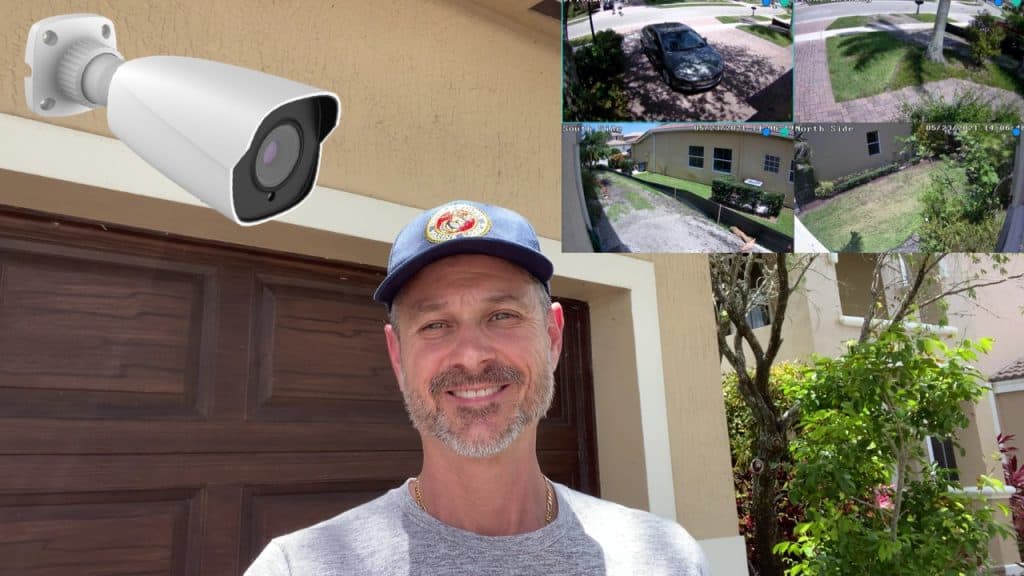
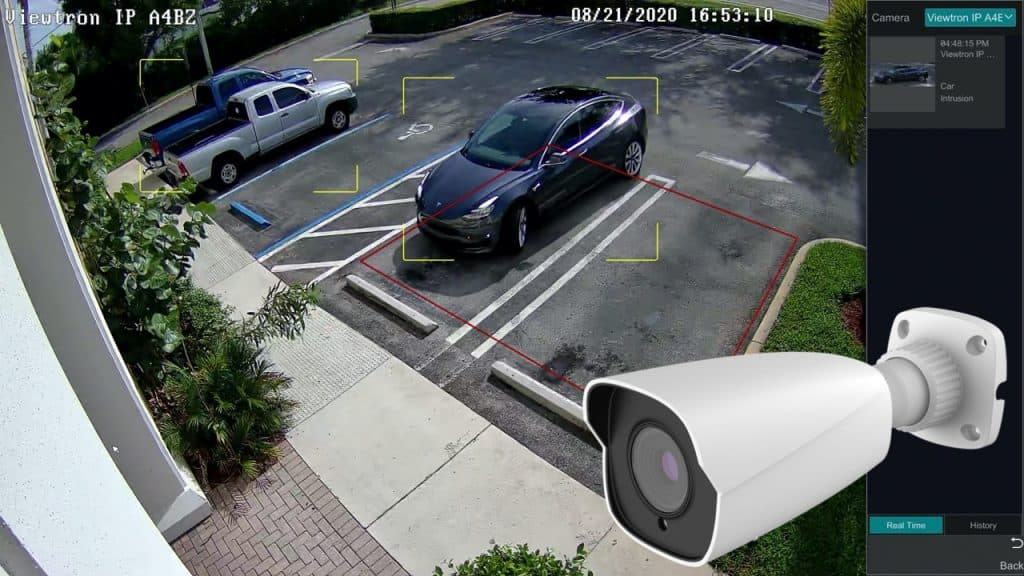
Watch this video to learn how to setup the Viewtron RTSP to HDMI decoder to enable a live view of a security camera on a TV. For my setup, I currently have 10 outdoor IP cameras installed at my house. All IP cameras are recording to my Viewtron 16 channel NVR.
In addition to the continuous and AI motion detection recording, I also wanted to enable a live video view on the TV in my family room of the Viewtron 180 degree IP camera that monitors my front yard. The TV in my living room is not located anywhere near the DVR / NVR, but there is a network connection near the TV.
IP Security Camera to TV Decoder Overview
Although we often call the Viewtron IP-HDMI-D4 a IP camera to TV decoder, because it can connect directly to IP cameras, it can also connect to the RTSP video streams of Viewtron DVRs and NVRs. This is because Viewtron DVRs and NVRs make individual RTSP streams accessible over the network for all security cameras that are connected to them.
This makes the IP-HDMI-D4 an excellent spot live display spot monitor solution that can be used in conjunction with IP camera NVRs and hybrid CCTV camera DVRs. You can record all of your IP cameras and / or CCTV cameras centrally on a DVR, and deploy live display monitor(s) anywhere at your location where there is a network connection. The TV(s) do not need to be hard wired back to your security camera or DVR. The video is transmits over your local network via RTSP (real time streaming protocol).
Please note that the decoder supports connecting up to 4 RTSP streams, this means that you can display a single camera full screen, or any 2, 3, or 4 camera layout. Custom video layouts are supported. In my video demo, I setup mine as a single camera spot monitor.
My Home Network Setup
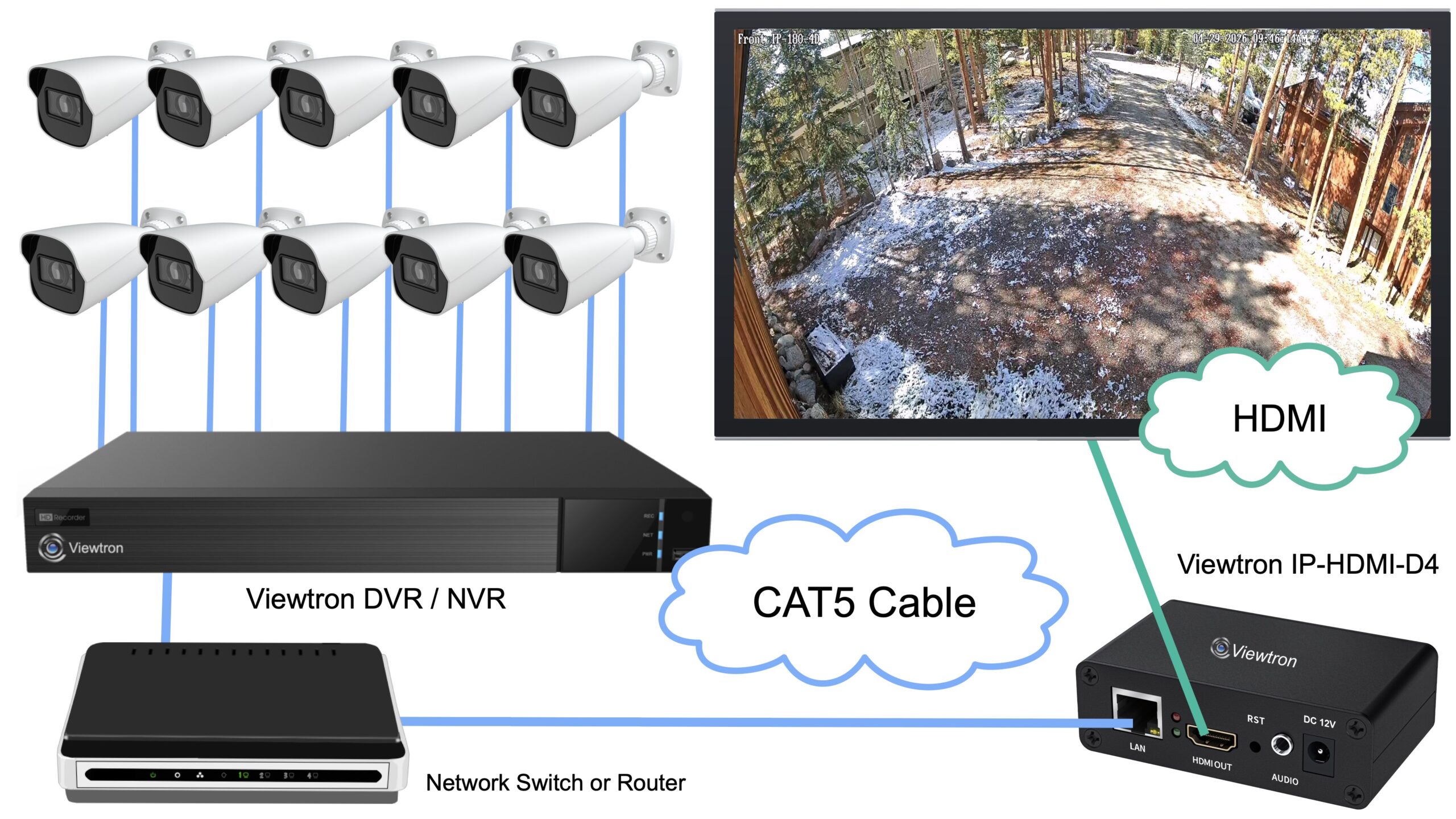
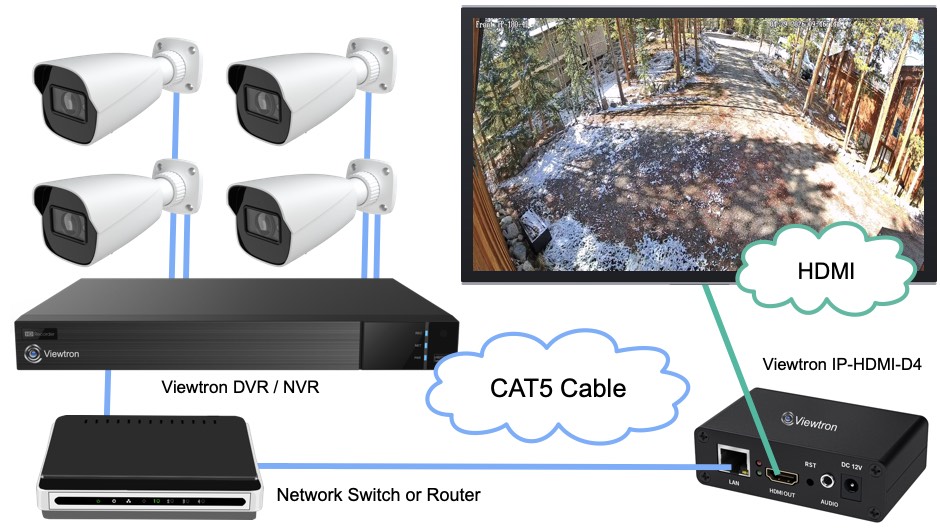
The above diagram shows the network setup for my security camera system. Please note that my TV and IP decoder are on the opposite side of my house from the DVR / NVR.
- All 10 Viewtron IP cameras are hard wired to the PoE ports on the Viewtron NVR using CAT6 network cable.
- The Viewtron NVR is connected to my home network’s router using CAT6 cable.
- The Viewtron IP-HDMI-D4 decoder box is also connected to the network switch using CAT6 cable.
- The HDMI output of the IP too HDMI decoder is connected to HDMI input #2 on my TV.
Here is how I setup my decoder to display my front yard security camera on my TV.
Connect IP Camera to TV Decoder
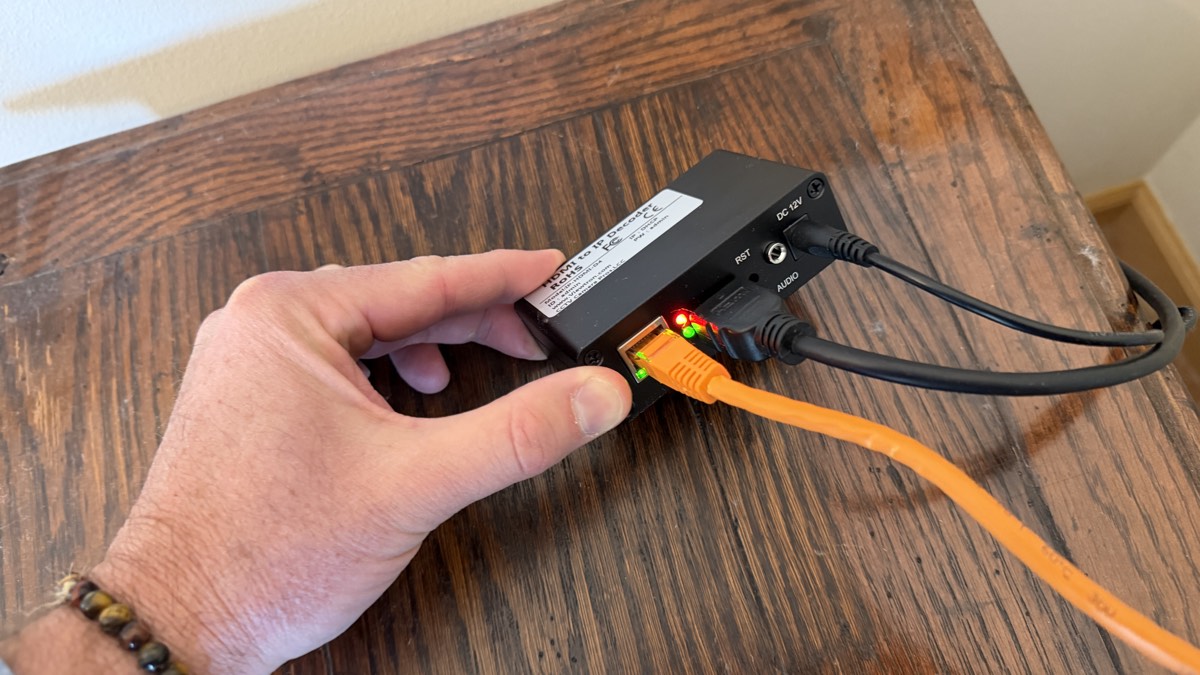
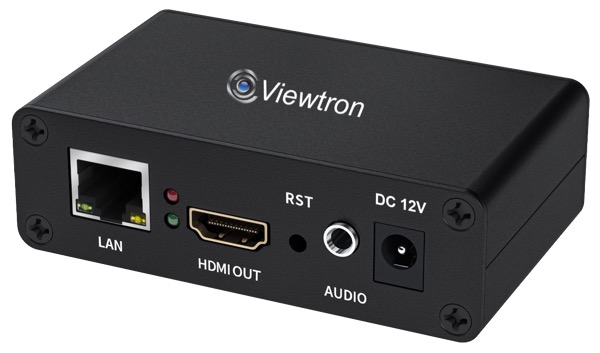
The Viewtron IP-HDMI-D4 has an RJ-45 Ethernet port, HDMI output port, and a 12V DC power supply connection. I connected the HDMI output to my TV. I connected the RJ-45 network port to the network connection near the TV, and I powered the decoder on by plugging it in.
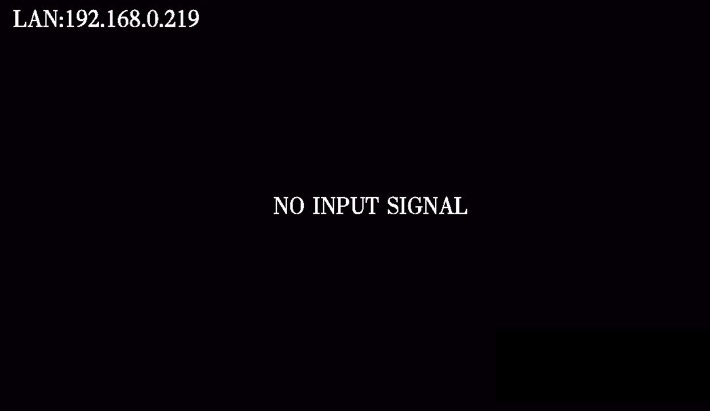
When you first connect the IP-HDMI-D4 to your network and TV monitor, it is not yet configured to connect to a video stream, so it displays a “no input signal” message and the IP address on the screen. Make note of this IP address so that you can connect to the decoder and configure it from a web browser.
Enable RTSP Stream on DVR / NVR
Viewtron DVRs and NVRs provide an RTSP stream for each camera that is connected to them. This is extremely useful for BNC / CCTV cameras (analog CVBS, HD-TVI, AHD, HD-CVI) being that they do not natively provide an RTSP stream like IP cameras do.
To enable RTSP streams for the camera on your recorder, login to the recorder directly or via the web browser interface.
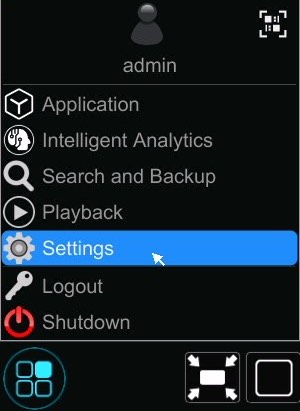
On the DVR / NVR, click on the menu button in the lower left, then click Settings.
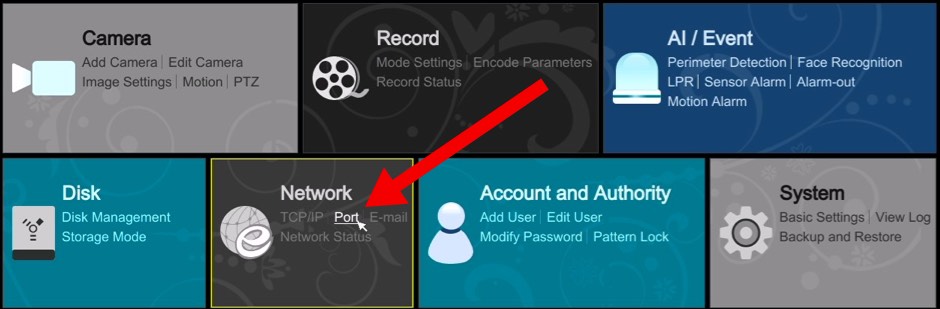
On the Settings menu, click on the Port link in the Network section.
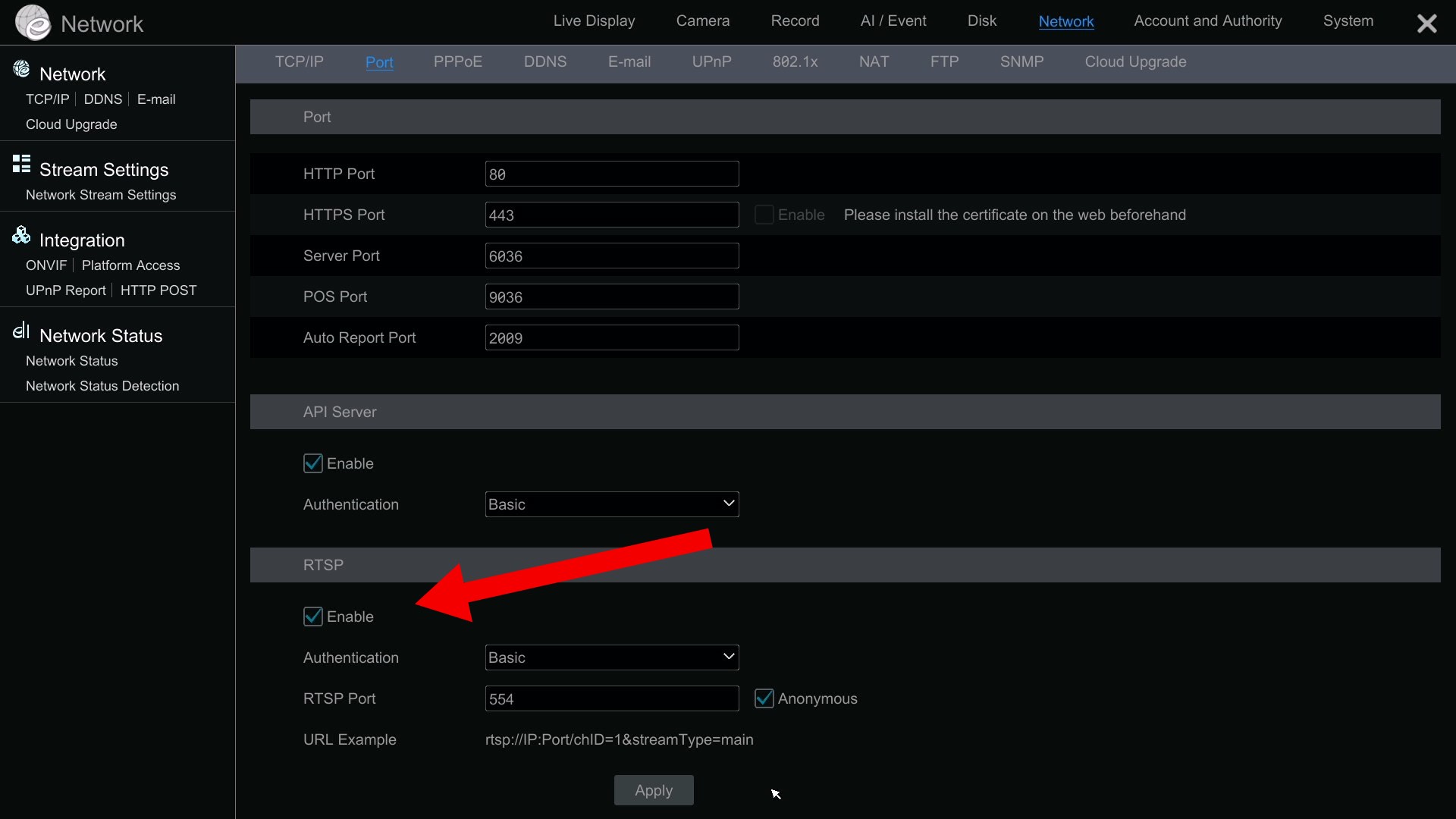
On the Port settings screen, check the Enable check box in the RTSP section. Also check the Anonymous checkbox if you do not want to send your DVR’s userid:password on the URL. Make note of the URL example. The RTSP stream URL for each security camera connected to your DVR uses the following format: rtsp://IP:Port/chID=1&streamType=main
When you enter the RTSP URL into the IP decoder, you will replace “IP” with the IP address of your DVR / NVR. Replace “Port” with 554, which is the default RTSP port. Replace the value of chID with the channel of the camera that you are adding. And, replace the value of streamType with either “main” or “sub”. If you are using a camera with video resolution greater than 2mp / 1080p, then use “sub” for the sub-stream.
This is the RTSP URL that I used to add camera #1 from my NVR using the sub-stream. Please note that the local IP address of my NVR is 192.168.0.147. This is the RTSP URL for camera 1:
rtsp://192.168.0.147:554/chID=1&streamType=sub
Configure IP Camera to HDMI Decoder
Next, login to the web browser interface of the Viewtron decoder box. Please note that the computer must be on the same local network as your IP decoder.
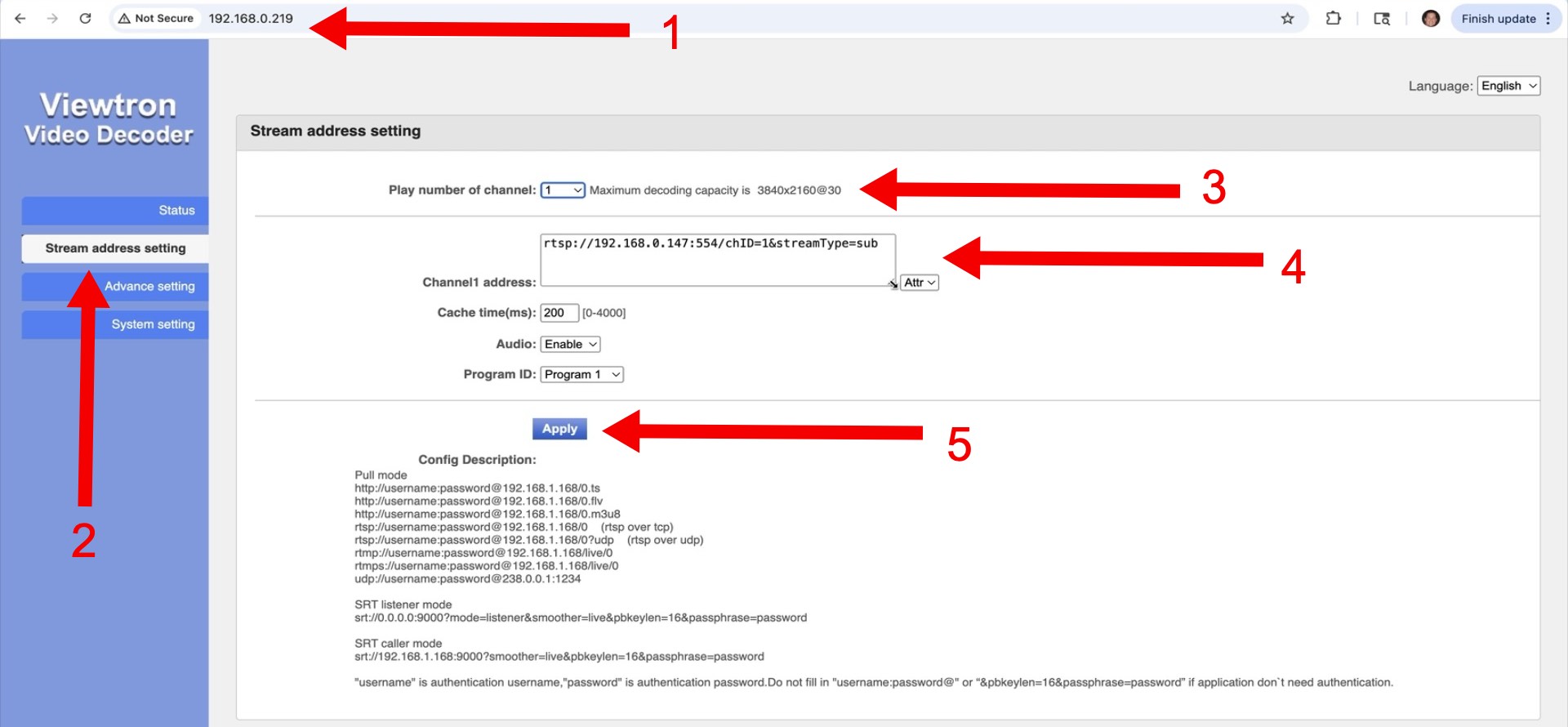
- Enter the IP address of the decoder box into the web browser. Enter the user id and password. The default is admin for both.
- Click on the Stream Address Setting link.
- Select the number of RTSP camera streams that you want to configure. Note: I am only using one camera.
- Add the RTSP stream in the the Channel address box. Mine is: rtsp://192.168.0.147:554/chID=1&streamType=sub
- Click on the Apply button.
Security Camera Live View on TV
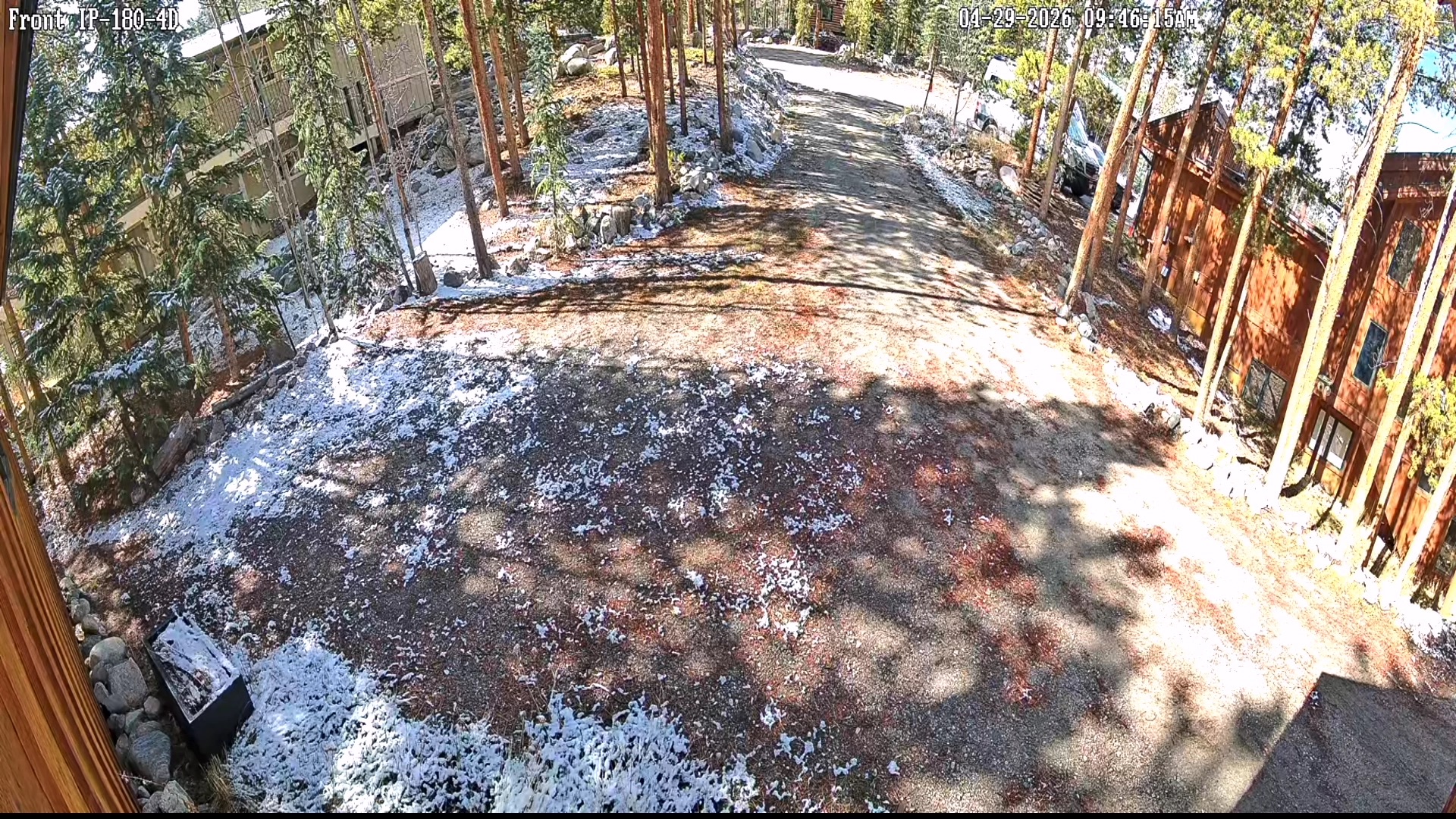
After you click on the Apply button, the live view of your security camera will appear on your TV. Now, whenever you want to see your security camera live, just switch the TV to the HDMI input that the Viewtron IP to TV decoder box is connected to.
2 Security Camera Live View on TV
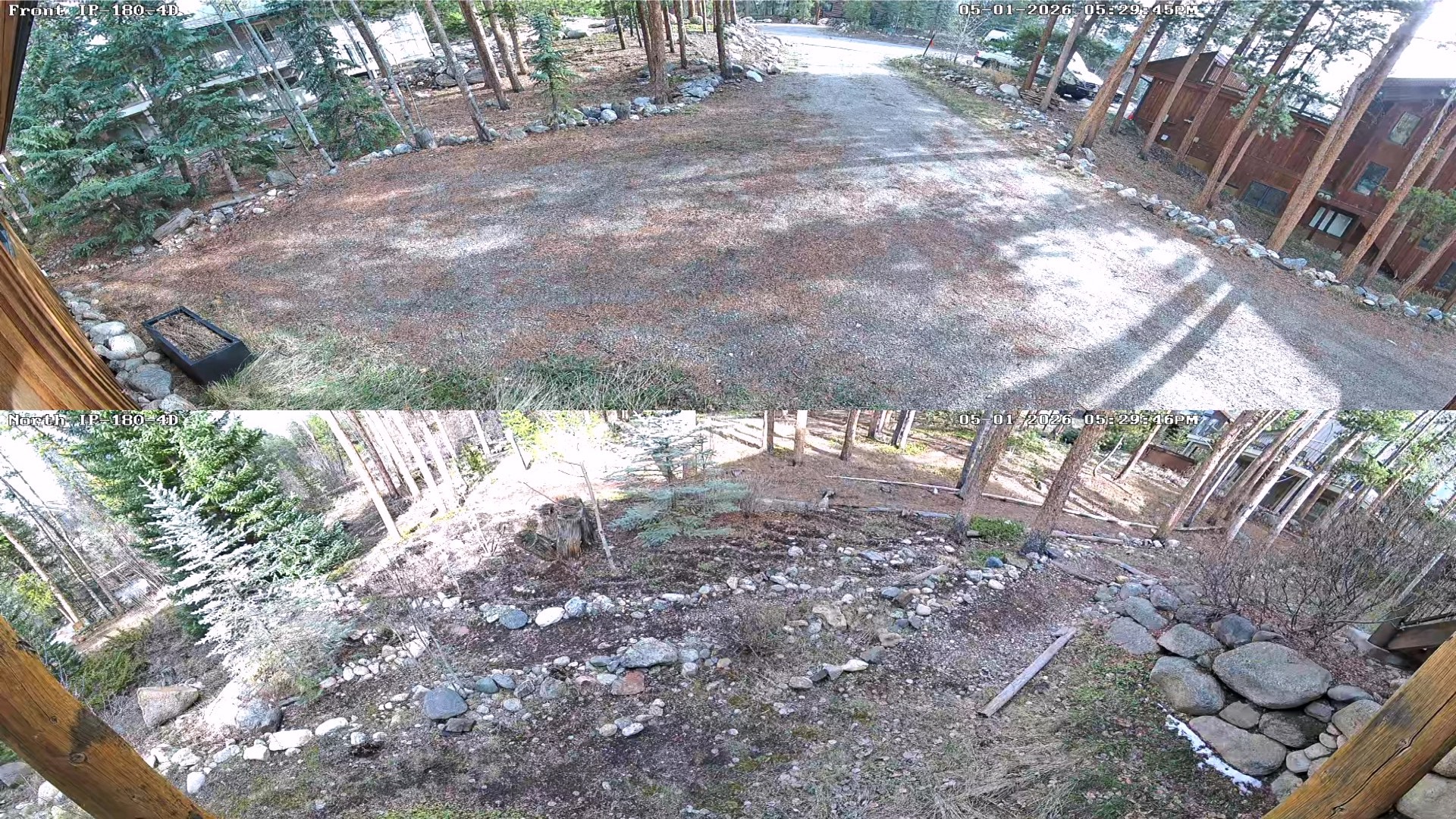
In addition to the single camera view demonstrated in the video, the Viewtron IP decoder also supports a dual camera view. In the above screenshot, I am pulling the RTSP streams from 2 Viewtron 180 degree dual lens IP cameras connected to my NVR.
You will notice that the display of each camera is stretched to the full width of the TV. This is done by customizing the display layout and size of each camera stream in the IP to TV decoder’s settings.
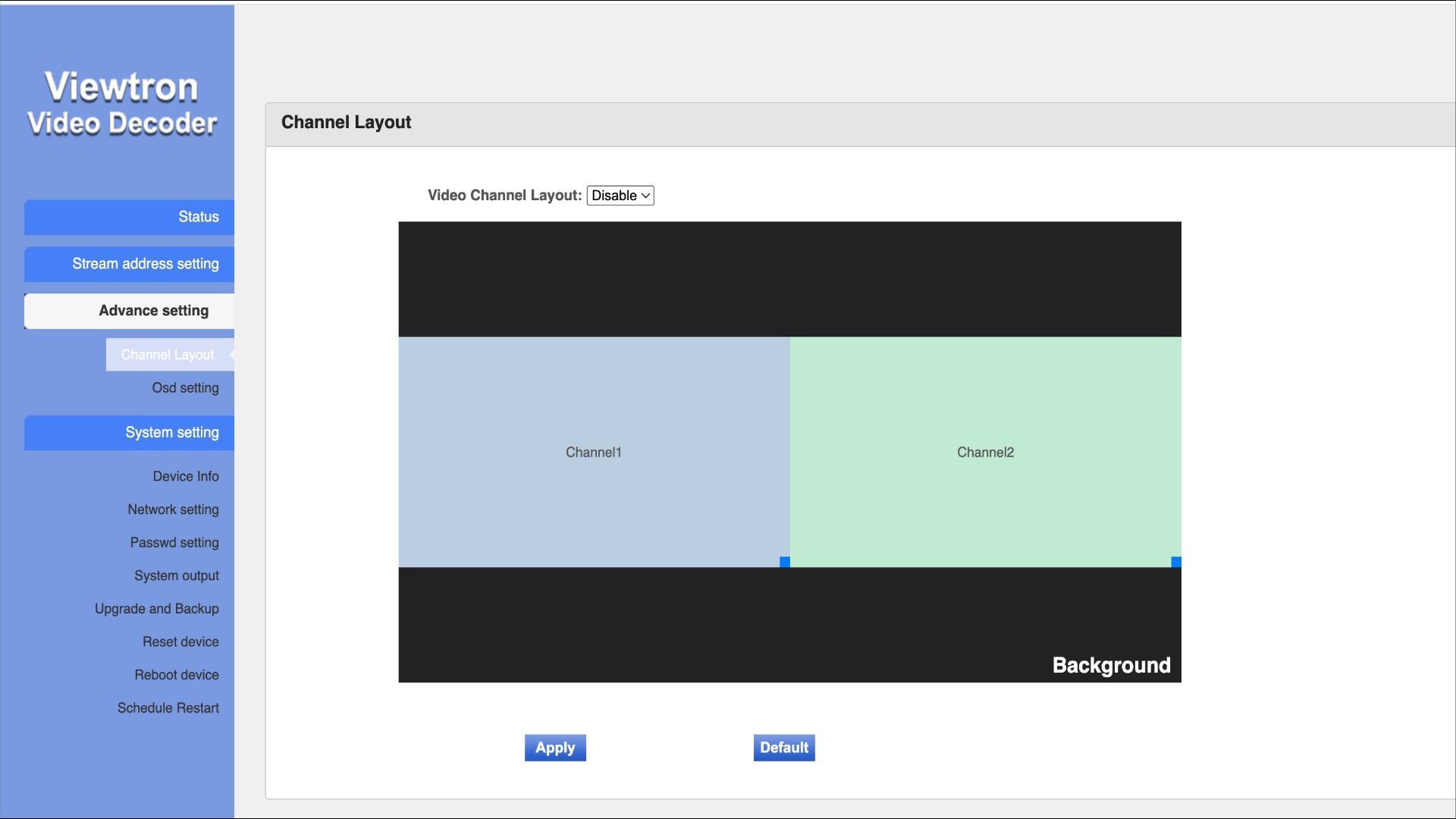
When you log into the decoder’s web interface, click on Channel layout under Advanced settings. You can see the default 2 camera TV display layout above.
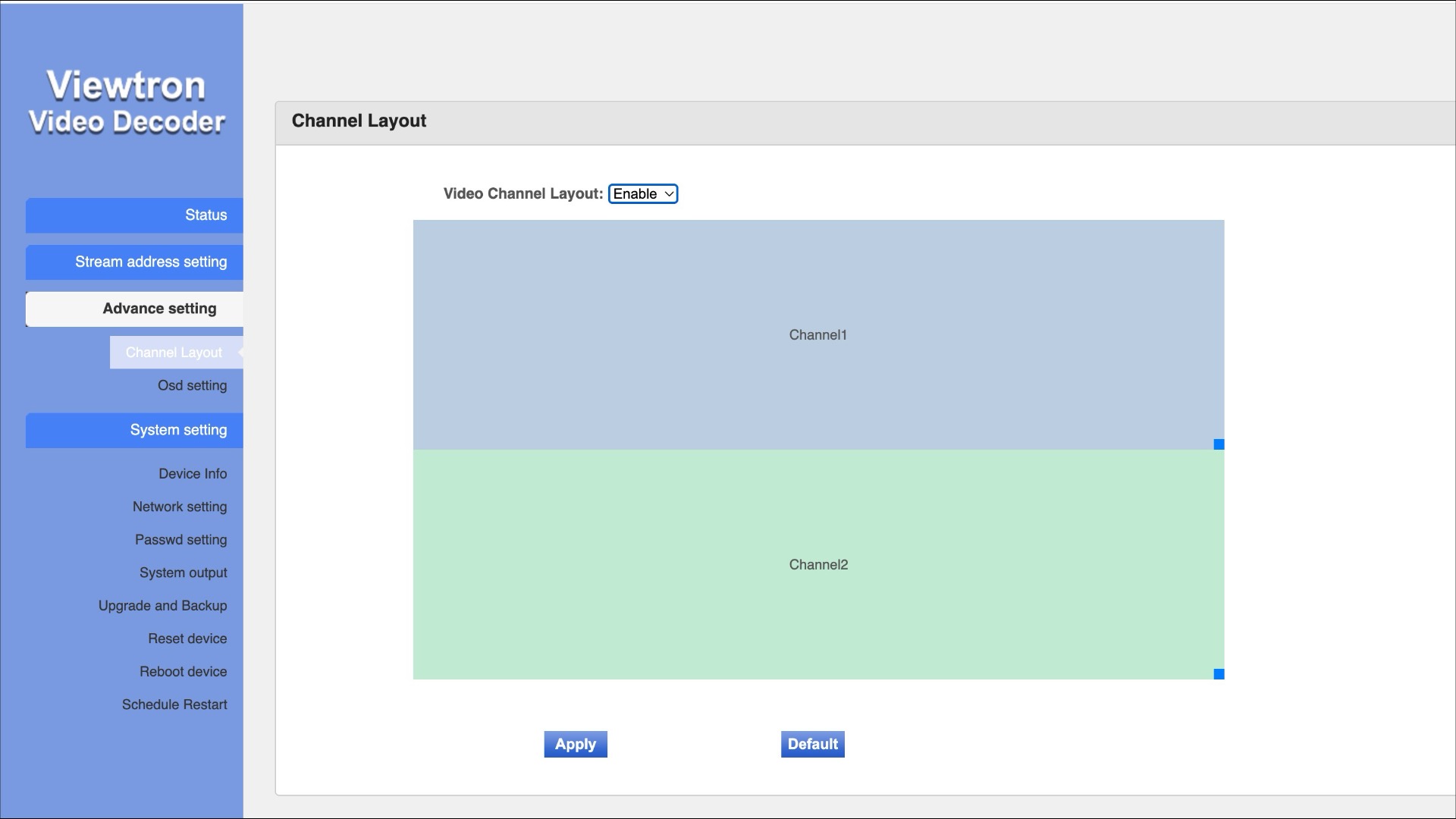
When you select Enable on the Video Channel Layout dropdown, that allows you to move each camera’s position around on the layout. You can also resize each camera’s video display. You can see in the above layout that I stretched each of the 180 cameras to the full width of the display and stacked them on top of each other.
3 Security Camera Live View on TV
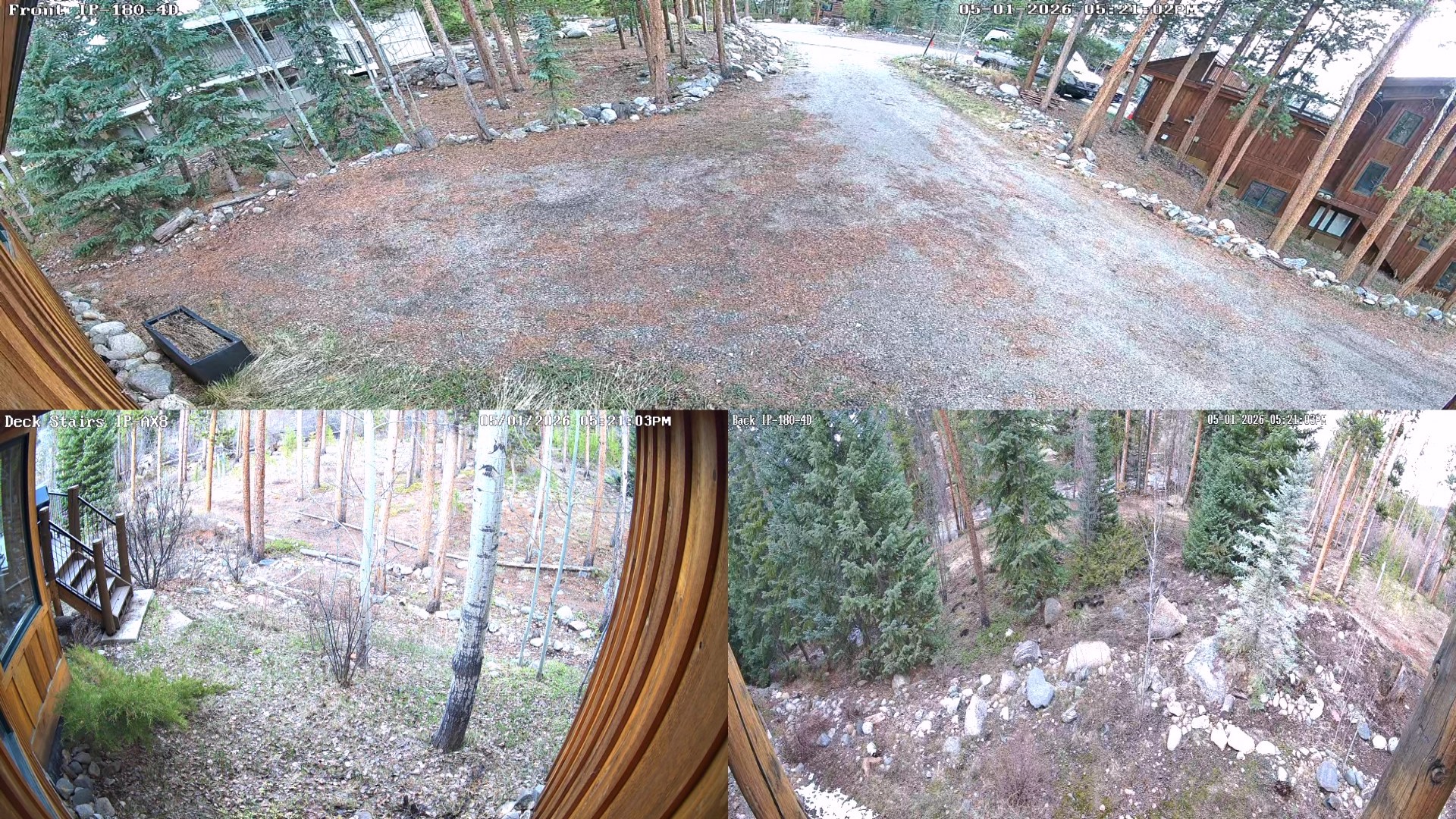
This is what the 3 camera live view looks like with 180 degree camera #1 stretched to the full width on top of two 16:9 aspect ratio / non-180 degree cameras.
4 Camera Live View on TV
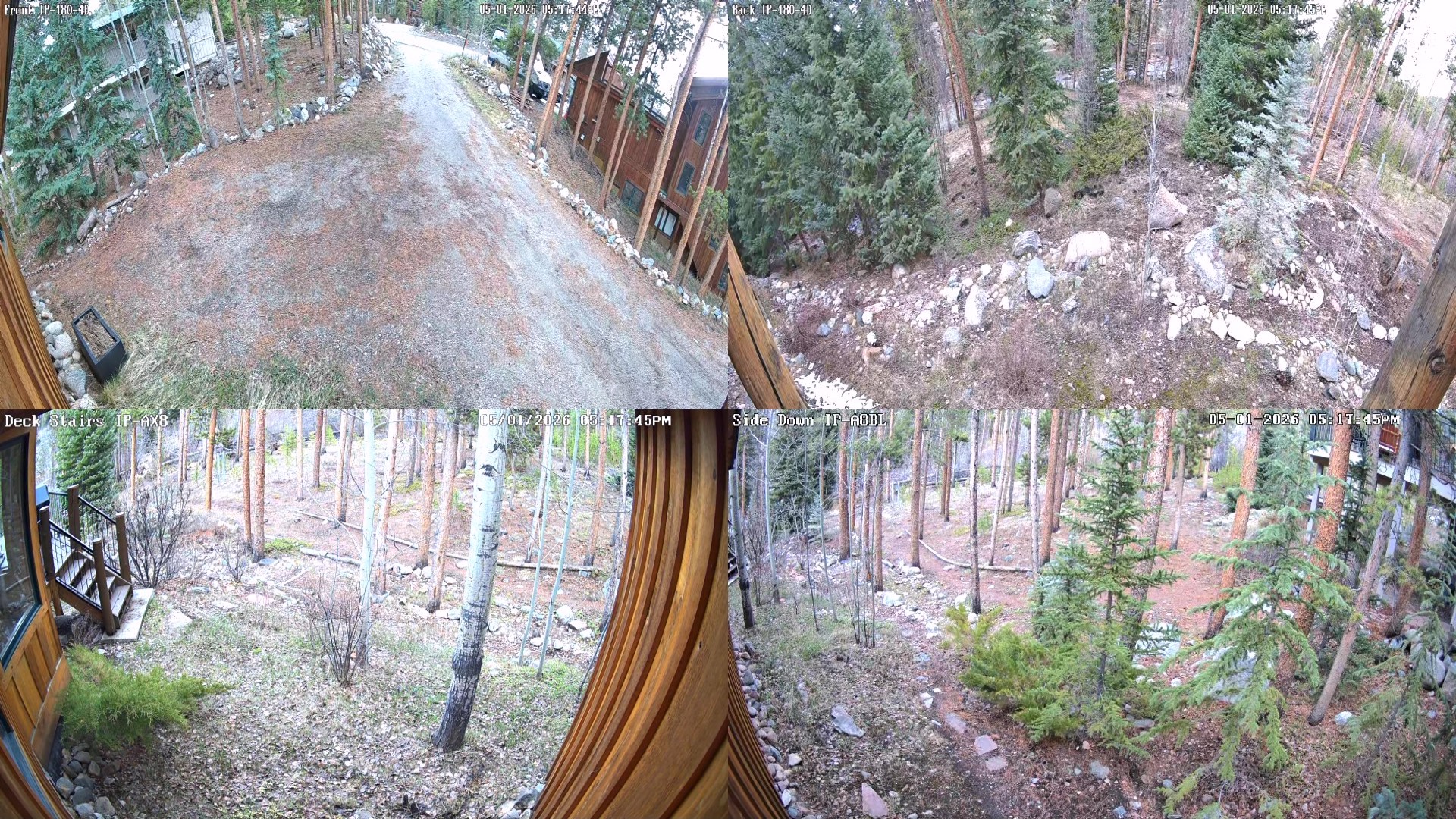
Here is a standard 4 camera grid layout on my TV. The Viewtron IP-HDMI-D4 decoder supports 1-4 camera RTSP decoding on its own. You do not need any other hardware to display 1-4 cameras live on your TV.
HDMI over Ethernet Solution
The Viewtron IP decoder supports decoding up to 4 cameras via individual RTSP streams. If you want to display more that 4 cameras live on your TV, you can pair the decoder with one of these Viewtron HDMI to RTSP encoders.
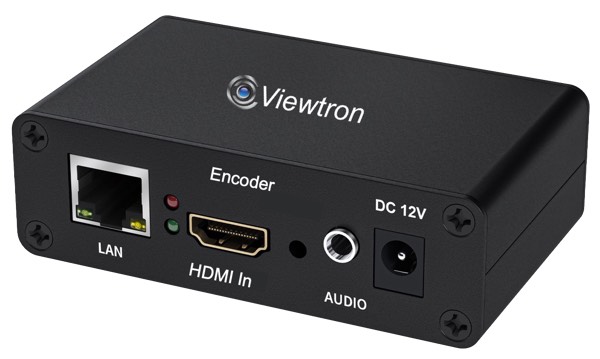
The Viewtron IP-HDMI-E1 HDMI to RTSP encoder takes the entire HDMI output of your DVR / NVR and encodes it into a single RTSP stream that the IP-HDMI-D4 decoder can decode and output to a TV. You can find complete kits on our HDMI over Ethernet product page.
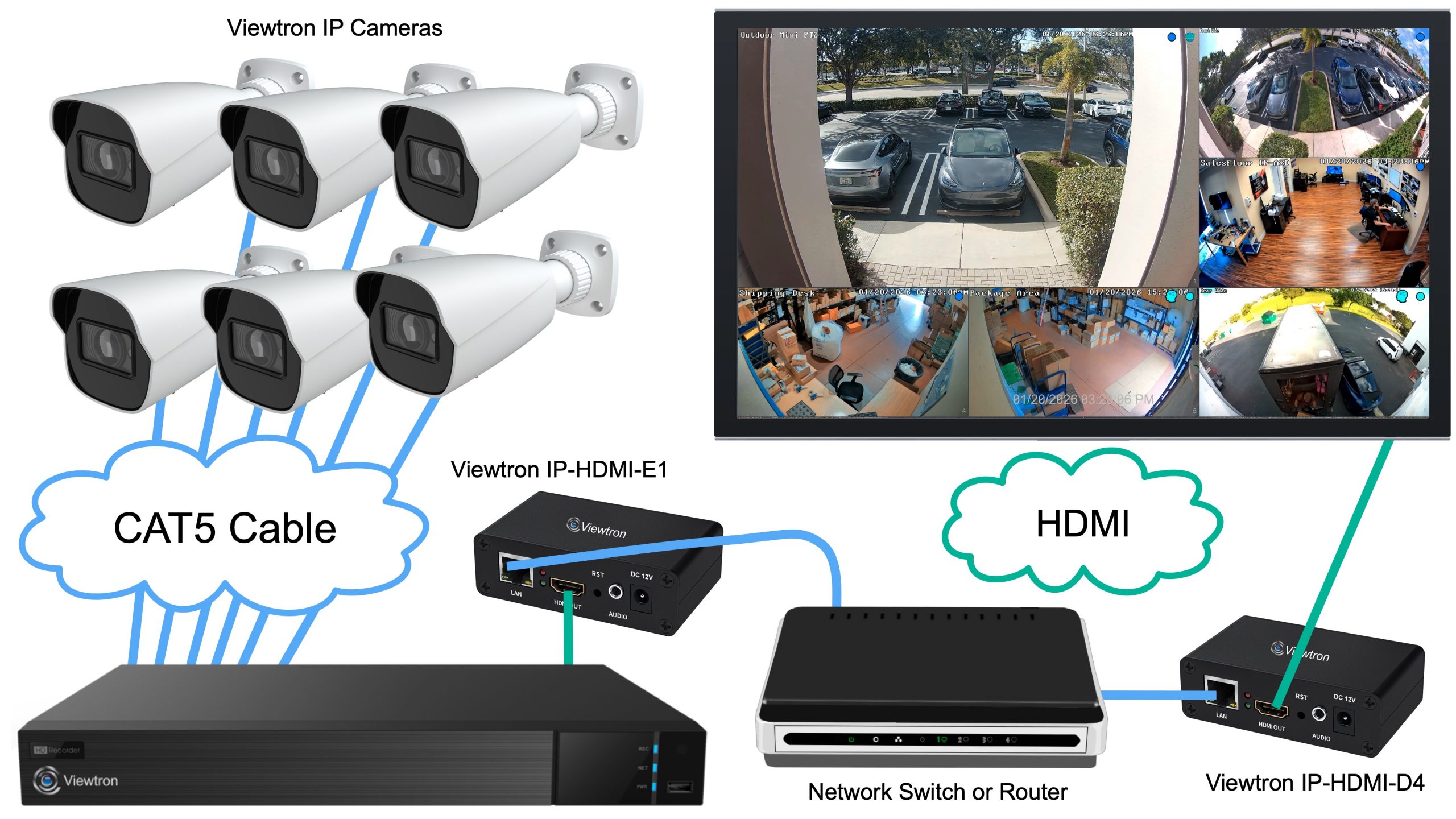
This is how the HDMI over Ethernet kit works.
- Connect your security cameras to your Viewtron DVR/ NVR for standard video surveillance recording and operations.
- Connect the HDMI output of the NVR to the Viewtron HDMI to RTSP encoder.
- The encoder converts that full HDMI signal into an RTSP stream on your network.
- The IP to HDMI decoder picks up that signal and displays the entire HDMI output on a TV.
- Add additional decoders if you want the same view on multiple monitors.
This works with any device that has an HDMI output, so you can use this any security DVR or NVR that has an HDMI output.
Wireless IP Camera to HDMI Converter
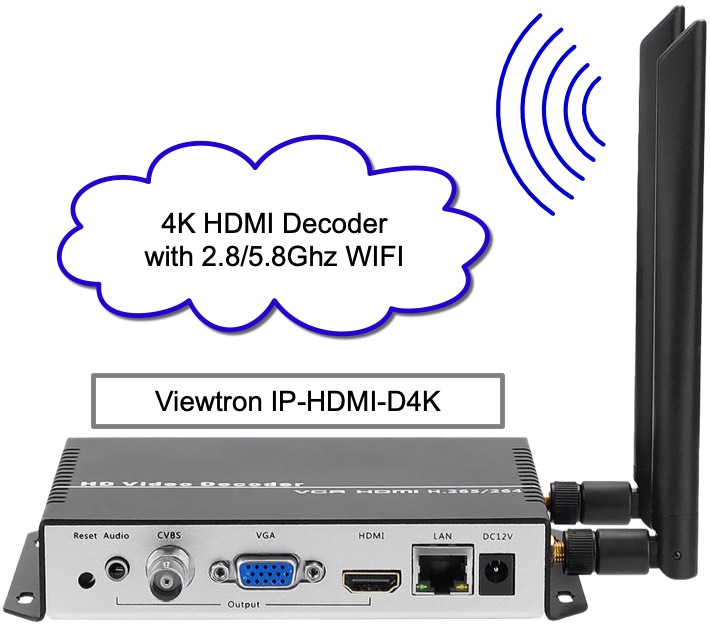
We also have a Viewtron wireless IP camera to HDMI converter now available here. It has all of the same great features as the hard wired model, and also has a built-in WIFI antenna and supports up to 4K resolution.
Have Questions / Need Help?
If you have any questions about how to connect a security camera to your TV for a live view, please email me at mike@cctvcamerapros.net anytime. Me and the team at CCTV Camera Pros can also provide you with a free consultation and custom system quote. We design security camera systems for home, business, and government customers all day. We perform assessments of what customers have in place, what works with our Viewtron equipment, what you should keep and what you should replace. We help you make a good decision if you are using some existing equipment, even if it is very old.
We are here to help!
Video Transcription
Here is a complete text transcription of the video at the top of this page.
Hey guys, Mike from CCTV Camera Pros here. I just finished setting up one of our Viewtron IP camera to TV decoder boxes here at my house. You could see it displaying a live view of one of our Viewtron 180 cameras on my TV behind me. And you can see the little IP to TV decoder box back there on that nightstand. And in this video, I’m gonna show you how I configured this on my network here at my house. And then I’m gonna run through a demo where I walk in front of the camera so you can see how responsive it is and what a great video picture that it provides.
Just a quick intro, if you’re not familiar with the Viewtron IP decoder box, you can directly connect it to a single IP camera or up to four IP cameras. And in addition, it can also connect to the video streams of our Viewtron IP camera NVRs and also our hybrid BNC DVRs to display up to four cameras live on any HDMI TV. At my house here, I have eight IP cameras connected to one of our Viewtron NVRs. And I’m just pulling one of the video streams from the NVR over the network here to the decoder box for display. The NVR is located on the other side of the house in a closet, and it’s not hardwired to this area.
This little spot here has a network connection, and it’s transmitting that video over the network to this location. Let me show you how I set this up on the network, and then I’ll run through a demo where I go outside and you can see how great the display looks. Okay, so this is the location where my Viewtron NVR is installed, and that’s all my network equipment up there. And the TV in my family room is over here. And as I mentioned, the IP decoder is not hardwired back to the NVR, it’s going over network. So I positioned the decoder box here and connected the HDMI output to the HDMI input of this TV, connected the RJ45 network connector to the network connection there behind that dresser, and then just powered it up with the five volt power supply that’s included.
And when you first started up, it’s not connecting to any video stream yet. So it conveniently just displays the IP address of the decoder on the screen. At that point, you can log in through a web browser to that IP address and configure the video stream, and that’s what we’re gonna do now. So I took that IP address that was displayed on the video decoder screen and I plugged it into the web browser here. And if you go to the stream address settings, you could see here, you can configure the device to consume one, two, three or four video streams.
We’re just gonna display the one camera, and this is the RTSP stream from the Viewtron NVR. And let me show you where I got that from. So I’m gonna go over to the web browser view of the Viewtron NVR, and you could see the IP address ends in .147. If I click on the port link under the network settings, you could see this RTSP stream section down here. You need to enable this checkbox, and I also enable anonymous so I don’t have to enter the user ID and password. Here it’ll display the format of the URL for the RTSP streams, and you could see that you need to specify the channel ID and the stream type of either main or sub. I’m using the sub stream in this case.
So here’s the complete RTSP stream from channel one on the NVR, and I’m just gonna save those settings there. Okay, so now that the RTSP stream is connected to the decoder, you could see the live video display on the TV behind me, and let’s go outside now and walk in front of it so you could see the video quality. So that camera is mounted on the front of the garage over here. So when I come around the corner, you’ll see me in a sec. You should start seeing me now, and we’ll just give the camera a little wave like I always do. I’ll move around a little bit so you could see the responsiveness of the video stream. Looks real nice.
And let me mention a couple of things before we wrap up. Actually, I’ll just show you where that camera is mounted right there behind me. You could see it’s one of our Viewtron 180 cameras. So I wanna reiterate a couple of things. That Viewtron IP security camera to decoder box can be used with our Viewtron IP cameras standalone. Actually, it can be used with any IP camera brand that supports RTSP streams, which they all do. But the way I’m using it here is I have all the security cameras that are mounted on my house connected to a Viewtron NVR. And I’m accessing the individual RTSP stream from the Viewtron NVR. And you can do this also with BNC security cameras using our Viewtron hybrid DVRs.
This is like a IP camera and BNC camera spot monitor solution. And you can use more than one of these. So if I wanted to have another one of these in the master bedroom or another one of the living areas here at the house, and I wanted to display different cameras on that spot monitor location, I could do that just by putting another Viewtron decoder box at that TV and configuring whatever IP cameras RTSP stream that I want displayed on that particular TV. Guys, in my next video, I’m gonna show you how you could take the entire HDMI output display of a Viewtron NVR DVR or any other brand recorder and stream the entire HDMI output over IP to a spot monitor using the decoder.
So you could display as many cameras as your recorder is capable of outputting. We have 32 channel and 64 channel recorders. If you wanna send all that entire output to a TV, you can also do that when you add one of our HDMI to IP encoder boxes and use the two in conjunction.
Guys, if you have any questions on this system, please feel free to email me anytime. I can be reached at mike@viewtron.com. If you wanna learn more about it and get the current pricing on it, we also have other setup videos and demos, please visit www.viewtron.com/IPTV.
Thank you for watching.