Wireless Door Sensor Alarm Setup for Viewtron IP Camera NVRs
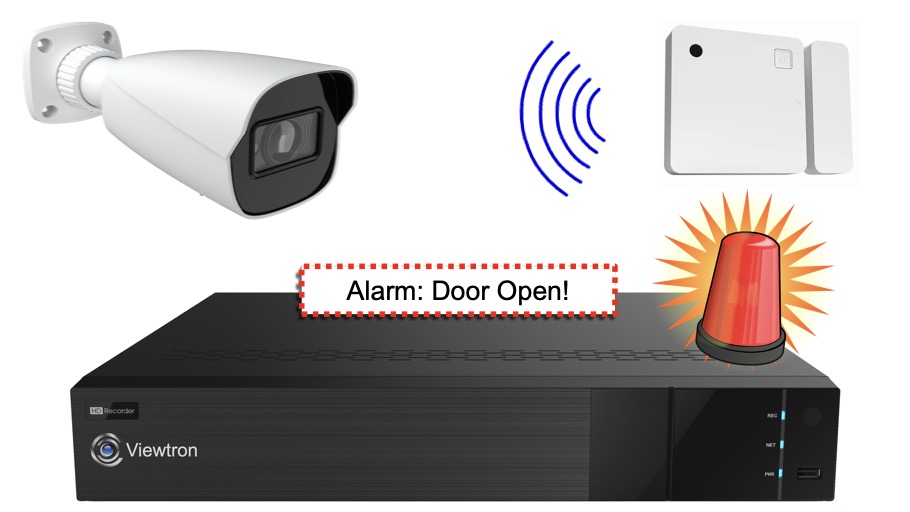
Watch the above video to see an overview and setup instructions for how-to setup a wireless door sensor alarm on a Viewtron IP camera NVR. This projects uses a Shelly BLU wireless door sensor and Shelly BLU Gateway. You can find step-by-step setup instructions with screenshots below.
Please note that you can also use these instructions to install this script to integrate Shelly wireless motion sensor. The only difference is that project documents how to install this script to integrate a Shelly wireless door sensor to trigger an alarm on a Viewtron NVR. The setup process is the same.
Wireless Door Alarm Overview
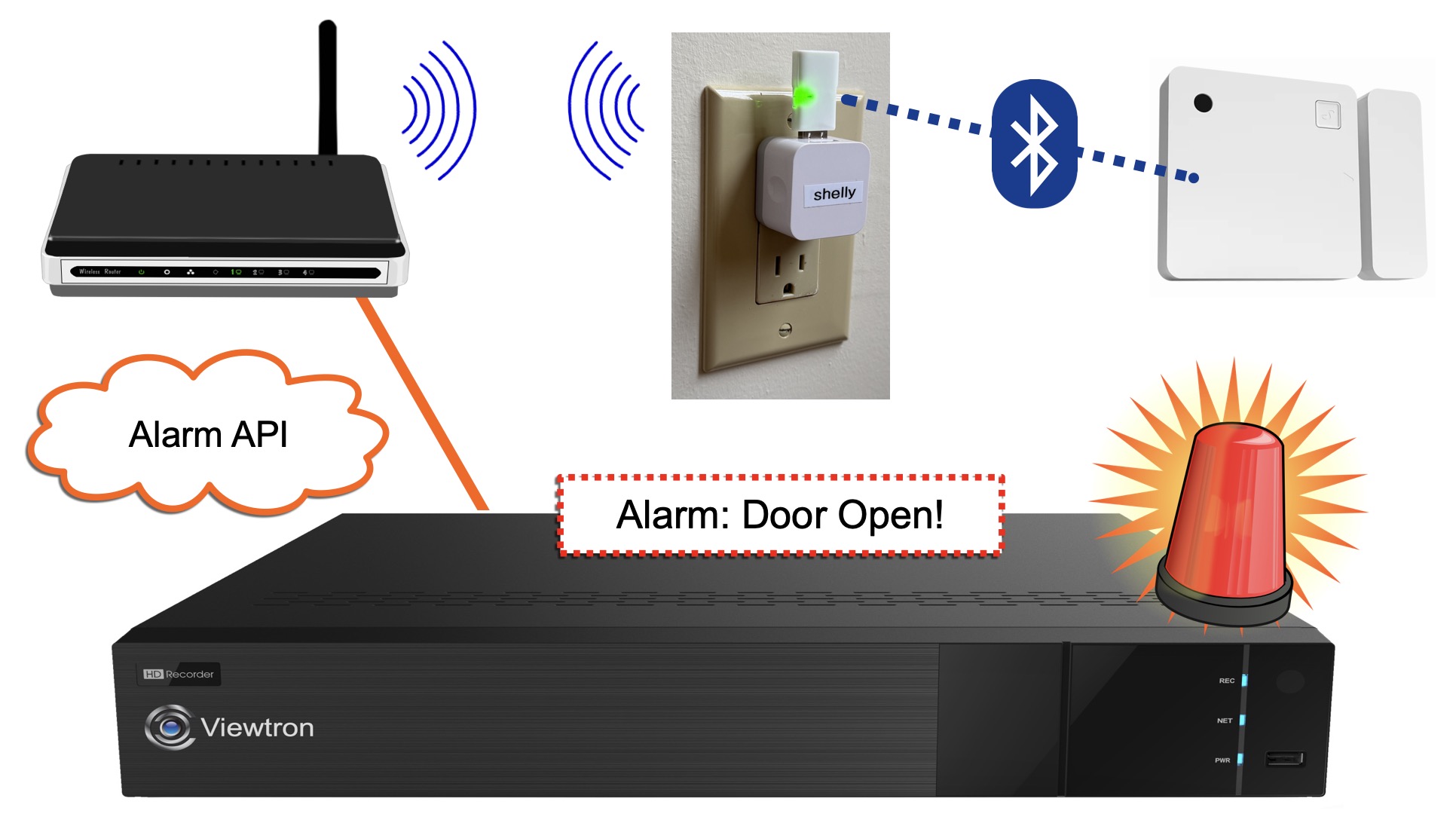
This is how it works.
- The Shelly wireless door sensor on the right communicates with a Shelly BLU Gateway via Bluetooth.
- The Shelly Blu Gateway (pictured in the middle, plugged into a standard power outlet) is connected via WIFI to the same network that the Viewtron NVR is on.
- The Viewtron NVR is hard wired to the wireless router.
- Custom javascript code is installed on the Shelly Gateway. That code is run when the door sensor is opened.
- The javascript code makes an HTTP Post to trigger a virtual alarm on the NVR.
- The virtual alarm on the NVR can trigger video recording, mobile app push notification, an audio alarm, and many other actions.
Download Shelly Mobile App
The setup is very simple from the Shelly mobile app. Download it here.
Setup Shelly BLU Gateway

The first step in the setup is to connect the Shelly BLU Gateway to your wireless network.
Connect the Shelly Blu Gateway to a standard 5v USB power supply and plug it into a standard wall power outlet.
Open the Shelly mobile app and refer to the below screenshots.
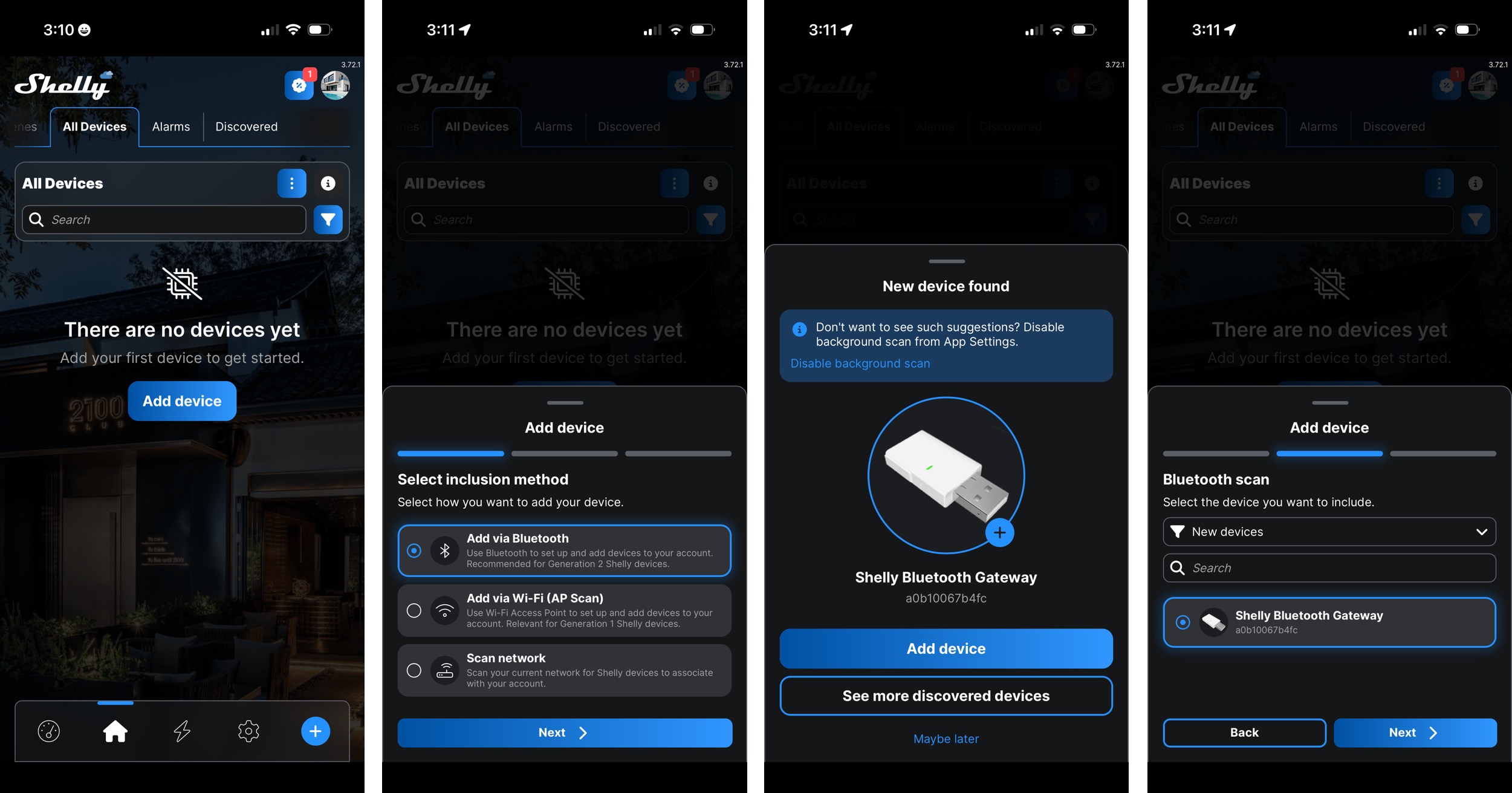
Tap on the Add device button. Then select Add via Bluetooth, and tap Next. Click Add device again. Select the Shelly Bluetooth Gateway, and tap Next.
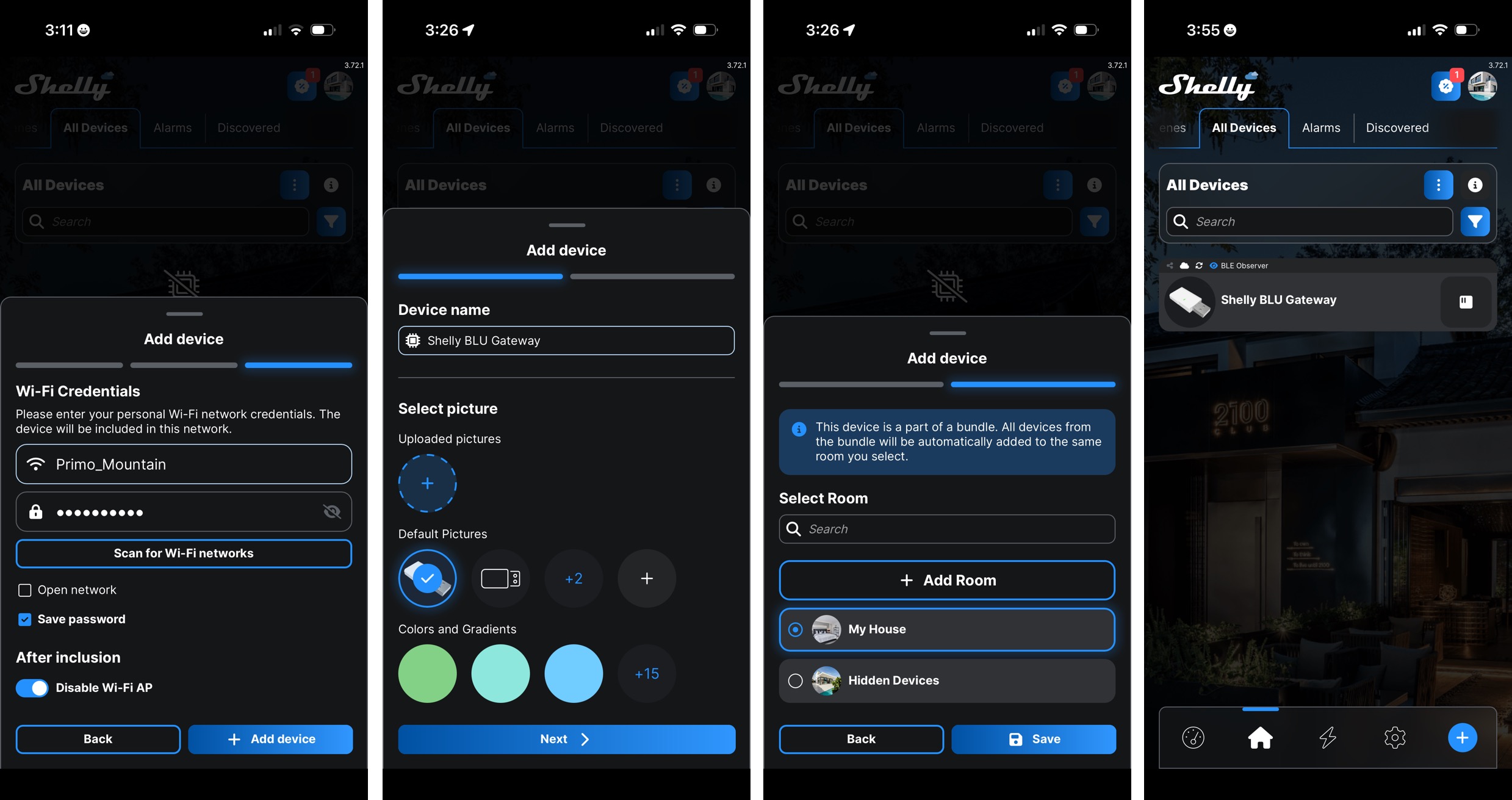
Please refer to the above screenshots and follow these next steps.
- On the next screen scan for your WIFI network. Add your WIFI password, then tap Add device.
- Choose a Device name and picture, then tap Next.
- If you have rooms setup in the Shelly mobile app, you can select a room to add the Gateway to. Tap Save.
- The Shelly Gateway will reboot and you will now see the Door Sensor added to your devices in the app.
Connect the Bluetooth Wireless Door Sensor to BLU Gateway
The next step is to add the Shelly wireless door sensor to the app.
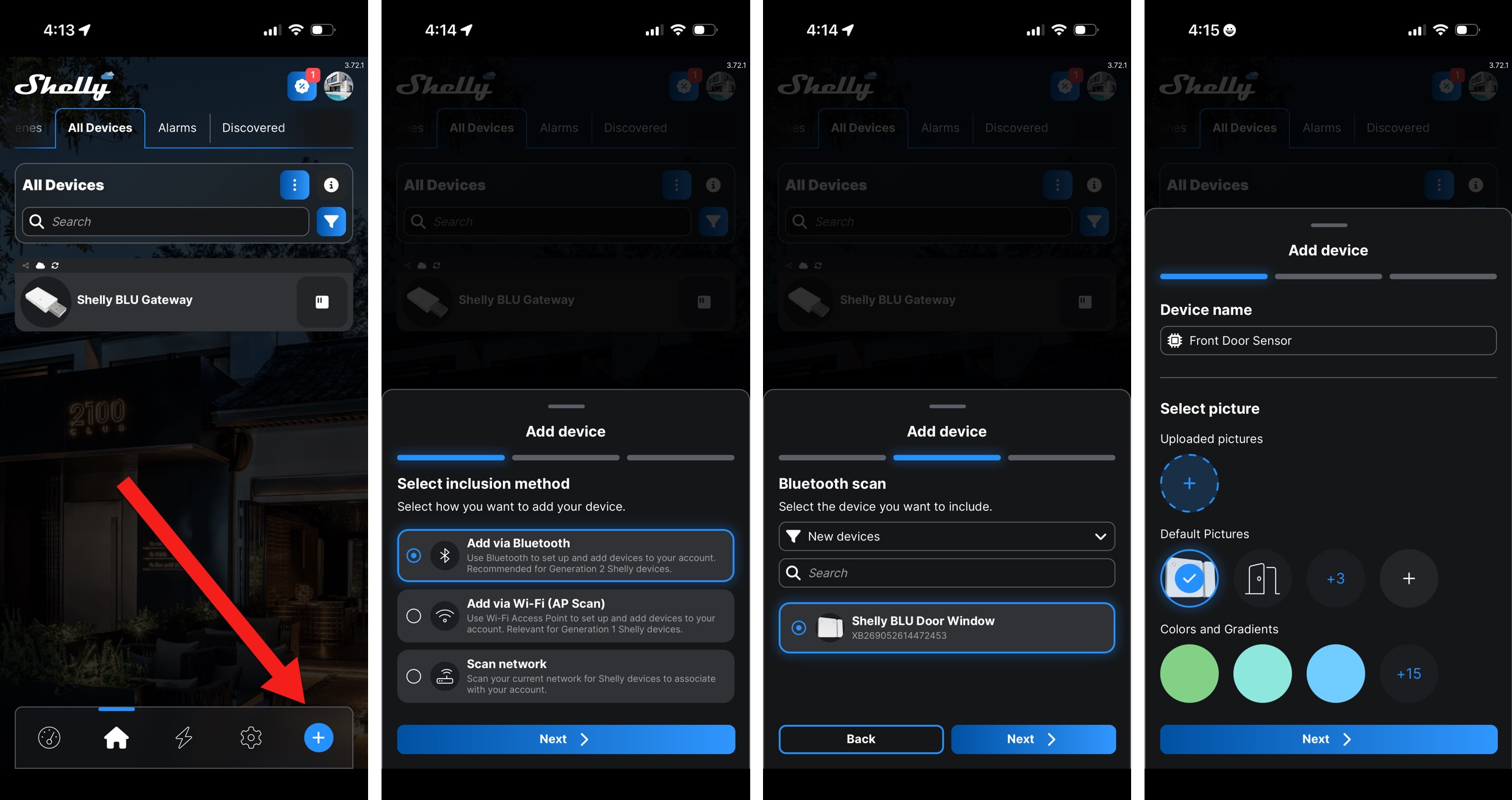
- In the All Devices tab, tap on the + button to add a new device.
- Select Add via Bluetooth, then tap Next.
- The app should find your Shelly BLU Door / Window sensor. If it does not, click the button on the door sensor.
- Select the Door Sensor, then tap Next.
- Choose a Device name and Picture for your sensor. Tap next.
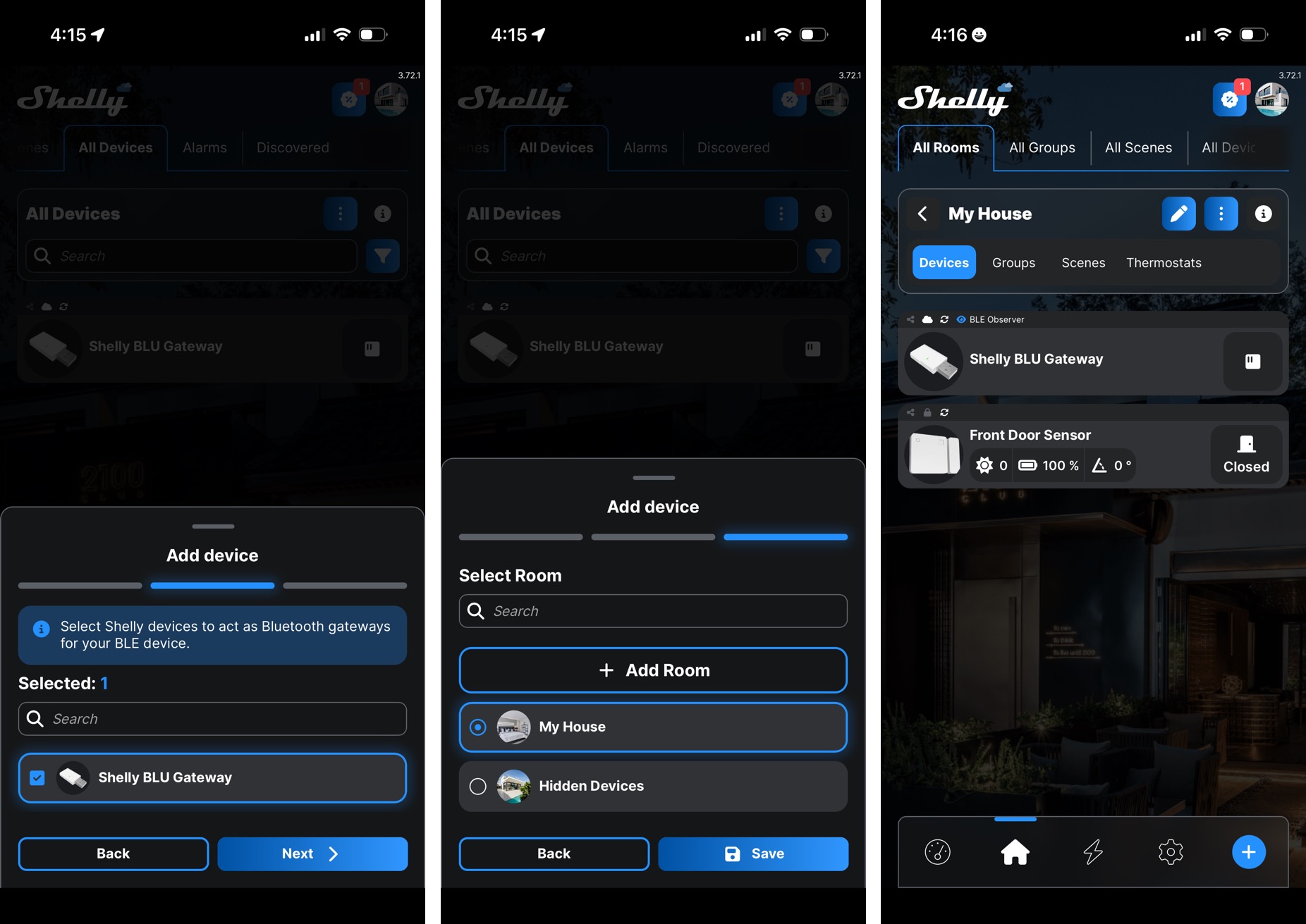
Next, you need to associate the door sensor with your Shelly BLU Gateway. This is because the wireless door sensor communicates with the Gateway via Bluetooth and the Gateway communicates with your local network via WIFI.
- Check the box next to your Shelly BLU Gateway. Tap Next.
- You can associate the door sensor with a room in your house if you have any setup in the app. Tap Save.
- The door sensor will now appear in the Shelly app under All devices.
Enable the API server on the NVR
The Shelly BLU Gateway will communicate with the Viewtron NVR by sending an HTTP Post to the NVR’s virtual alarm interface. Follow these steps to enable the API server on the NVR
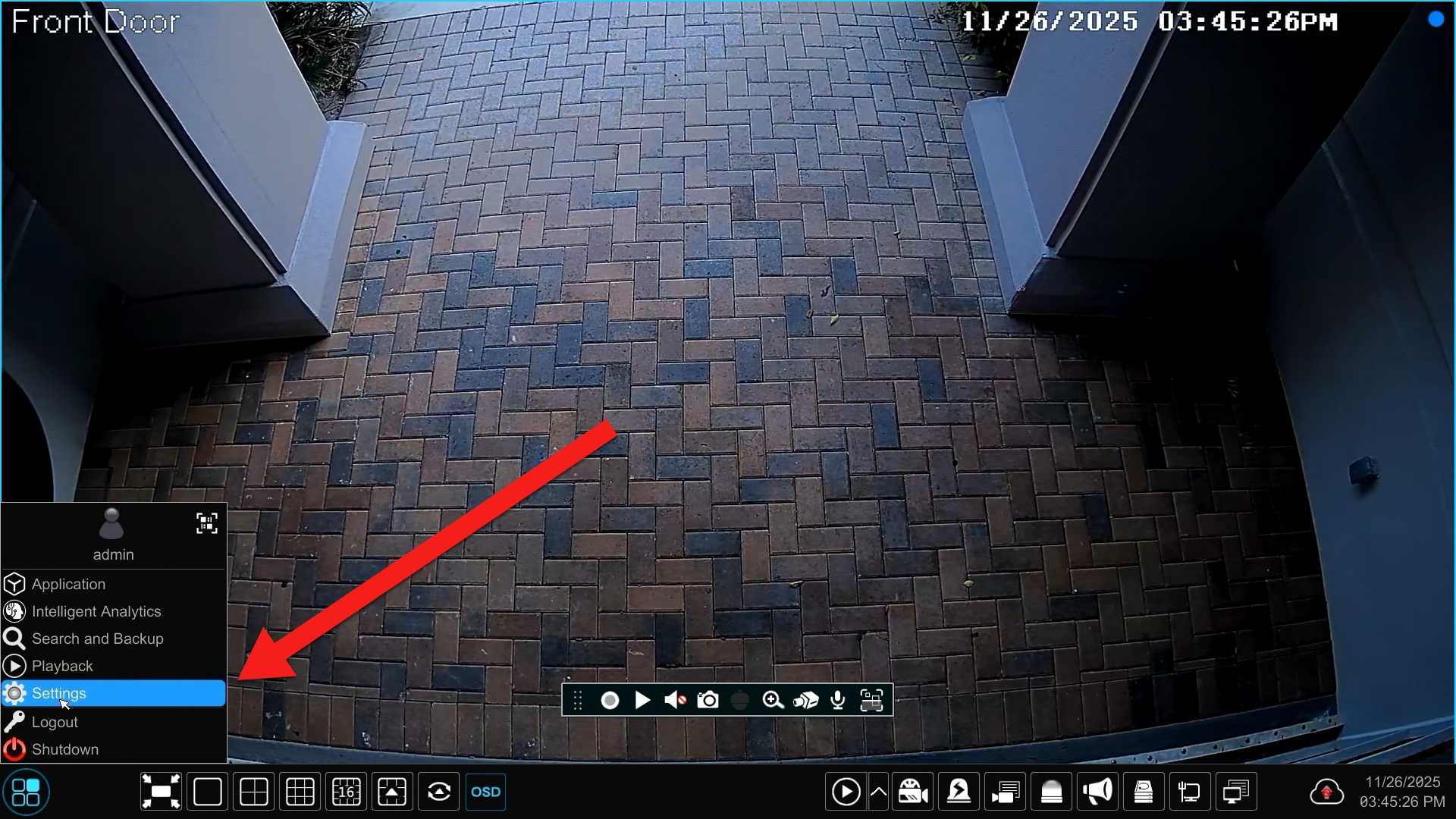
Click on the Settings button in the lower left, then click Settings.
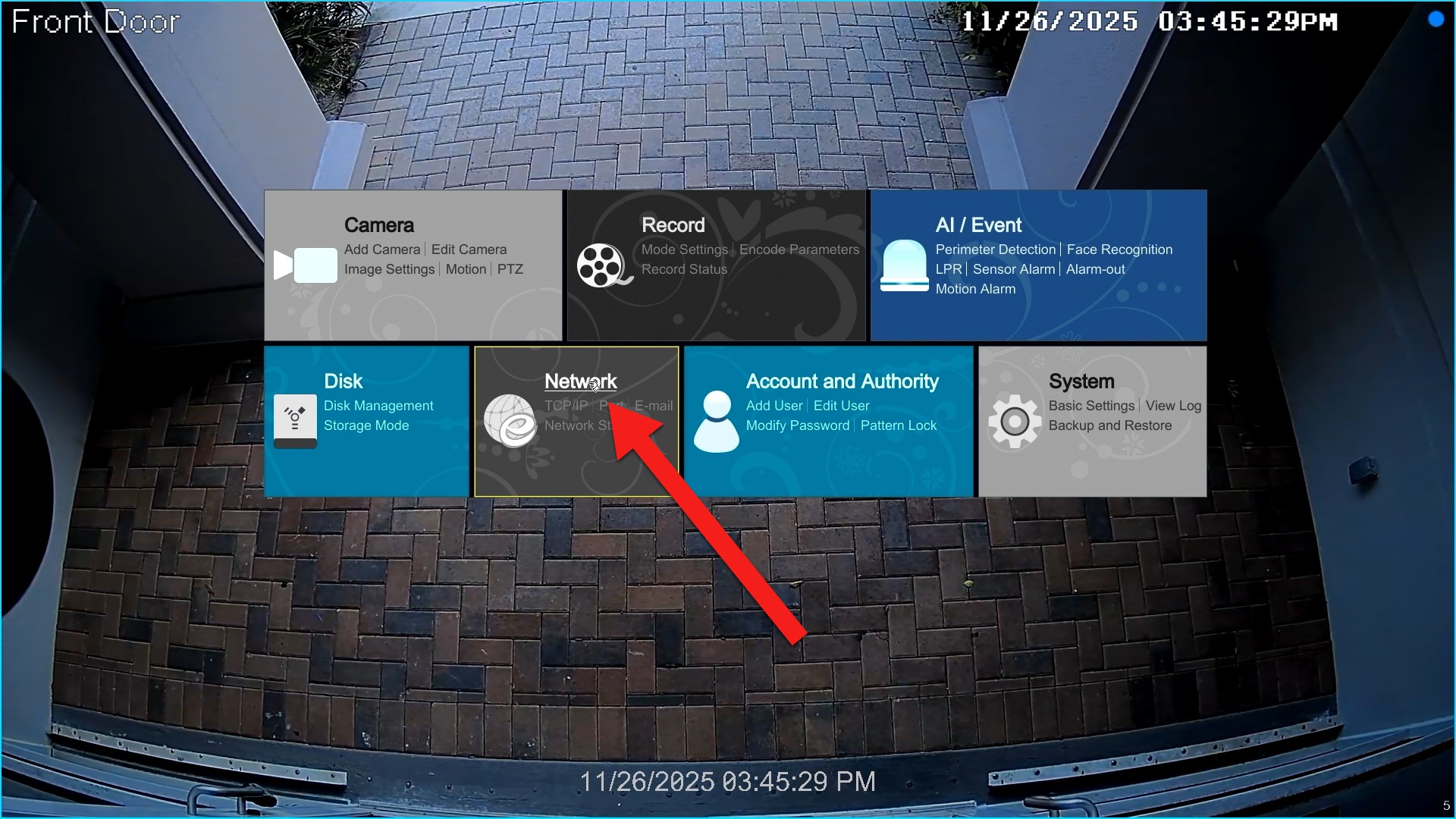
Next, click on the Network link on the main settings screen.
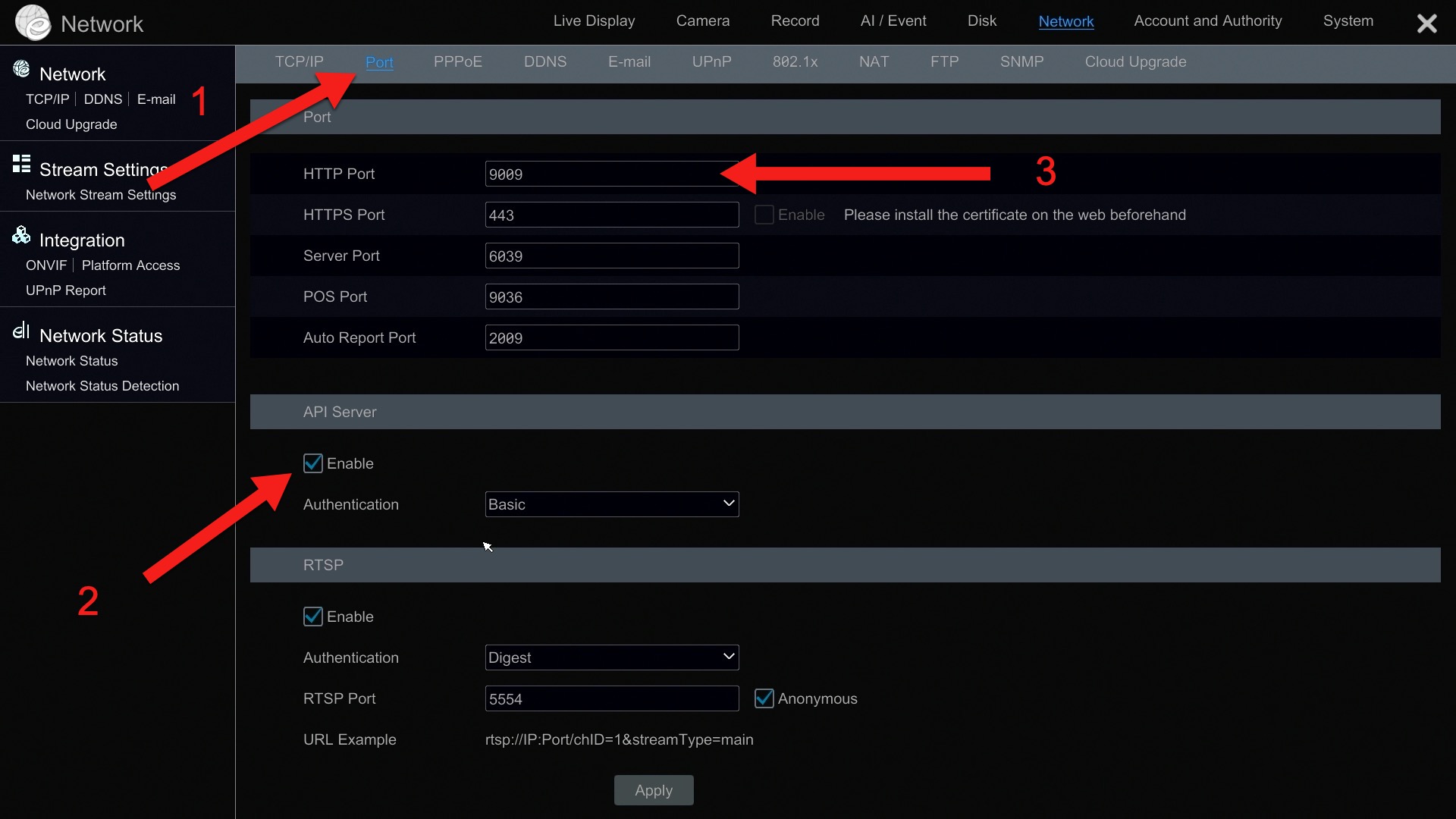
On the network settings screen, do the following.
- Click on Port.
- Check the Enable API Server checkbox. Select Basic for Authentication.
- Make note of the HTTP Port that your NVR is using. This will be used by the script that we upload to the Shelly Gateway later. The default HTTP Port is 80.
Click Apply when done.
Setup the Virtual Alarm on the Viewtron NVR
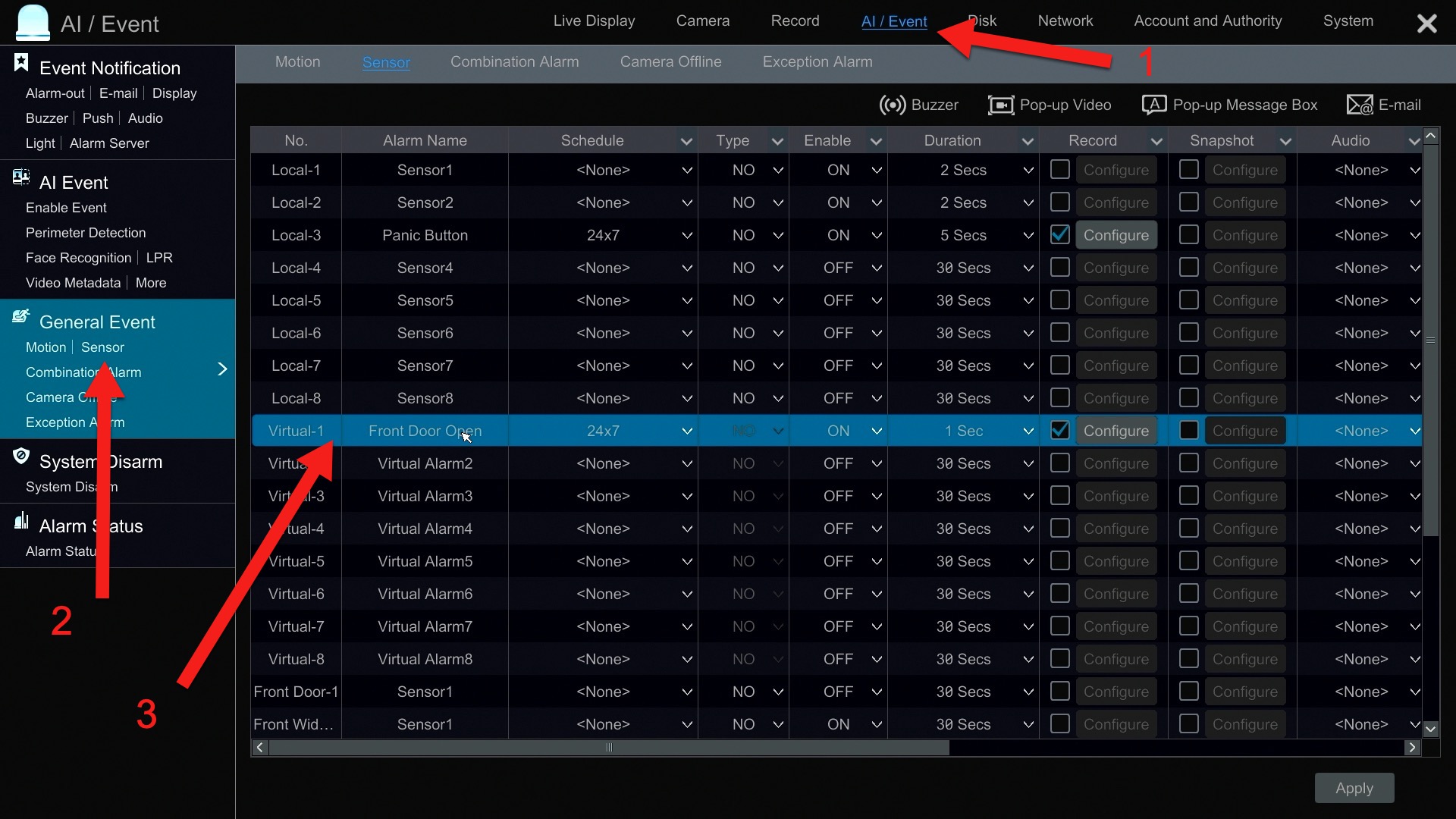
Follow these steps to configure the virtual alarm on the NVR.
- Click on the AI / Event link.
- Click on the Sensor link under the General Event section on the left.
- Choose the virtual alarm channel that you want to use. I used Virtual Alarm 1 in my setup.
Important! Notice that this NVR has 8 local alarm sensor ports (above the virtual alarms). For the API script that we will upload to the Shelly Gateway, there is a variable that you need to set to tell the script which virtual alarm channel to trigger when the magnetic sensor opens. One this NVR virtual alarm 1 will actually be NVR Alarm Port 9 because the Viewtron API server also allows you to trigger the local physical alarm sensors as well.
These are the settings for the virtual alarm.
- Choose an Alarm Name. I chose “Front Door Open” for mine. This text will be used by the mobile app push notification.
- Select a pre-set or custom Schedule for the alarm.
- Type is not changeable for virtual alarms and is set to NO (normally open). I know this seems counter-intuitive because the normal state for door sensors is NC (normally closed). But basically when the door sensor is opened, it is triggering the virtual alarm on the NVR by sending a message via the API that says to trigger the virtual alarm. The normal state of the virtual alarm does not matter in this case. The right thing happens.
- Set Enable to On.
- Choose a Duration for how long you want the virtual alarm to be triggered.
- Record: choose one or more security cameras to trigger recording on.
- Snapshot: this is optional if you also want to trigger image snapshots.
- Audio: this is for future use with IP speakers that we will be releasing next year.
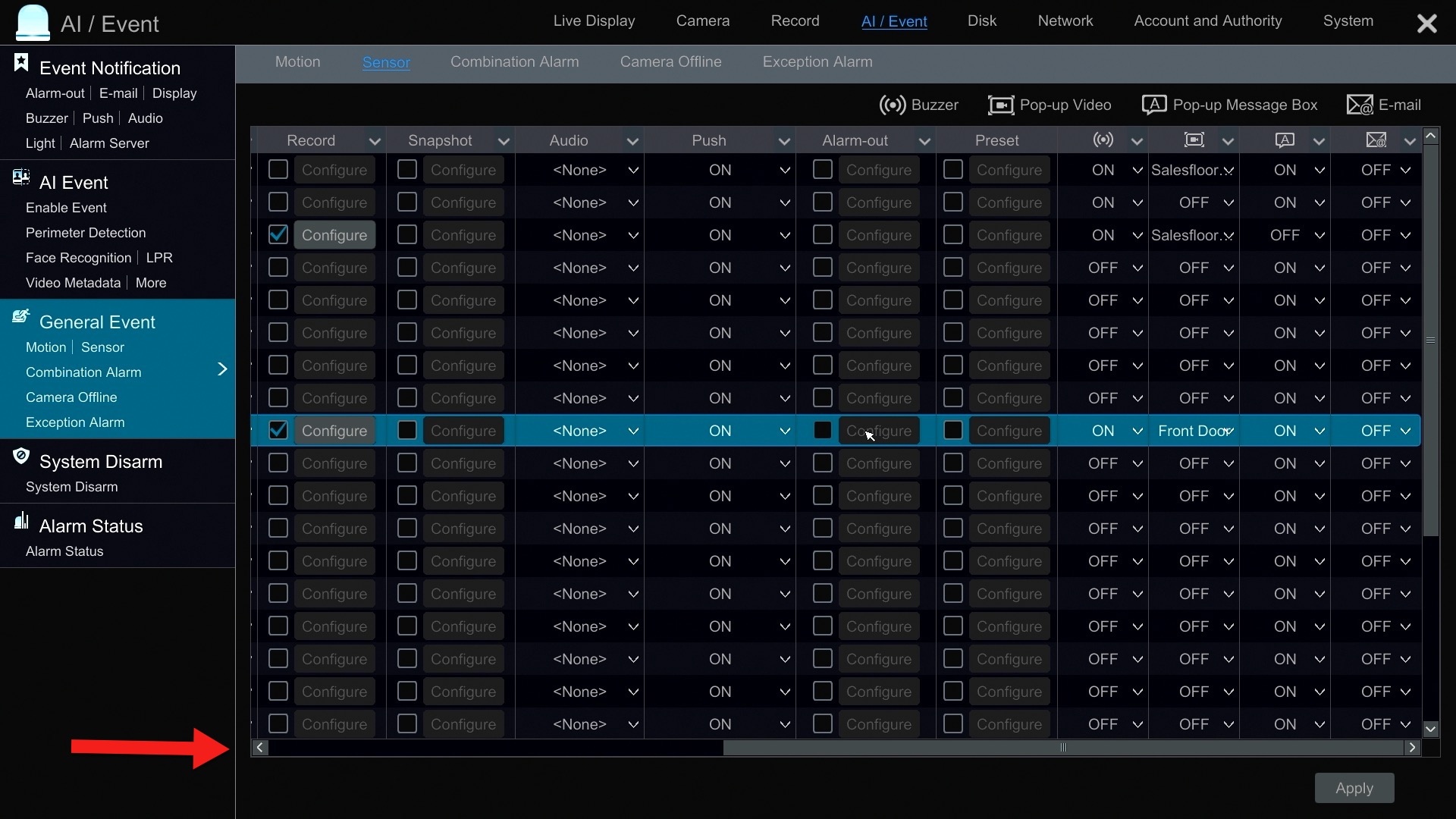
Use the vertical scroll bar to access the rest of the virtual alarm settings.
- Push: enable mobile app push notifications.
- Alarm-out: you have the option to trigger one of more alarm outputs on the NVR and also on any IP camera that is connected to the NVR (if you have any IP cameras models that have alarm outputs).
- Preset: if you have any PTZ cameras on your system, you can send any of them to a preset location.
- Buzzer: this is the built-in audio alarm buzzer on the NVR.
- Pop-up video: you can have a certain camera channel pop up in the live view on the NVR’s monitor.
- Pop-up Message Box: you can display a text message on the NVR’s screen.
- Email: CCTV Camera Pros doe snot recommend using email alerts. The mobile app push notifications are much easier to setup. This is because you must have access to an SMTP mail server to send emails.
Click Apply when done. You can close the settings on the NVR by clicking on the X in the upper right.
Install Custom API Server Script on Shelly Gateway
To enable the communication to the NVR’s virtual alarm when the Shelly wireless door sensor opens, we must install a custom script to run on the Shelly gateway. You can download the javascript code from Github here.
https://github.com/mikehaldas/shelly-door-sensor-script/blob/main/script.js
Download it to your computer and have it ready to edit using your preferred text editor program.
The javascript code can be installed onto the Shelly Gateway from the mobile app or from the web browser interface. Being that we need to edit some variables in the script, I prefer to do this from the web browser interface. However, we need the IP address of the Shelly Gateway and the Mac address of the door sensor first. And, these are easier to get from the mobile app. So, open it first.
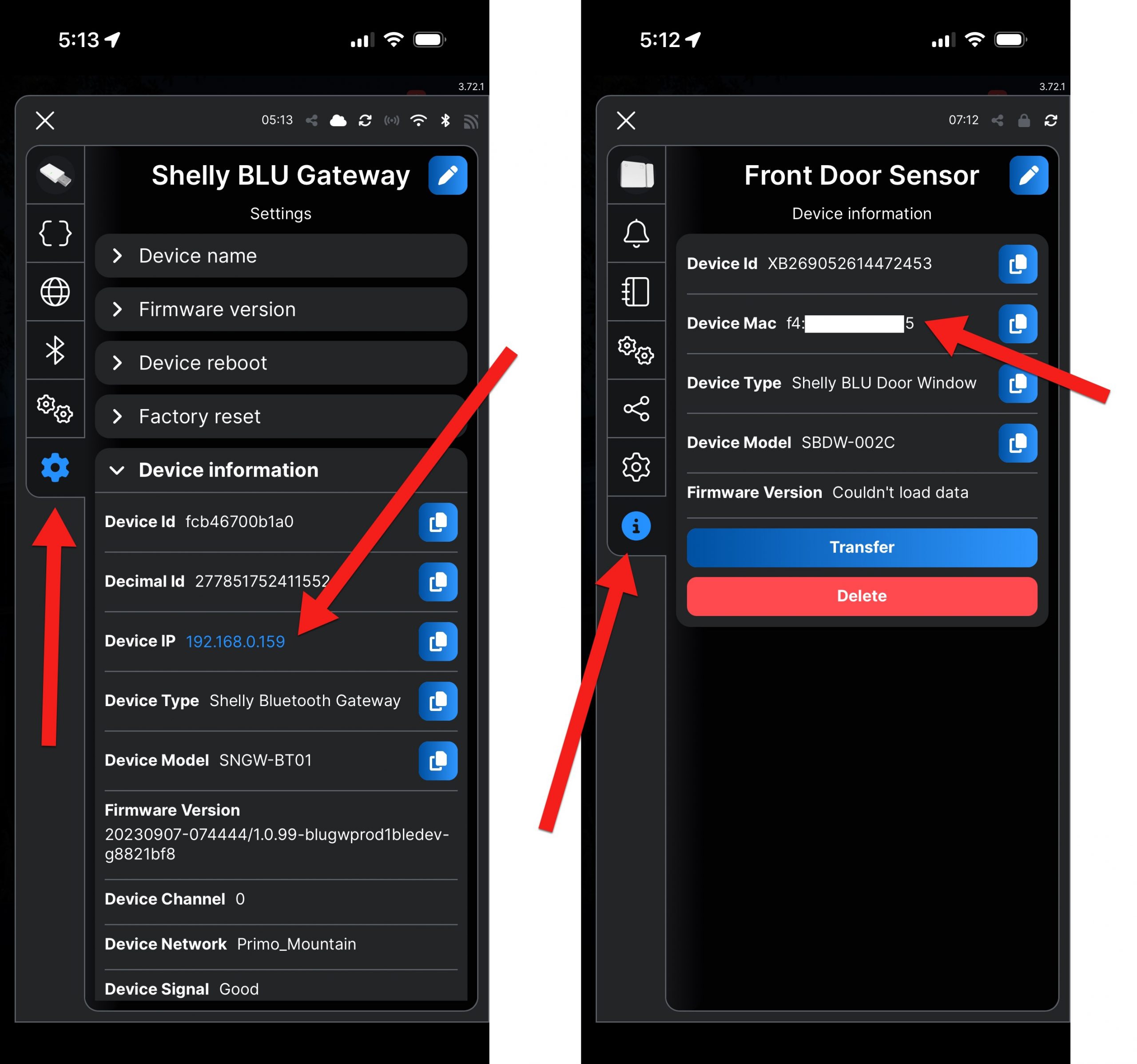
In the Shelly mobile app, tap on the Shelly BLU Gateway under all devices. Referencing the screenshot in the left, tap on the gear icon. Make note of the Gateway’s Device IP. This is the address you will use in the web browser to install the script. Close those settings when done by tapping on the X in the upper left.
Next, tap on the door sensor device under all devices in the app. Referencing the screenshot on the right, tap on the Info icon. Make note of the Device Mac address. You need this for a variable in the javascript.
Edit the API Server Code
Open up the javascript that you downloaded from Github in a text editor.

Look for a section in the code labeled CONFIGURATION VARIABLES and modify the following values.
- SENSOR_MAC: change this to the Mac address of your wireless door sensor.
- USERNAME: change this to the user name of the administrator on your NVR. Most likely will remain “admin”.
- PASSWORD: change this to your admin password on your NVR.
- NVR_IP: change this to the local IP address of your NVR.
- NVR_PORT: this will stay 80 unless you changed this on your NVR.
- NVR_ALARM_PORT: change to the virtual alarm port you are using on your NVR. Remember, if your NVR has 8 physical alarm ports, virtual alarm port 1 is actually 9 as far as the API is concerned.
Save the file when you are done.
Install the Script
Open up the web interface to your Shelly Gateway in a web browser by using the IP address you previously noted.
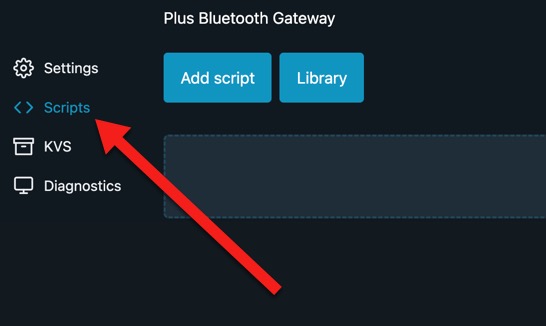
Click on the Scripts link on the left. Then, click on the Add script button.
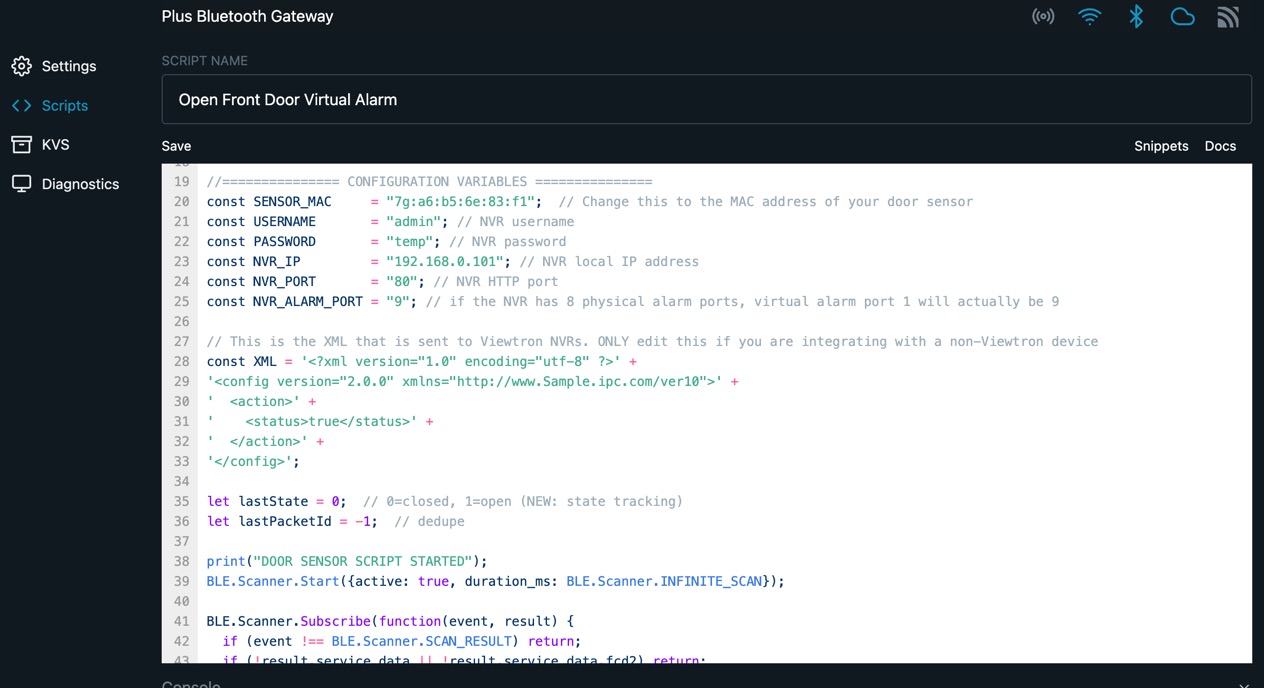
Copy and paste the custom script into the script field. Enter a Script Name. Click the Save link. Then, click on the Start link.
Test to confirm that everything works by opening the door sensor.
Wireless Door Alarm Push Notification
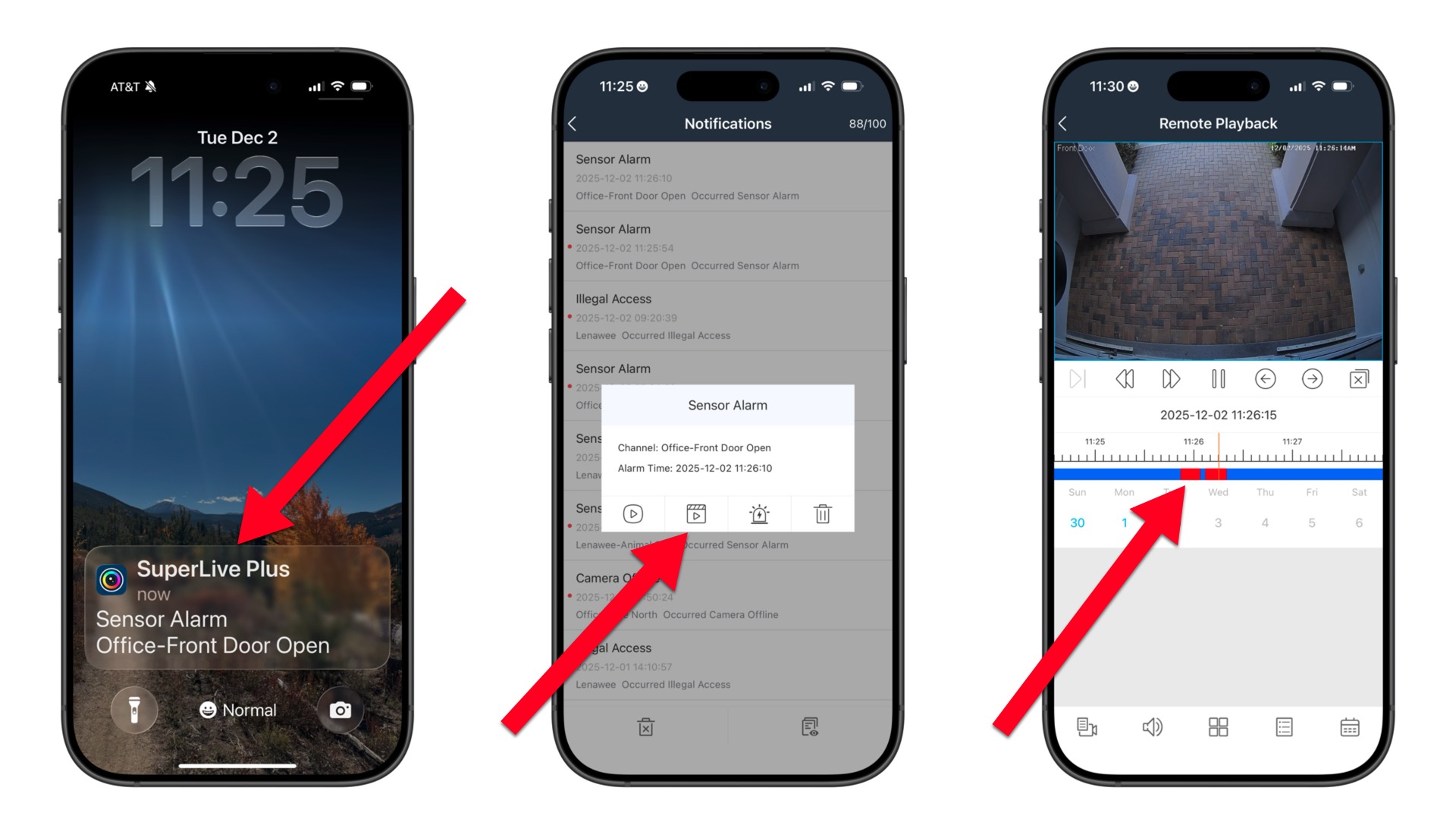
When the door sensor is opened, this is what the push notification to the mobile app looks like.
- The image on the left shows the push notification on my iPhone with the phone locked.
- The image in the middle show the Viewtron app opening after the push notification is tapped. You can then click on the video playback button to jump right to the video recording of the door alarm event.
- The image on the right shows the video player in the app playing back the video from the alarm. You can see that all of the door alarms are annotated in red.
Products Used in this Project
The following products were used in this project.
Have Questions?
If you have any questions related to this alarm integration project or anything related to security camera systems, please email me at mike@cctvcamerapros.net.