CCTV Spot Monitor Setup for Viewtron IP Camera & BNC Camera DVRs
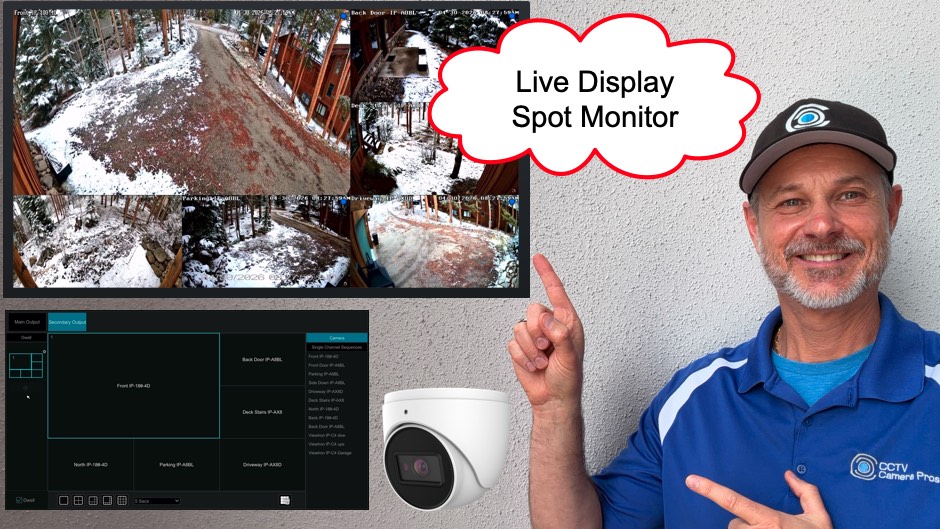
Watch this video to learn how to setup the CCTV spot monitor function of Viewtron hybrid BNC DVRs and IP camera NVRs. In case you are not familiar with the term “CCTV spot monitor”, it’s an old-school CCTV system term that refers to a dedicated live display monitor for a camera that is independent of the DVR’s main display that is used to manage the system.
Some Viewtron DVRs and NVRs have more than one HDMI monitor output, and the secondary HDMI output(s) can be configured as a single camera spot monitor, a “multiplexed” multi-camera live display, and a dwell time sequence consisting of multiple single camera and multi-camera layouts that rotates from one screen to the next with a delay timer.
Because this feature is available on some Viewtron hybrid CCTV DVRs and also IP camera NVRs, this spot monitor feature can be setup for IP cameras and CCTV cameras. You an even combine both security cameras types on the same display layout if you are using a hybrid DVR.
Live Security Camera View / Spot Monitor Setup
Follow these instructions on your Viewtron recorder to setup the live security camera TV display (spot monitor).
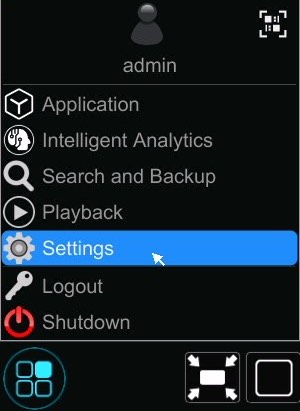
Click on the Settings link in the lower left hard corner of the screen on your DVR / NVR.
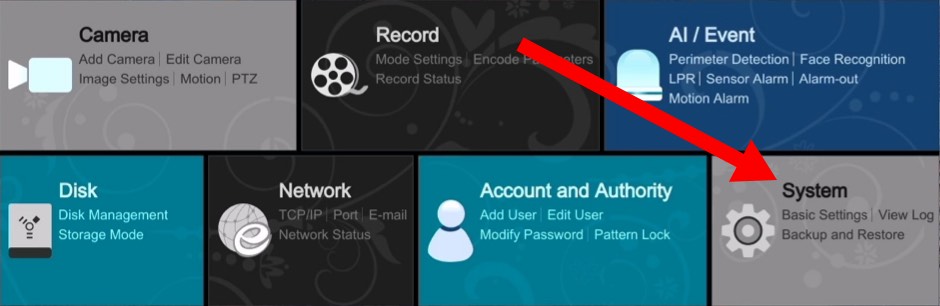
On the main system menu, click on the System link.
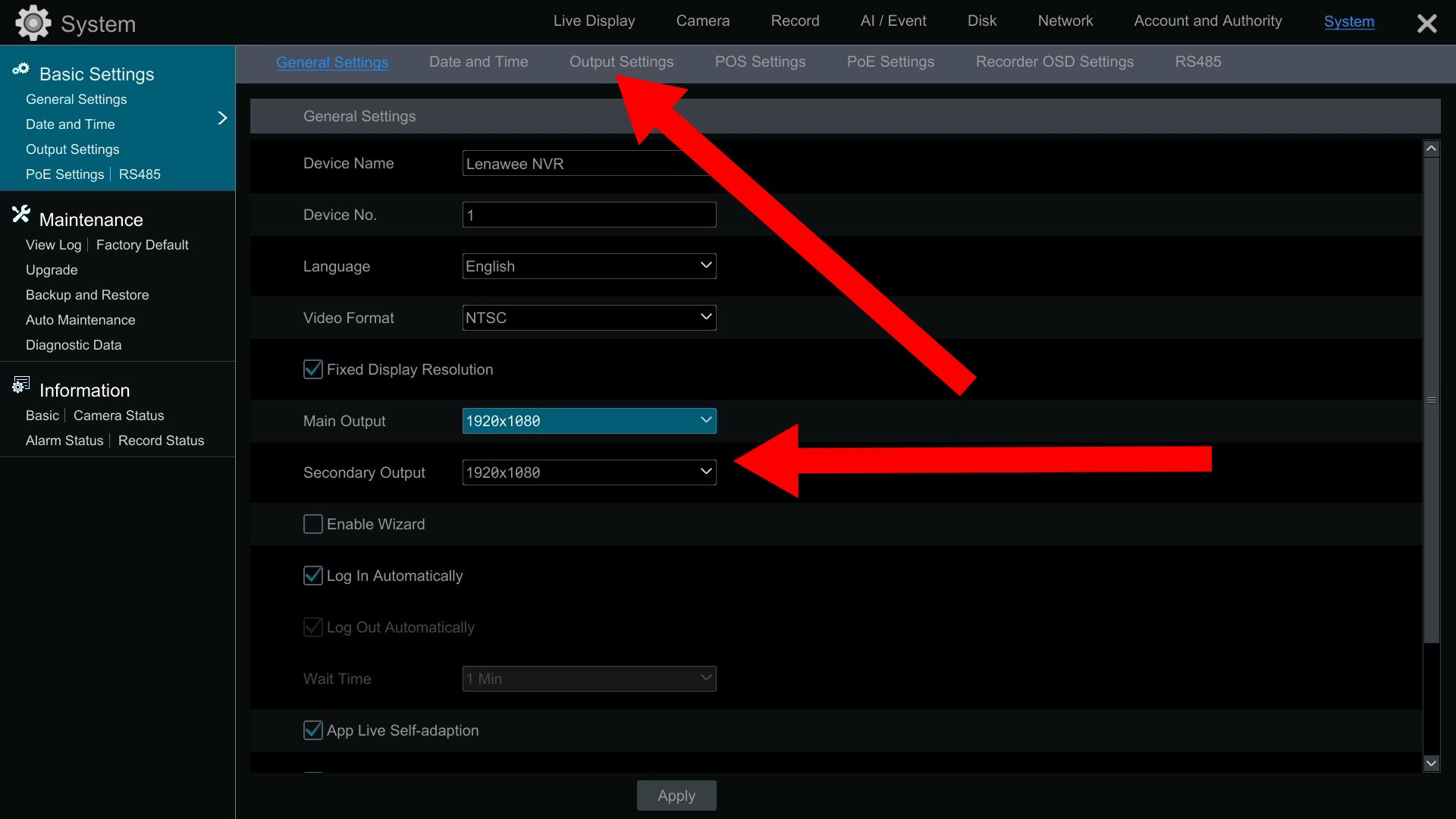
On the general settings screen, you can setup the video resolutions for the Main Output monitor and Secondary Output monitor. The Secondary HDMI Output is the one that can be setup as a spot monitor for Viewtron recorder models that have 2 HDMI putputs.
Click on the Output Setting link.
Single Camera Spot Monitor & Multi-Camera Display Configurations
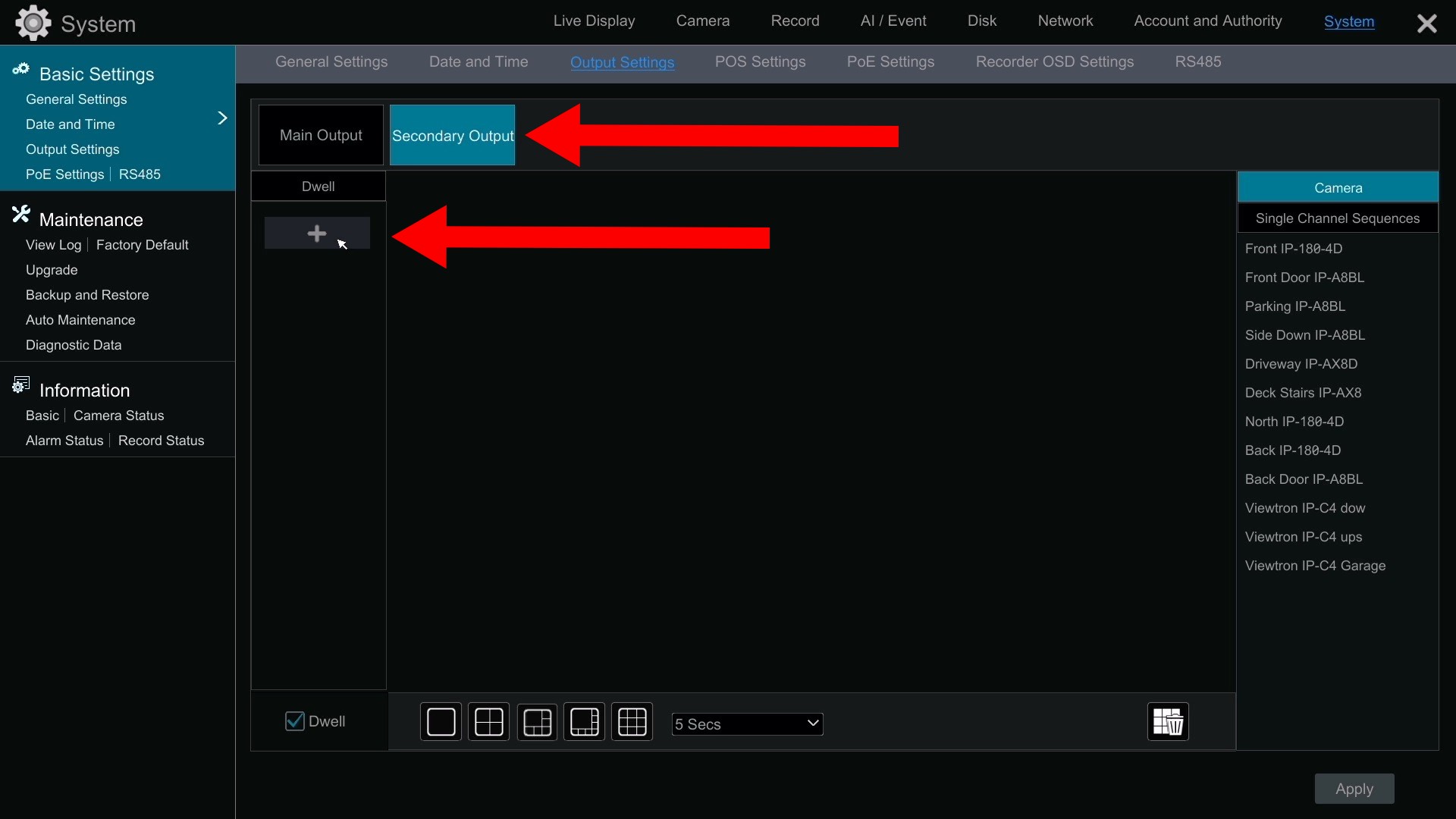
Click on the Secondary Output tab, then click on the + button to add a spot monitor screen.
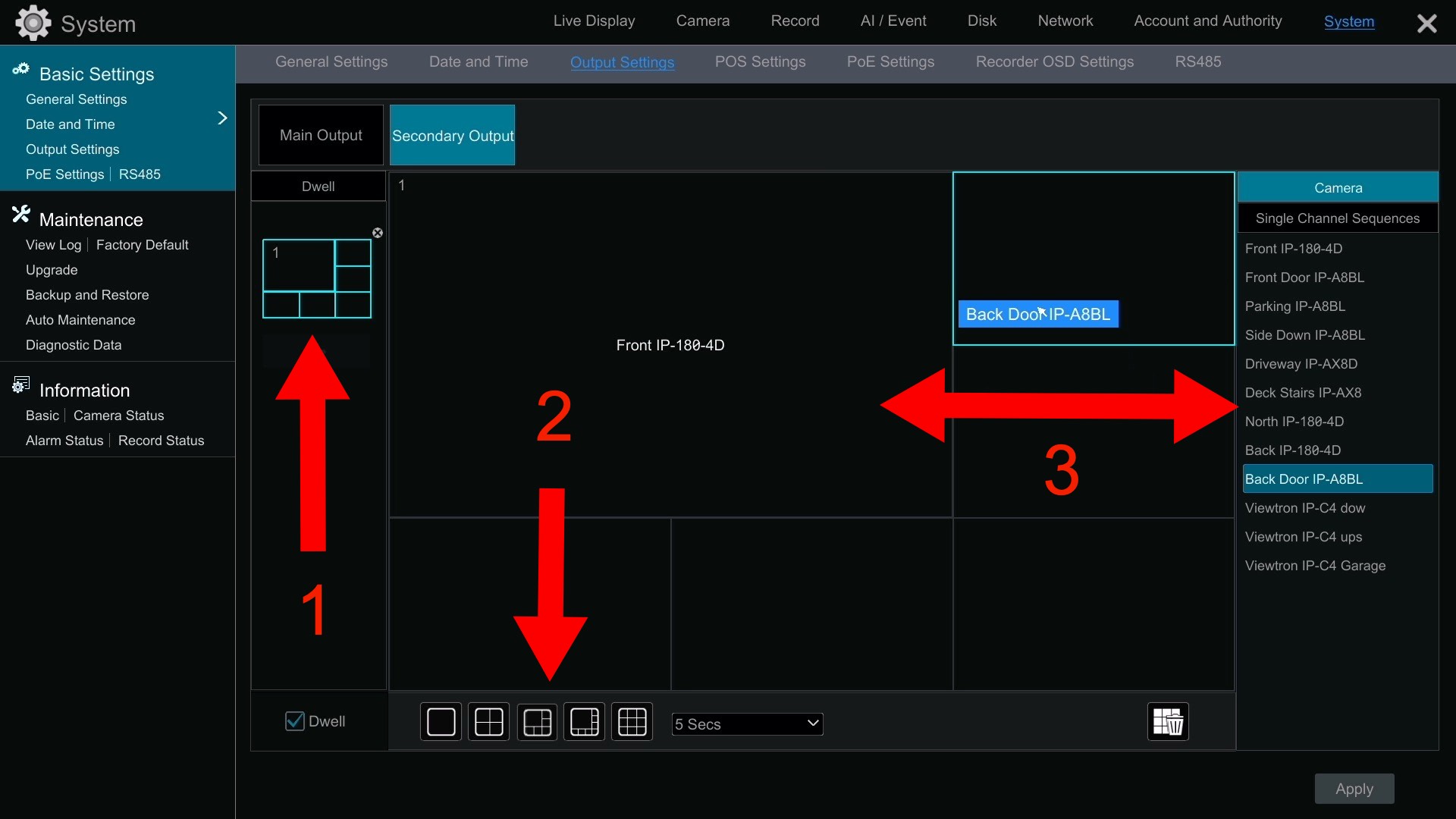
- When you click on the add button, a spot monitor or multiplexer camera layout will be added to the right panel.
- You can select if you want a single camera spot montior display or a “multiplexed” multiple camera layout.
- Drag the Camera(s) that you want on the display from the Camera panel on the right.
Click on the + plus button if you want to add additional displays that will be part of a rotation sequence “Dwell” time.
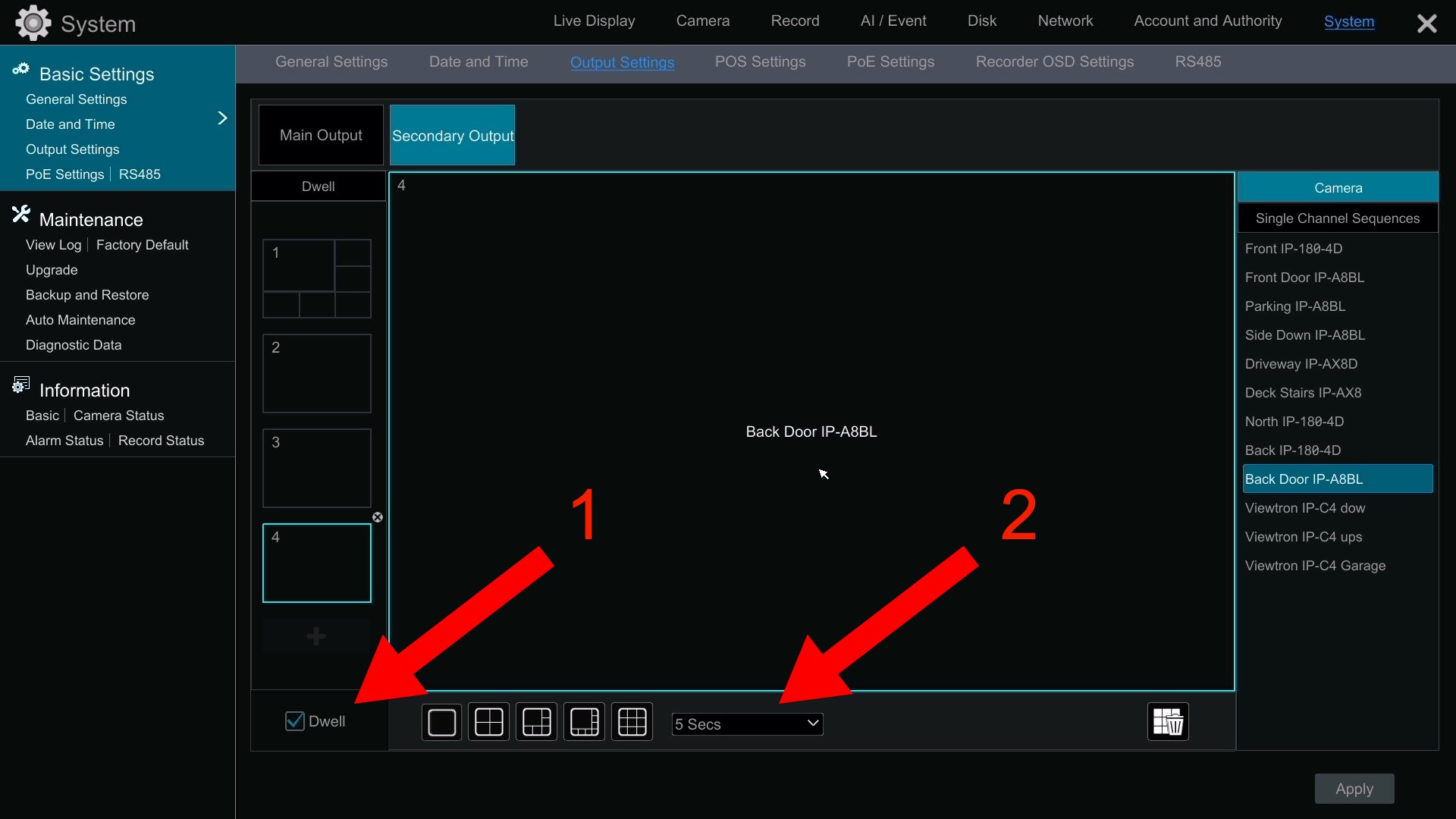
You can see here, that I added 3 additional spot monitor displays. When you enable a sequence of displays instead if a single live view, check the Dwell check box (1) and select the dwell time in seconds from the dropdown. Dwell time is the number of seconds to pause on each display before proceeding to the next one in the sequence.
When you are done, click on the Apply button in the lower right and close the settings screen by clicking on the X in the upper right.
Multiplexer / Multiple Camera Live View
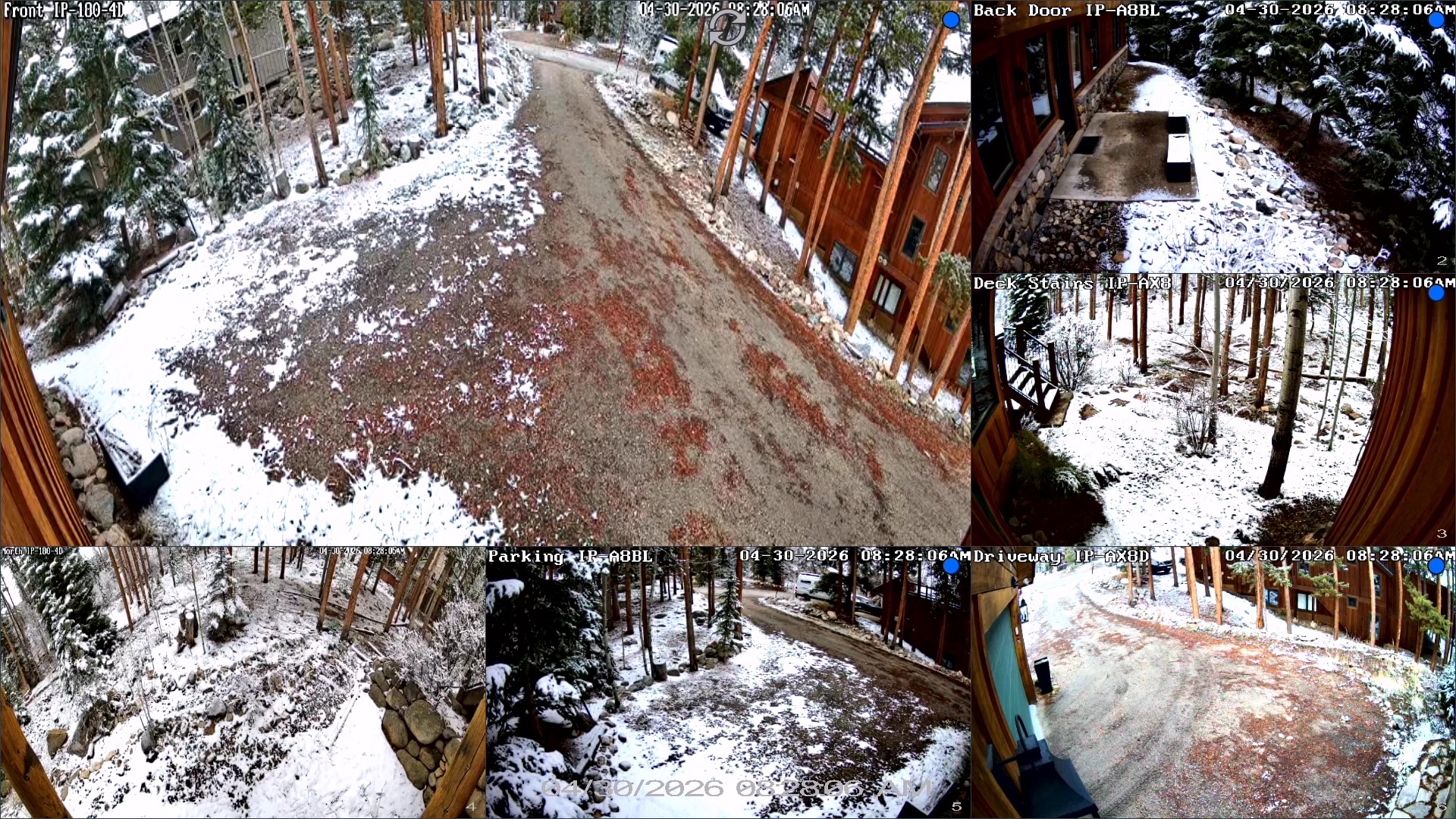
Here is what the 6 camera “multiplexer” display looks like.
Single Camera Spot Monitor Live View
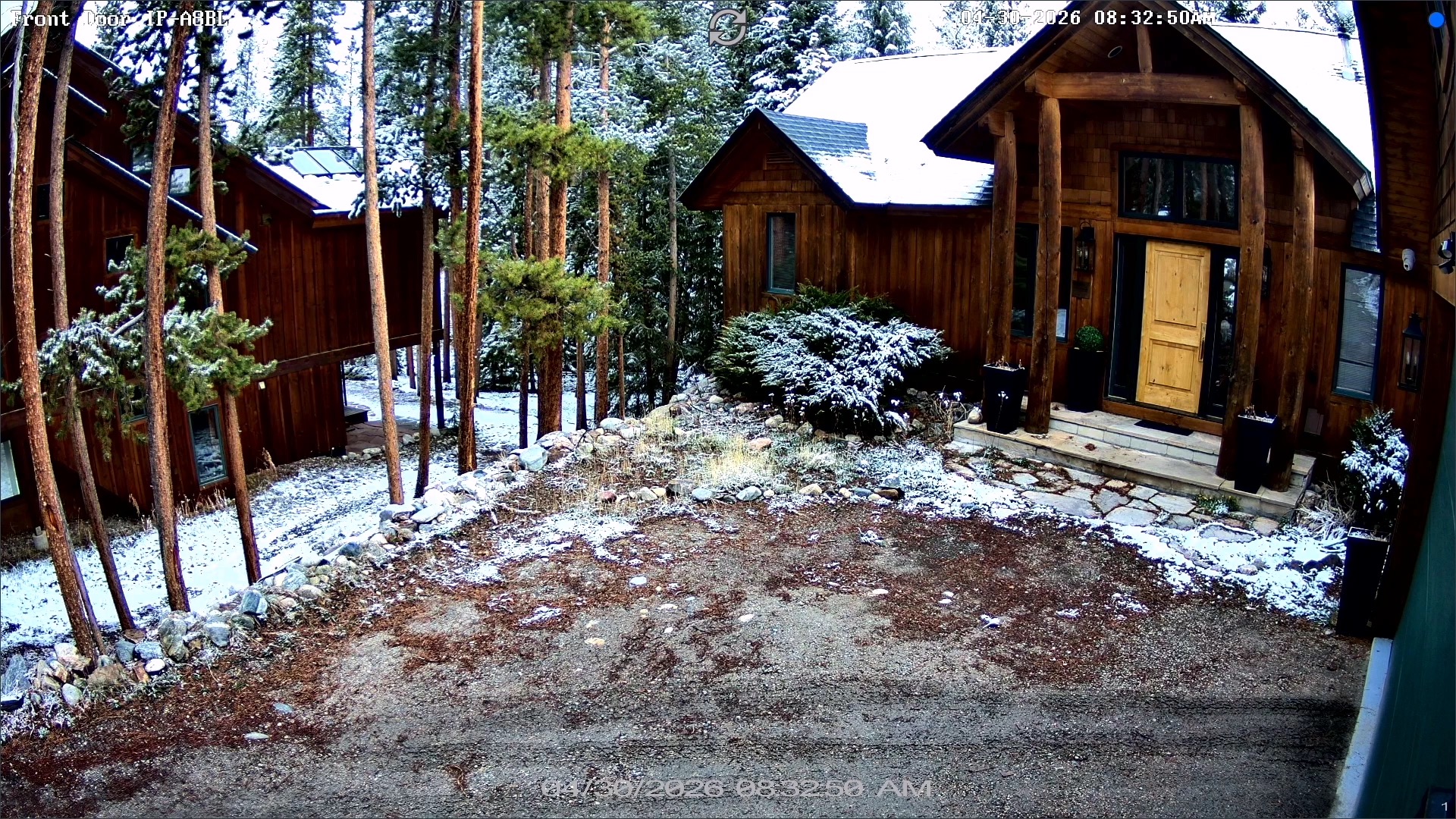
Here is what the live view of the single camera spot monitor display looks like.
DVRs & NVRs with Dual HDMI Spot Monitor Support
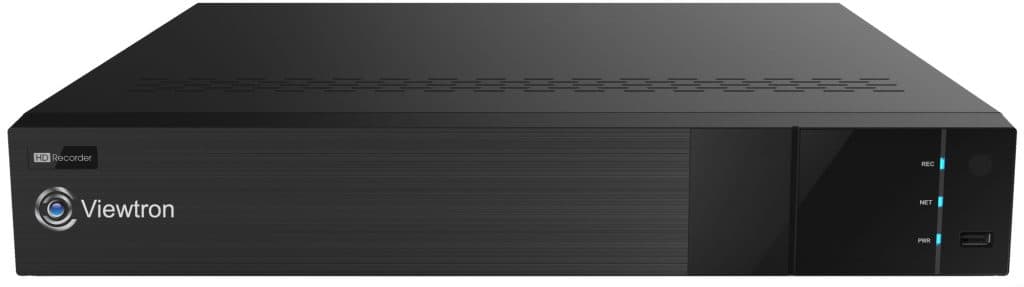
The following Viewtron DVRs and NVRs have more than one HDMI video output that supports the CCTV spot monitor function documented in this article.
- 16 Channel NVR – 2 HDMI outputs, second HDMI supports up to a 9 camera live video display at 1080p resolution on the second HDMI
- 32 Channel NVR – 2 HDMI outputs, second HDMI supports up to a 9 camera live video display at 1080p resolution on the second HDMI
- 32 Channel DVR (4K model) – 2 HDMI outputs, second HDMI supports up to a 9 camera live video display at 1080p resolution on the second HDMI
- 64 Channel NVR – 4 HDMI outputs, HDMI 2 supports up to 36 camera live video display at 4K resolution, HDMI 3 and 4 supports up to 16 camera displays at 1080p resolution
Video Transript
Here is a complete text transcript of the video at the top of this page.
Hey guys, Mike from CCTV Camera Pros here. Some of our Viewtron security camera DVRs and IP camera NVRs have two HDMI monitor outputs. In this video, I’m going to show you how you can configure the secondary HDMI output to be a CCTV spot monitor or a spot monitor for IP cameras, depending on which type of cameras you’re using. In addition, the spot monitor output, when you can configure it, can be a stationary display of multiple cameras on the screen. You can also configure multiple screens with what’s called a dwell time, which is basically when one of the camera views is displayed for a certain number of seconds, that’s the dwell time, and then it switches to the second view, the third view, the fourth view, and so forth, and then rotates back to the first one. You can configure each of those views to be a single camera or a multi-camera layout.
I’m going to show you how I configured the secondary HDMI output on my 16-channel Viewtron NVR to be a spot monitor display that I display on the TV in my living room. Here’s the primary HDMI output from my DVR. I’m going to click on the settings menu in the lower left and then click on system. On the system settings screen, you can see here that you can set up different resolutions for the main and secondary HDMI outputs. To configure that secondary output, I’m going to go into output settings and then select that secondary output tab.
To add the display grid, I’m going to click on that plus button, and then you could choose which layout you want. I’m going to choose the six camera view, and then I simply drag the different security cameras that are connected to my NVR over onto this grid depending on where I want each one displayed. Then when I’m done, I click on this apply button. Now I’ll switch to that secondary output. You could see the six camera live view here from that secondary HDMI output that’s now acting as a CCTV spot monitor or a spot monitor for my IP cameras. In this case, I’m using IP cameras. Next, I’m going to go back into the main output of the NVR and select settings again, and then I’ll go back into system and then output settings. Now I’m going to set up a dwell time, which means that it’ll be multiple displays and it’ll rotate from one to the next.
So I’m going to leave that first one as a grid, and then I’m going to add three single camera views. So as I’m adding them, I’m also selecting which security camera to display in each of those views. And then, actually, I think I’m going to change the primary view from that six camera grid to a four camera grid. And if I wanted to change any of the cameras, I could just drag those over to the four camera grid view to modify that. And then I’m going to leave it set to five second dwell time, and then I’m going to click apply.
Now let’s go back to the spot monitor output, and you could see the four camera grid view is displayed for five seconds, and then it’ll rotate to each of the single camera views with a five second dwell time or pause time in between it. Note that it doesn’t affect that primary output. I could be playing back video or doing other operations from the main video output while this is playing. Guys, I hope this video has been helpful. As you can see, the secondary HDMI output on some of our Viewtron DVRs and NVRs can be used as a spot monitor output that just always displays a live security camera view regardless of the primary monitor.
Primary monitors are used for navigating the menu system on your DVR or NVR. I want to mention a couple of things. Not all of our Viewtron DVRs and NVRs have two HDMI outputs. The 16 channel IP camera NVR does, the 32 channel NVR does, the 4K 32 channel hybrid DVR does, and actually our 64 channel NVR has four HDMI outputs. On that secondary HDMI output, you are limited to 1080p resolution and displaying nine cameras live, except on the 64 channel NVR which can display at full 4K resolution and display up to 36 cameras on the secondary HDMI spot monitor output and 16 cameras at 1080p resolution on HDMI monitor 3 and 4.
Guys, if you have any questions about setting up the CCTV spot monitor output on these Viewtron DVRs and NVRs, you can email me directly at mike@cctvcamerapros.net. If you want to learn more about our Viewtron BNC DVRs and NVRs, please visit www.Viewtron.com/DVR. Thank you for watching.