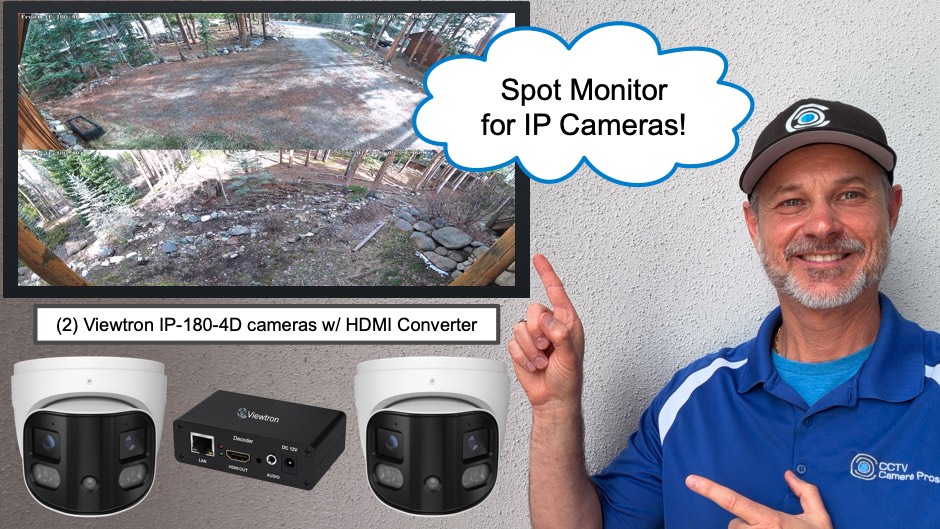
Spot Monitor for IP Cameras Solution: IP to HDMI Converter
This Viewtron IP to HDMI converter is an excellent spot monitor for IP cameras solution, with or without a DVR / NVR. The converter supports up to 4 IP cameras (supports single camera, 2-camera, 3-camera, and 4-camera screen layouts). You can connect the HDMI output of the converter to any standard HDMI TV.
Watch the above video to see how I configured the custom screen layout feature of the converter to display two of these Viewtron 180 degree IP cameras across the full width of the TV screen.
IP Camera Spot Monitor with DVR / NVR
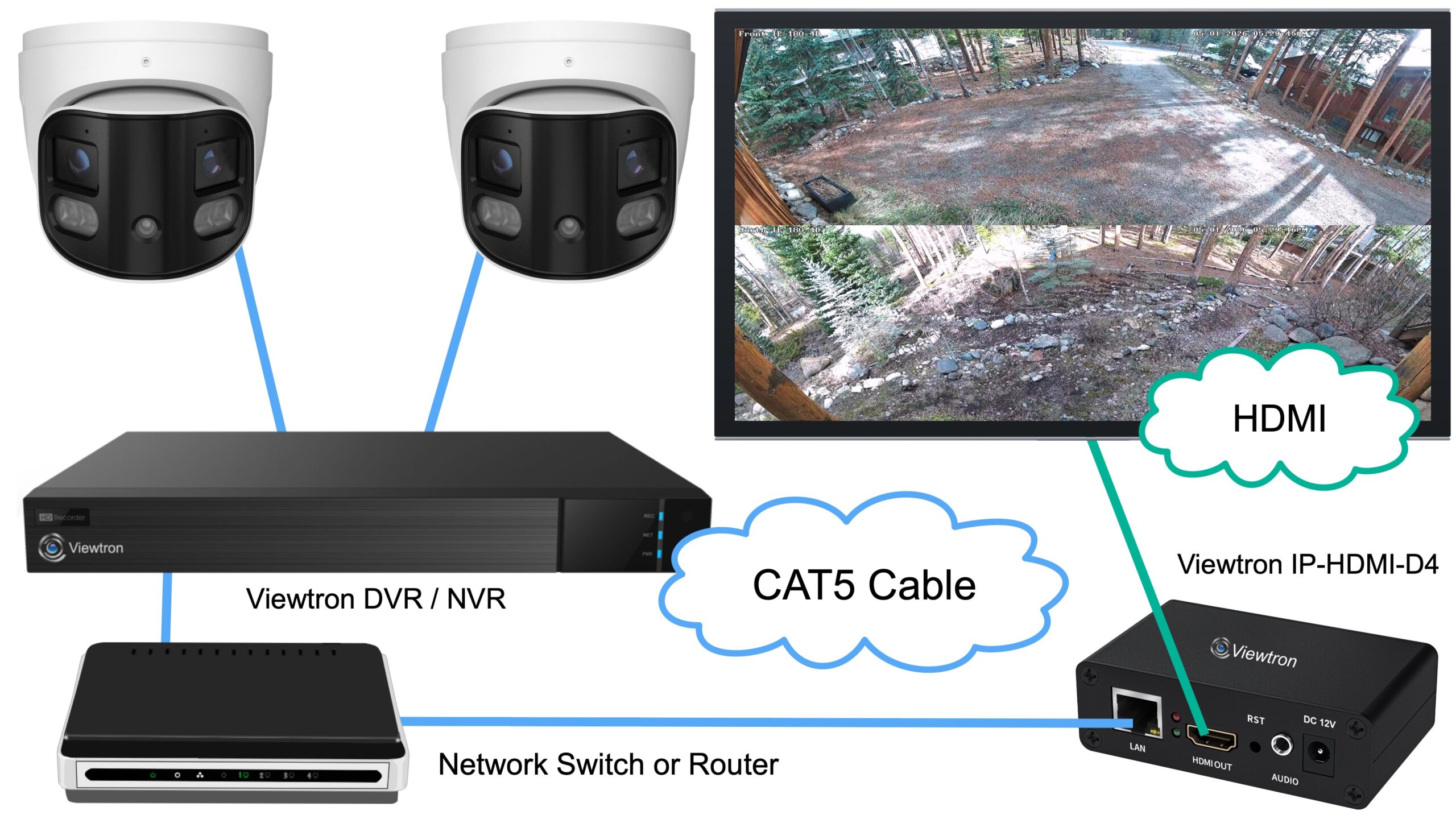
This is the setup at my house. My IP cameras are connected to a Viewtron DVR / NVR. The NVR handles all of the video surveillance recording, AI motion detection events, video playback operations, etc. All Viewtron DVRs and NVRs allow you to enable RTSP stream URLs for each camera connected to them. You can find the Viewtron DVR RTSP set up instructions here.
The Viewtron IP-HDMI-D4 is configured to connect to the 2 RTSP streams of the IP cameras connected to the NVR. The IP decoder in my family room (near the TV) is connected to my home network via a hard wired Ethernet connection using CAT5 cable. This is one of the advantages over this HDMI over Ethernet / IP Spot Monitor solution. The IP decoder is not hard wired to the IP camera or NVR. The video stream is communicated over a standard IP network. This allows you to have one or mode live camera views on a TV anywhere on your network. And, if you do not have a network connection located near your TV, we have this wireless IP camera decoder available.
The decoder combines the two video streams into a single video display (like a CCTV multiplexer) and outputs the combined video stream of the cameras to the TV via HDMI.
IP Camera Live TV Display without DVR
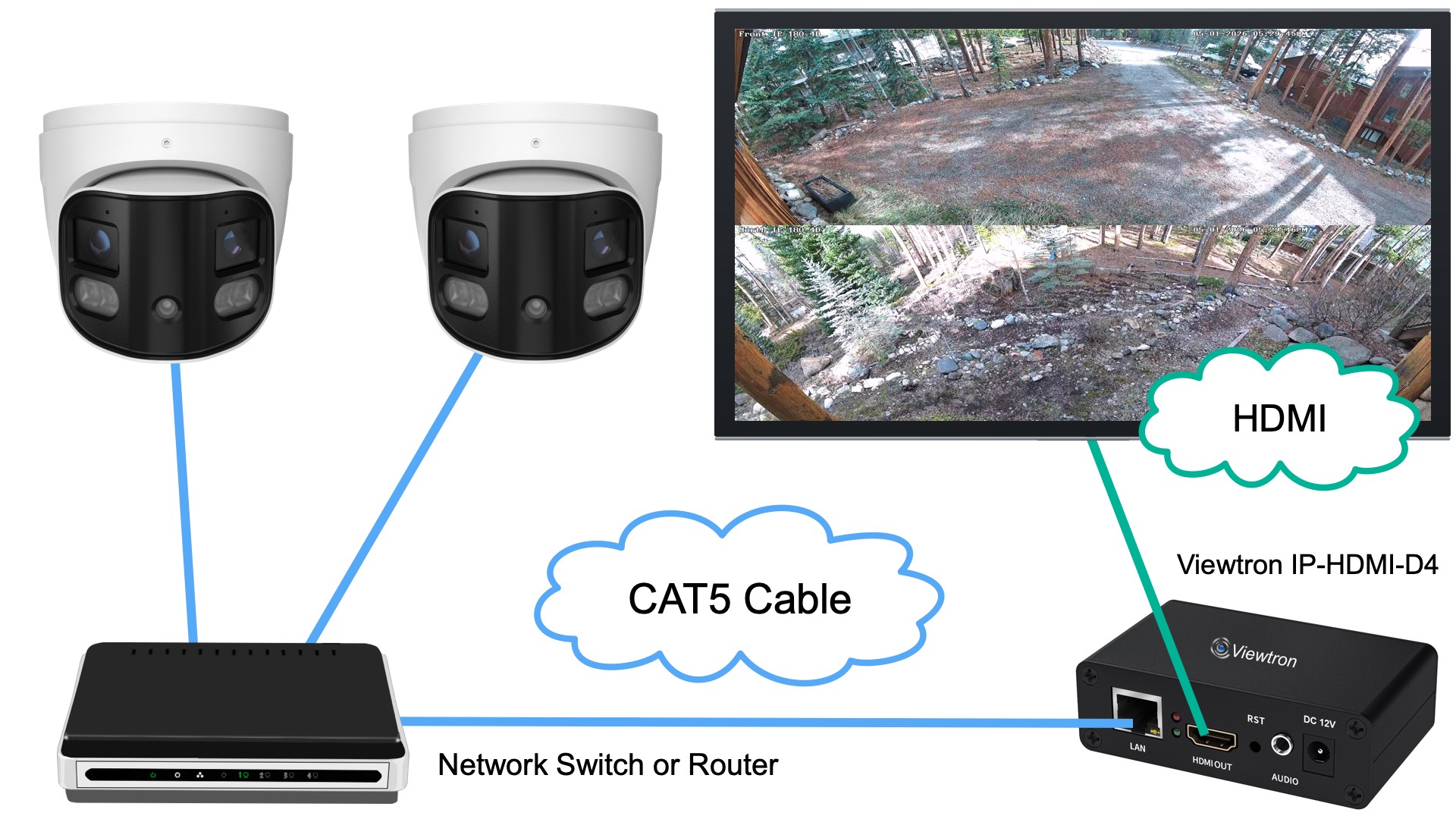
Please note that you can also use the HDMI decoder to display IP cameras directly on a TV without the DVR. You can enable RTSP stream URLs for Viewtron IP cameras so that the decoder can access the video directly from them. You find the direct IP camera to TV decoder setup instructions here.
Custom Screen Layouts
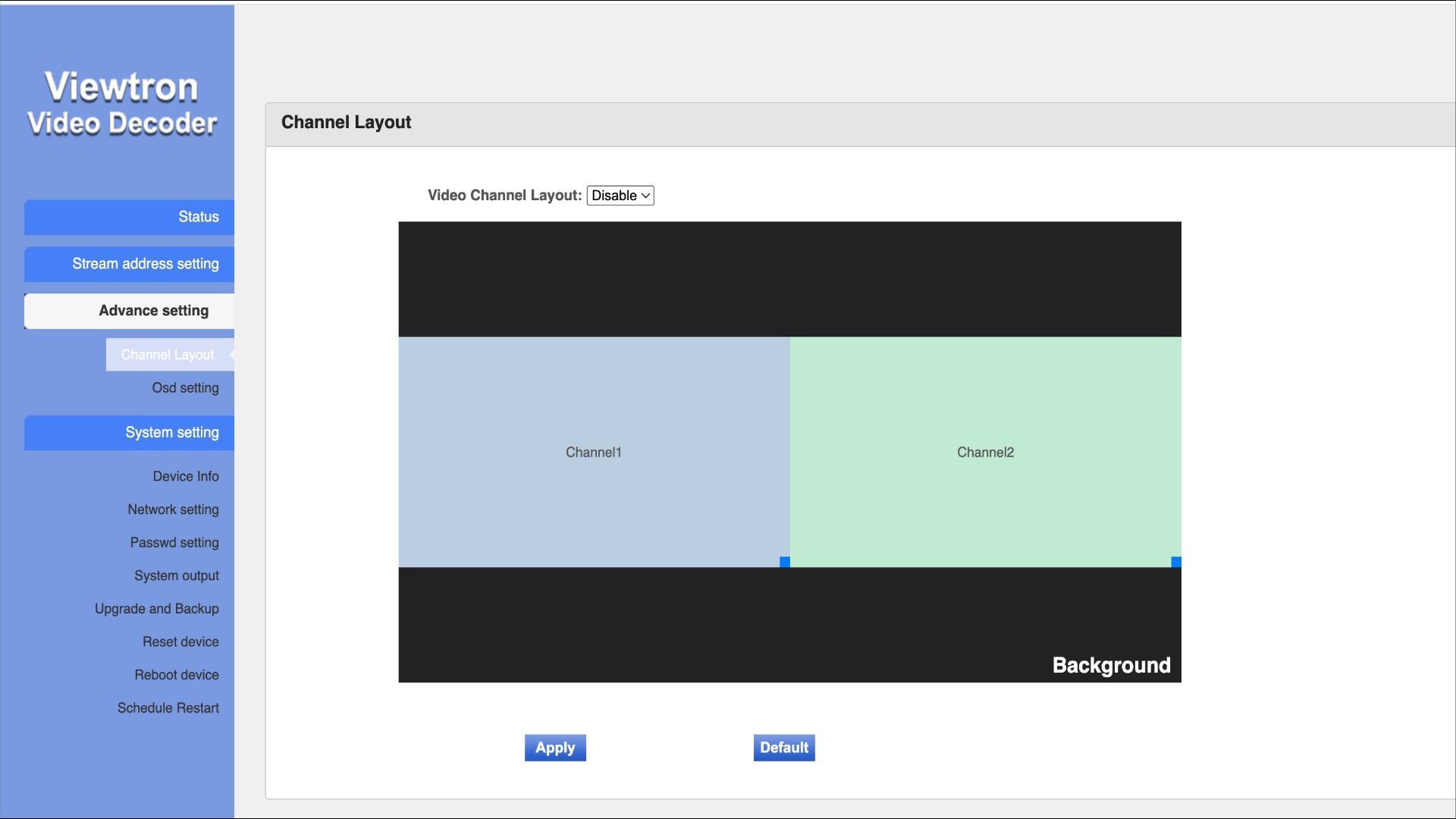
One of the best features of the Viewtron IP converter is the custom screen layout capability. In the above screenshot, you can see the default 2-camera screen layout. The default layout places the 2 cameras, side-by-side in a standard 16:9 aspect ratio.
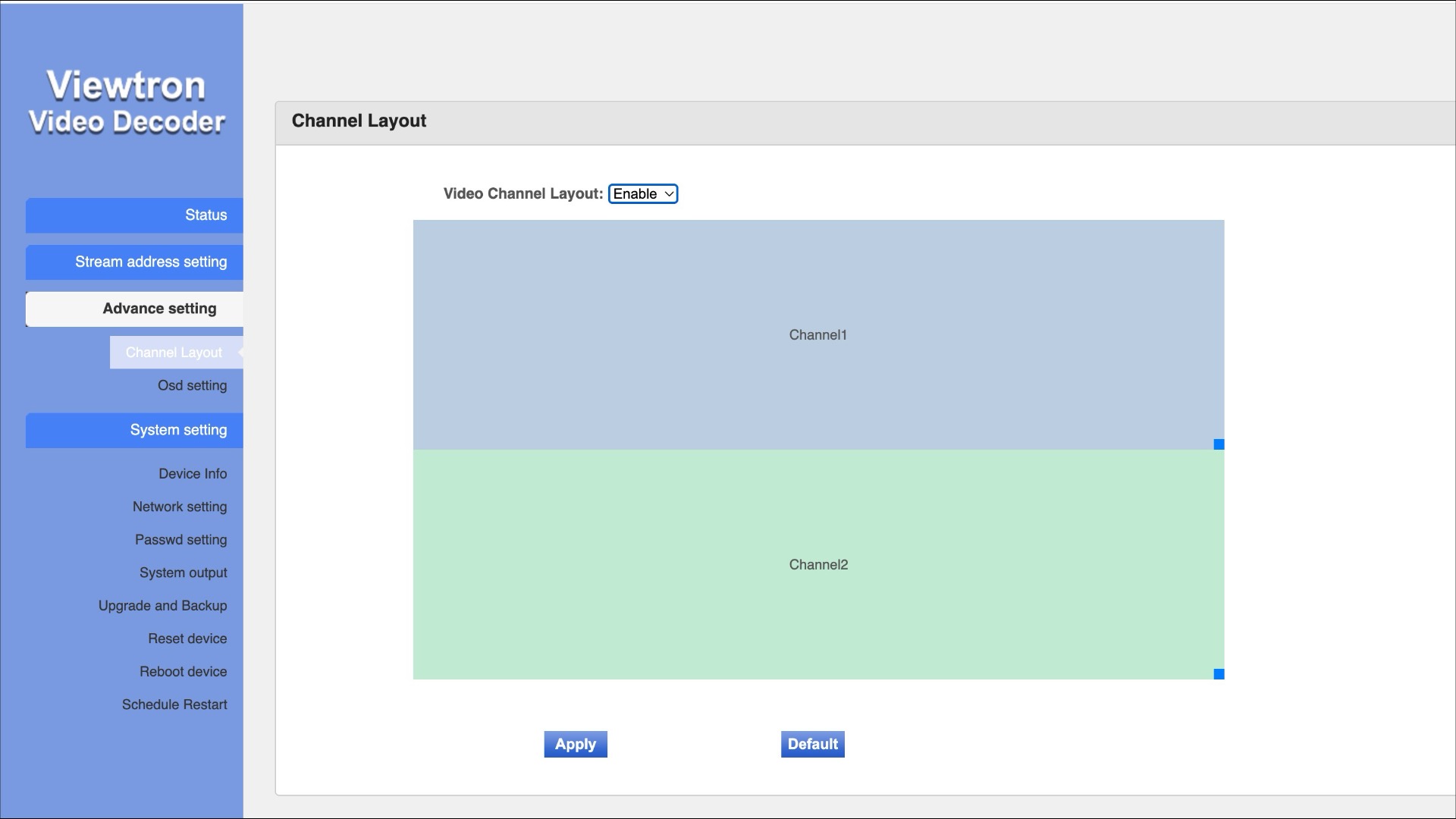
When you enable the custom video channel layout, you can modify the position of all cameras on the screen. You can also change the size / aspect ratio of each camera’s video display. You can see in the above screen shot, I moved the camera’s positions to be one on top of the other, and I also changed the width of each camera to fill the entire width of the screen.
2 Camera Live Display on TV (180 Cameras)
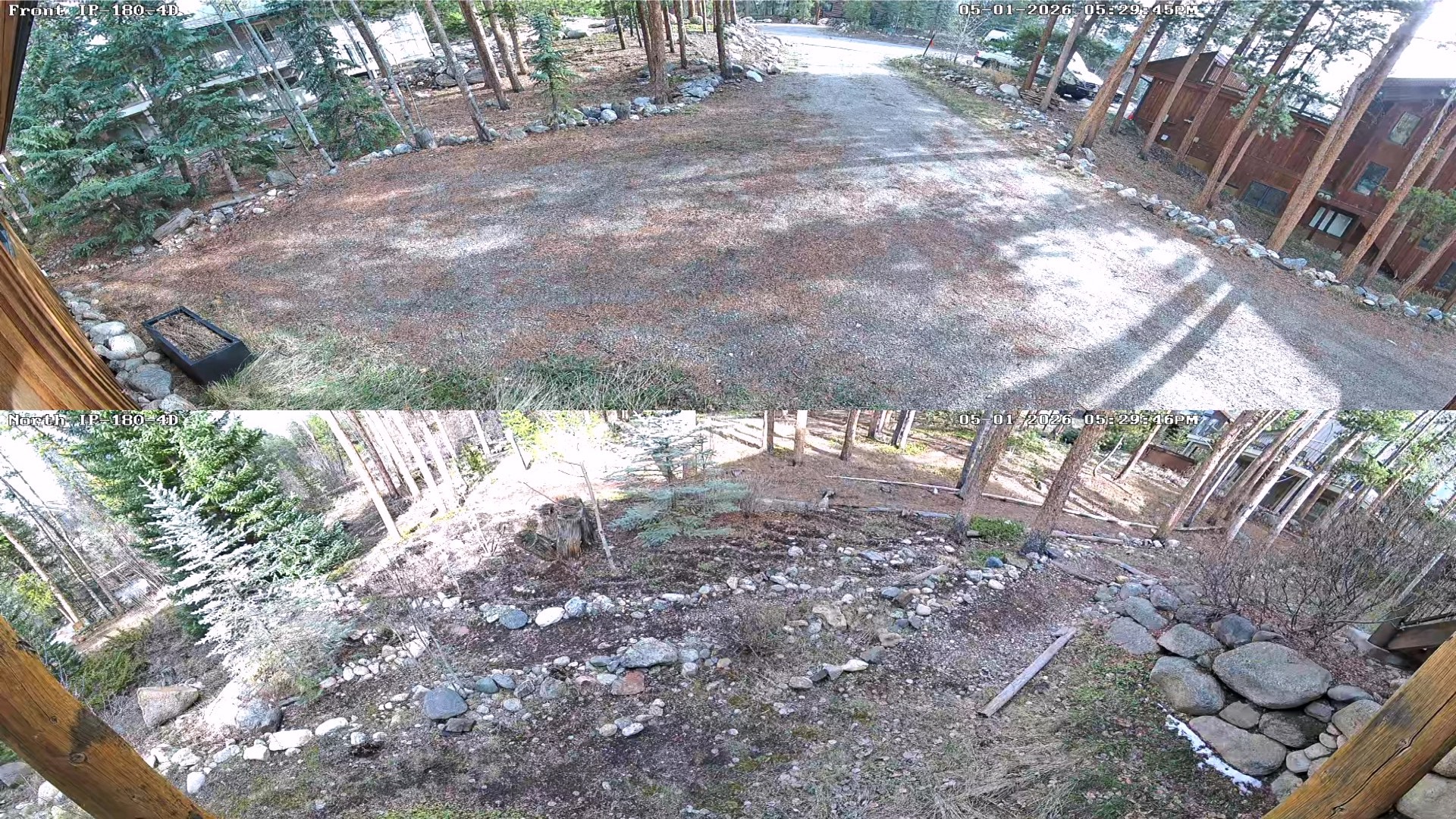
This is what the (2) 180 cameras look like on the TV display.
180 Degree Security Camera
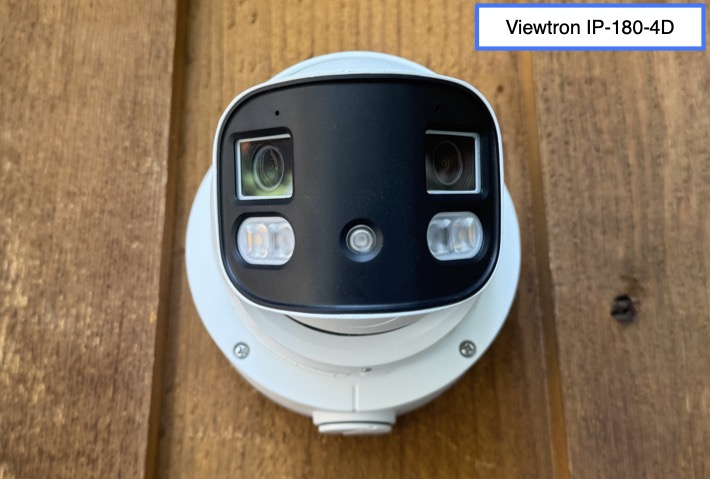
This is the Viewtron IP-180-4D security camera that I am using.
3-Camera TV Monitor Layout
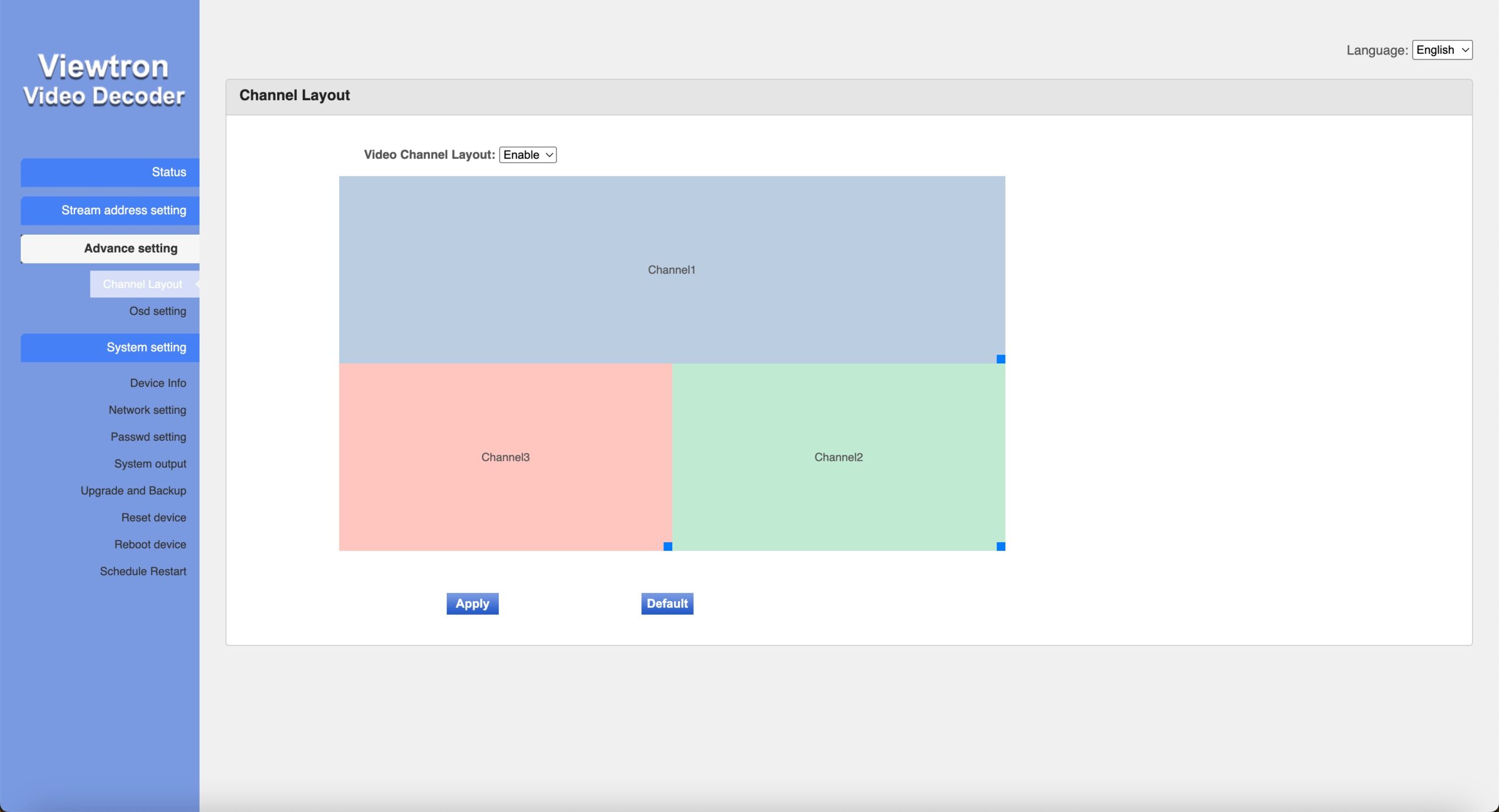
I also experimented with customizing a 3-camera custom layout. I strethed on of the 180 cameras along the top of the layout, and placed the other two cameras below it using 16:9 aspect ratio.
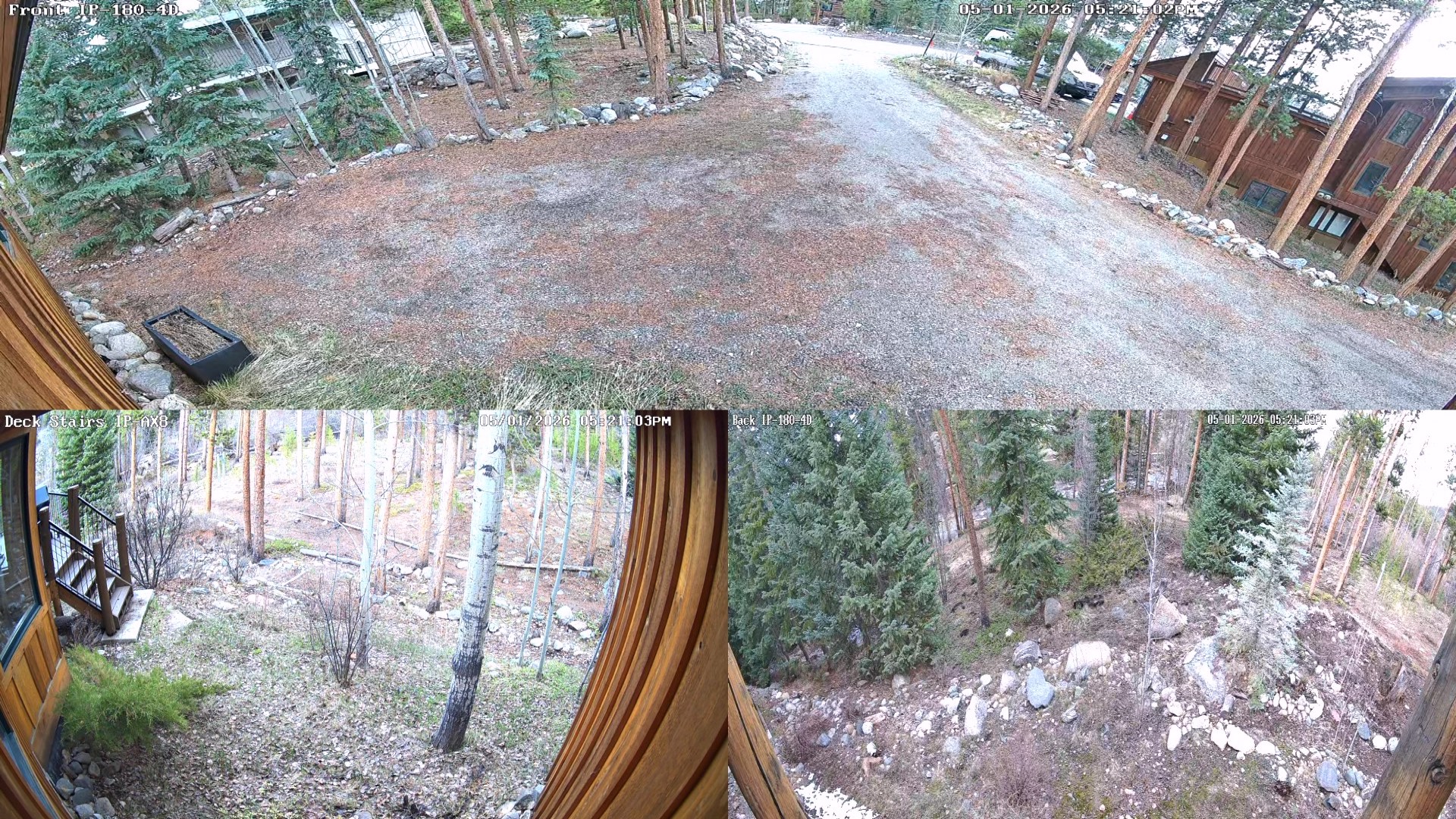
This is what the custom 3-camera view looks like on a standard HDMI TV.
Wireless IP Camera to HDMI Converter also available
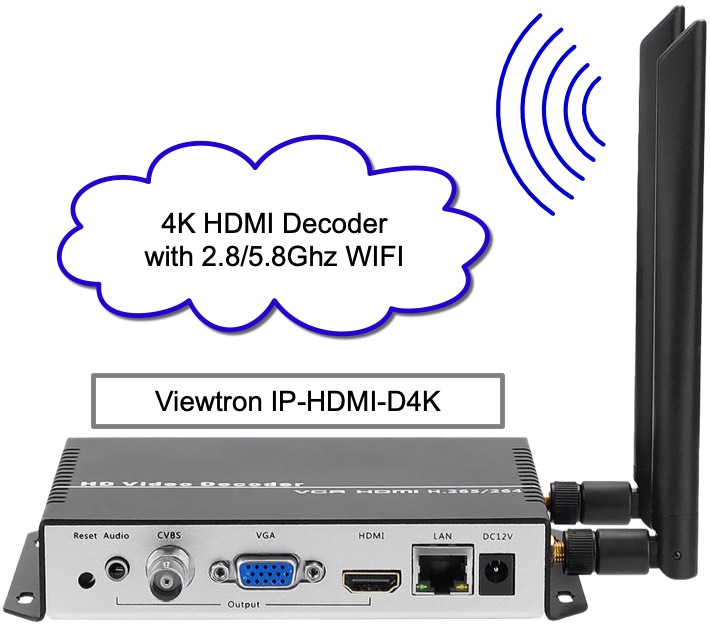
At my house, I am currently using the hard wired IP converter / decoder box, but we also have this wireless IP camera to HDMI converter now available. It has all of the same features as the hard wired model, but also supports a wireless network connection and supports up to 4K resolution on its HDMI output. The hard wired model supports up to 1080p HDMI resolution.
Security Camera to TV Solutions
The team at CCTV Camera Pros has been designing security camera to TV solutions for more than 20 years. We have been supplying CCTV video multiplexers for analog cameras since the beginning, and still sell them today. The latest video multiplexers also work with HD analog cameras up to 4K resolution. And now, with the latest IP security camera to HDMI decoder, we can provide a security camera to TV live view over an IP network. If you have questions, or need any help in designing a security camera system for your home or business, please email me anytime at mike@viewtron.com.
Video Transcript
Here is a complete text transcript of the video on this page.
Hey guys, Mike from CCTV Camera Pros here. I’m at my house doing some more testing with our Viewtron IP camera to HDMI decoder box. You can see it back there behind me on that nightstand. And I have it connected to that TV in my family room.
In my last video, I showed you how to connect a single IP camera that was connected to my NVR here to this TV for a continuous live video display of just that single camera. But the Viewtron IP camera to decoder box supports up to four RTSP streams. So I was playing around with it more. And I connected two of the 180 degree IP cameras that I have installed at my house here.
And something that’s interesting that I found that I’d rather to share in this video was with a two camera view, the aspect ratio of a standard HD security camera would get distorted because you’d have to stretch it out to fill the whole screen. And we’ve seen this for years with our CCTV video multiplexers, which also provide a live video display solution for TVs for coax cameras. But what’s interesting with our Viewtron 180 degree cameras is on the decoder box, you can stretch the screen of each of the cameras to go full screen. And because these 180 cameras have a much wider natural aspect ratio, the stretched out picture that you can make of two IP cameras, two 180 cameras, looks great. Actually, I did a three camera view as well.
So in this video, I want to show you how to set up more than one camera on the IP decoder box and then show you how to go into the user interface and change the standard 16 by 9 aspect ratios for each of the camera views. You can stretch them out and you can organize them any way you want on the screen. So let’s log into the decoder box and I’ll show you how it displays by default for a two camera view and a three camera view. And then I’ll show you how you can go into the settings and change the layout and aspect ratios to customize it. To set up a two camera live view on the IP decoder, log into the IP decoder through a web browser, then click on the stream address setting link on the left navigation menu.
On the RTSP stream address settings screen, you could select one, two, three, or four for the number of video streams of the cameras that you want to display. After you select this and enter the RTSP stream URL for each IP camera or DVR channel, click on the apply button. Next, click on the channel layout link under the advanced settings on the left. You can see here that the default two camera layout is side by side with the standard 16 by nine aspect ratio for each security camera.
This is what the default two camera layout looks like on my TV. However, both of these cameras are the Viewtron 180 degree IP camera model, so the true aspect ratio is much wider naturally. So I will go back into the display settings of the Viewtron IP decoder to create a custom video channel layout by selecting enable in the dropdown box, then clicking and dragging each camera to fill the full width of the TV. And I stack the cameras displayed one on top of each other instead of the default side by side layout. After I click apply, this is what the new live display of the two 180 degree security cameras looks like on my TV. If these were standard 16 by nine aspect ratio security cameras, the image would be much more stretched out and distorted, but with the Viewtron 180 cameras, this two camera layout works very well.
I also want to show you what the three camera layout looks like by default on the TV screen. You can see it here with the three cameras displayed in 16 by nine aspect ratio. Camera number one is one of the Viewtron 180 cameras. So I’m going to go back into the decoder settings and modify the layout and stretch the width of the 180 camera across the entire width of the screen. The other two IP cameras are 16 by nine aspect ratio. They are not 180 cameras. This is the three camera display with the 180 camera stretched on top.
And of course, the default four camera grid view that the IP decoder box supports looks nice as well with all cameras in a 16 by nine aspect ratio. And last, we may as well show you the full screen single security camera view that is supported by the IP decoder box.
Guys, I hope this video has been helpful in explaining the versatility of the Viewtron IP camera to decoder box. I want to mention a few things before we wrap up. Although we refer it to as an IP camera to HDMI decoder, it actually works with CCTV cameras as well because our Viewtron hybrid DVRs and our Viewtron IP camera NVRs, they both output RTSP streams for each of the cameras that are connected to it. And RTSP is what the decoder box uses to consume the video and then transform it into an HDMI signal.
I have my IP cameras here at my house connected to a Viewtron NVR and I’m accessing the RTSP streams from the NVR. If I had a CCTV cameras hardwired here using coax cameras to one of our Viewtron BNC DVRs, you could do this same thing. In addition, if you want to display more than four cameras, you can add one of our Viewtron HDMI to IP encoder boxes to use in conjunction with this. And what you do is you connect that to the HDMI output of the Viewtron recorder and you send that entire HDMI signal over the network to the decoder box, which brings me to another point I didn’t mention.
This TV is located nowhere near where my IP cameras connect to the NVR. That’s on the complete other side of the house in a closet. This communication is all happening over the IP network here at the house. So you can have one or more TVs located anywhere at your house or business to display one or more live views of your security cameras anywhere on site where you have a network connection. Last, in a few weeks, we are coming out with a wireless IP to HDMI module.
So if you don’t have a hardwired connection by your TV, you’ll be able to use the wireless version of our IP to HDMI decoder. So you don’t have to have a hardwired connection by your TV. Guys, if you have any questions about anything related to this product or anything related to security cameras for home business or government, you can email me anytime at mike@viewtron.com. If you want to learn more about the IP to HDMI decoder or the HDMI to IP encoder, and we have a bundle product that you could buy both, please visit www.Viewtron.com/IPTV.
Thank you for watching.