2.8-12mm Motorized Varifocal Lens 4K IP Camera Video Demo
This video shows the angle of view range provided by the 2.8-12mm motorized varifocal lens on the Viewtron IP-A8DZ security camera. Please note that although I used the Viewtron IP-A8DZ IP dome camera to demonstrate of how to adjust a motorized zoom lens, we have many other security cameras with motorized varifocal lens.
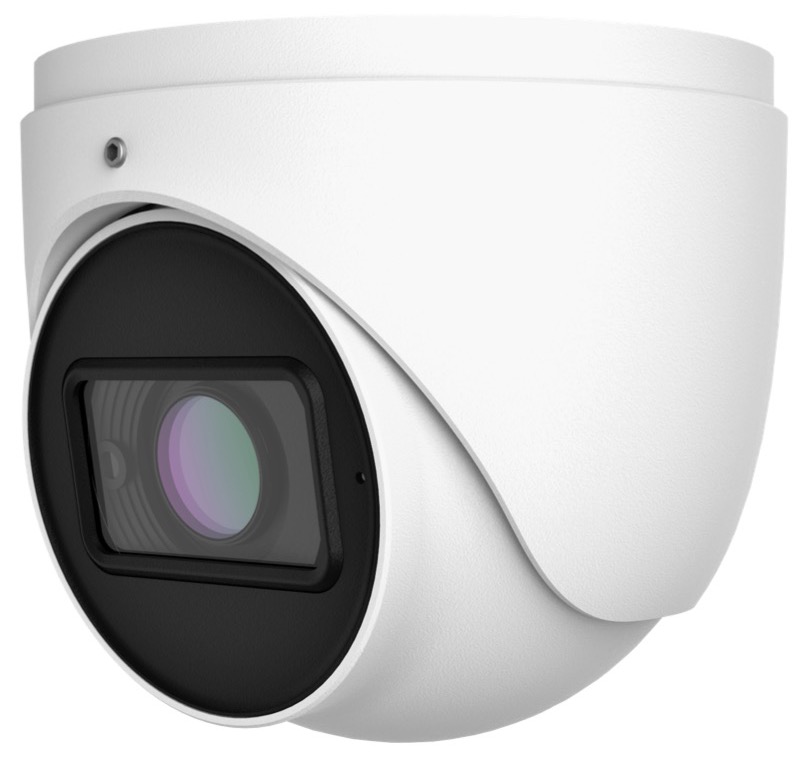
The Viewtron IP-A8DZ is a 4K dome IP camera that can be installed indoors and outdoors. The camera’s housing is IP67 weatherproof rated.
Viewtron IP Camera NVR with PoE
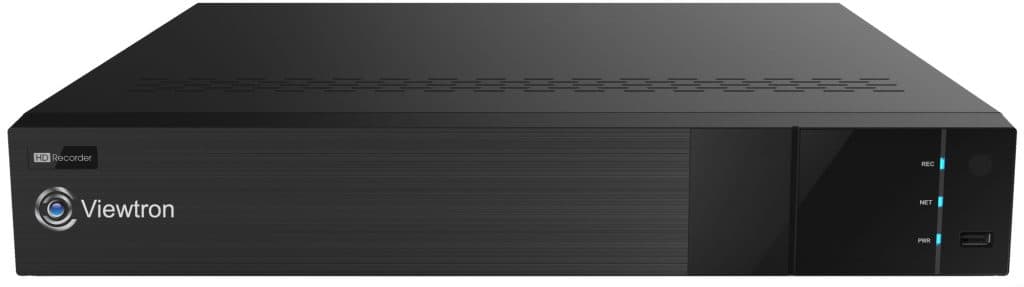
The security camera is hard wired to the 16 channel Viewtron NVR located inside my house. CAT6 cable is used to hard wired the camera’s RJ-45 network port to one of the PoE (power over Ethernet ports on the back of the NVR.
PTZ Camera Controls on NVR
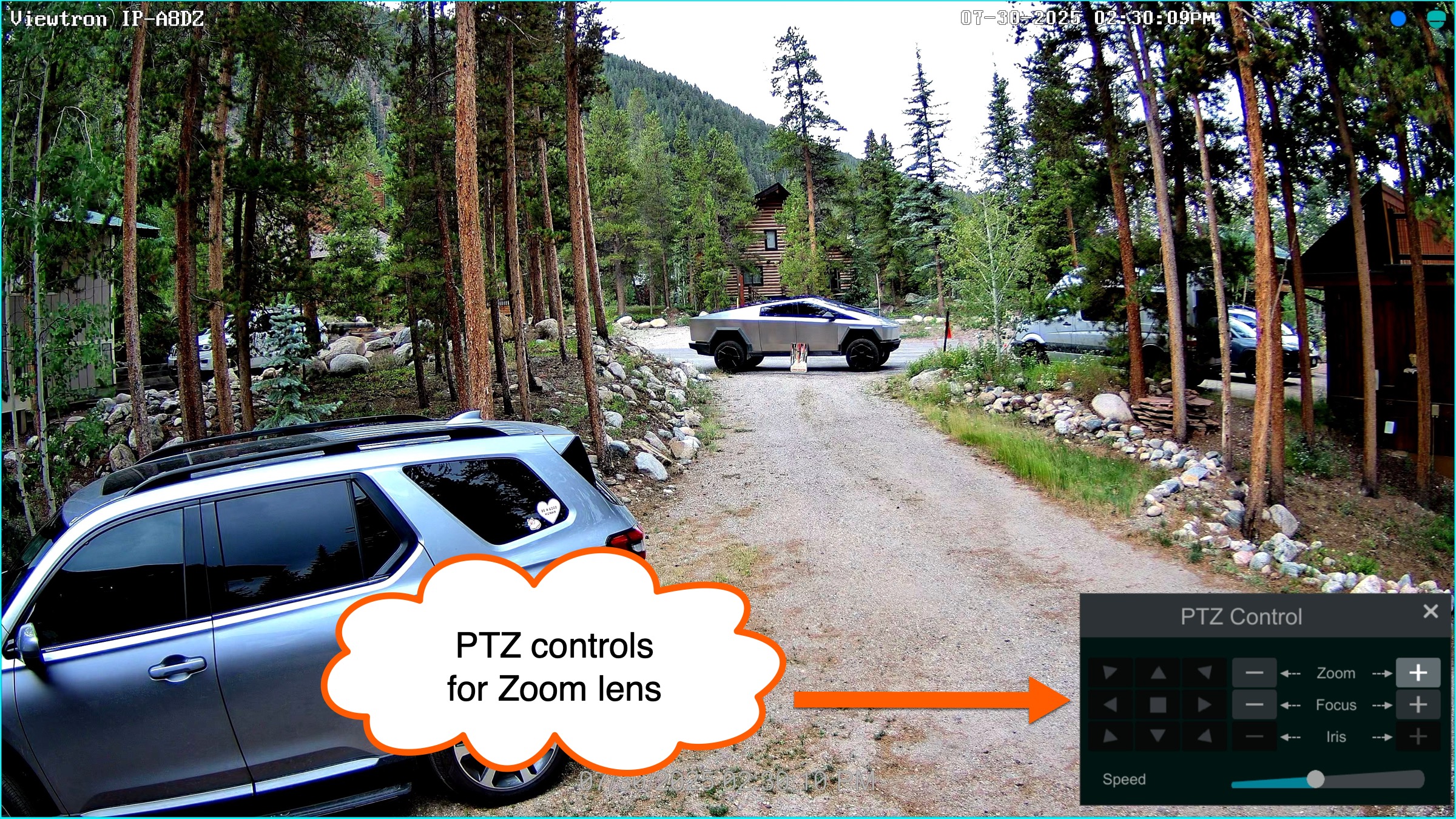
The pan tilt zoom controls on the Viewtron NVR are used to zoom the motorized lens in and out. The camera auto-focuses on its own as you zoom the lens.
Outdoor Wall-mount Installation
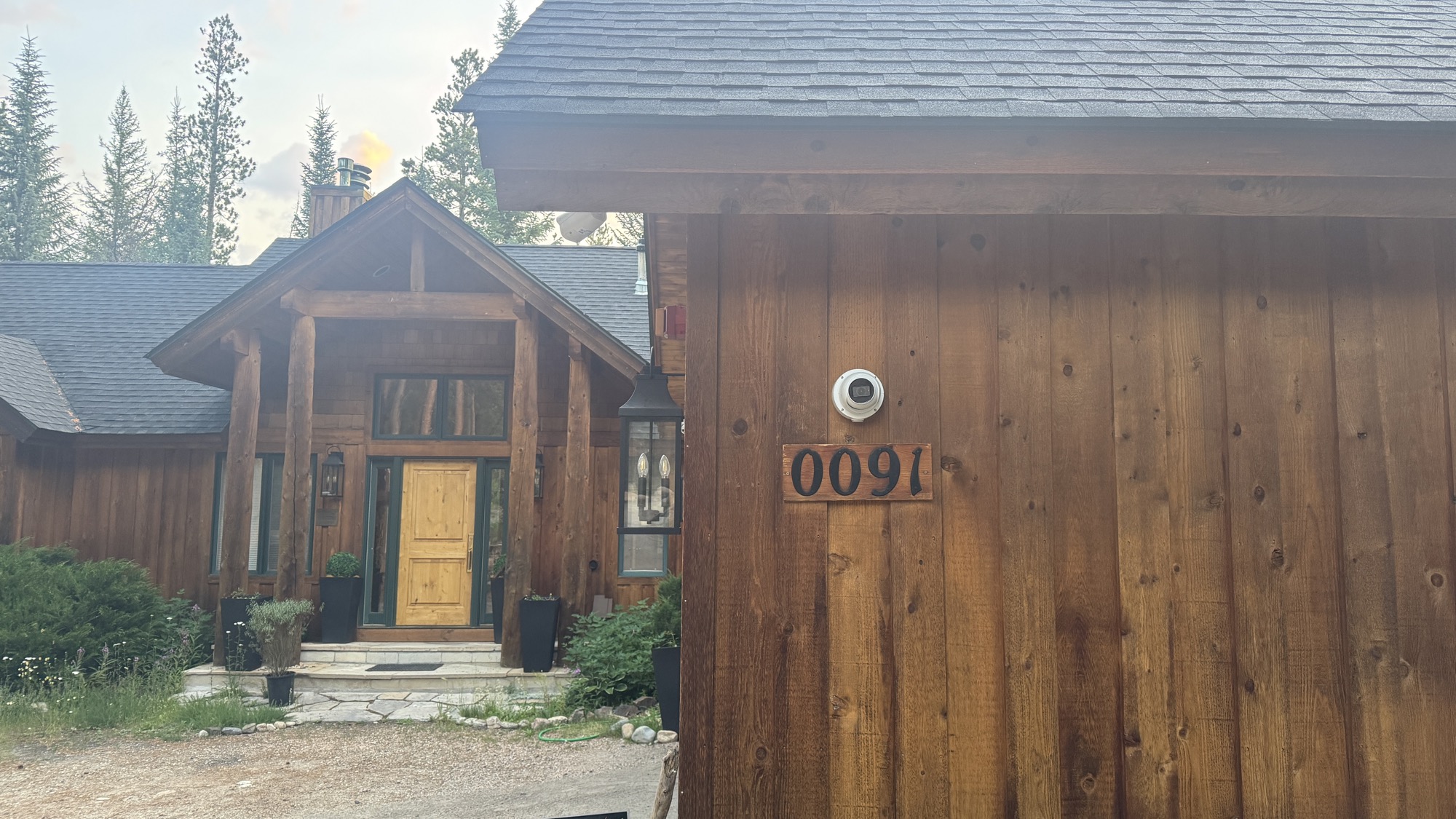
To perform the motorized varifocal lens demonstration, I installed the dome camera to the side of my garage. This IP camera can be wall mounted or ceiling mounted. For this installation, I used the optional VT-J302 camera junction box. I always recommend using one of these for outdoor installations.
80 Foot Distance to Focus Area
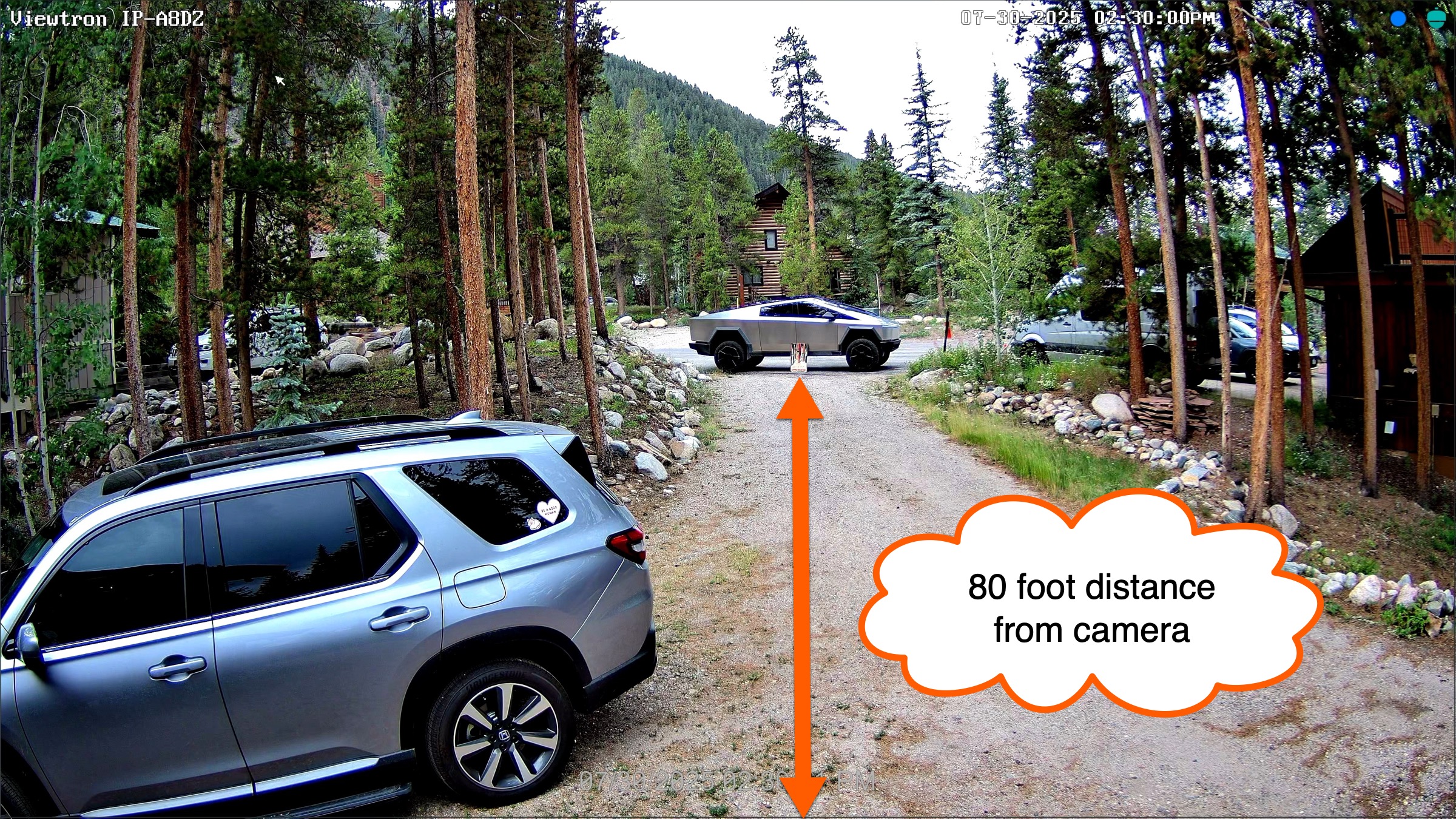
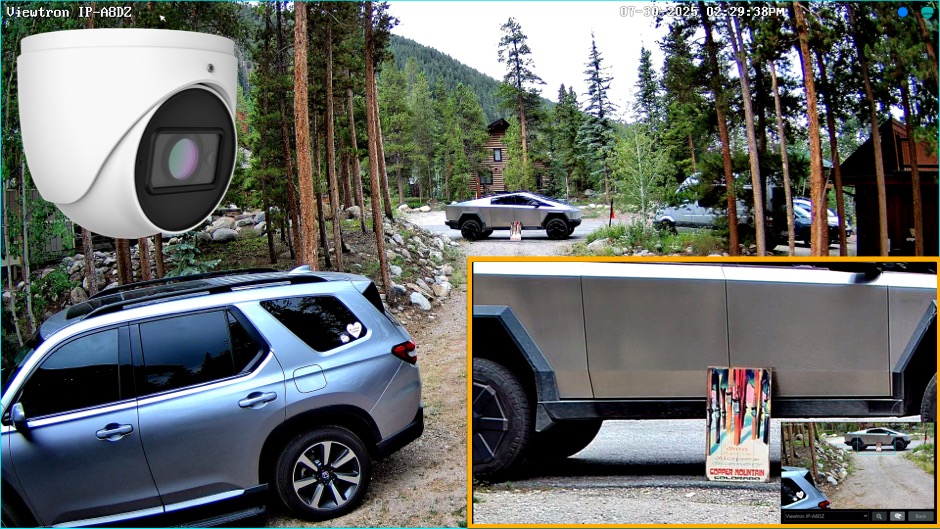
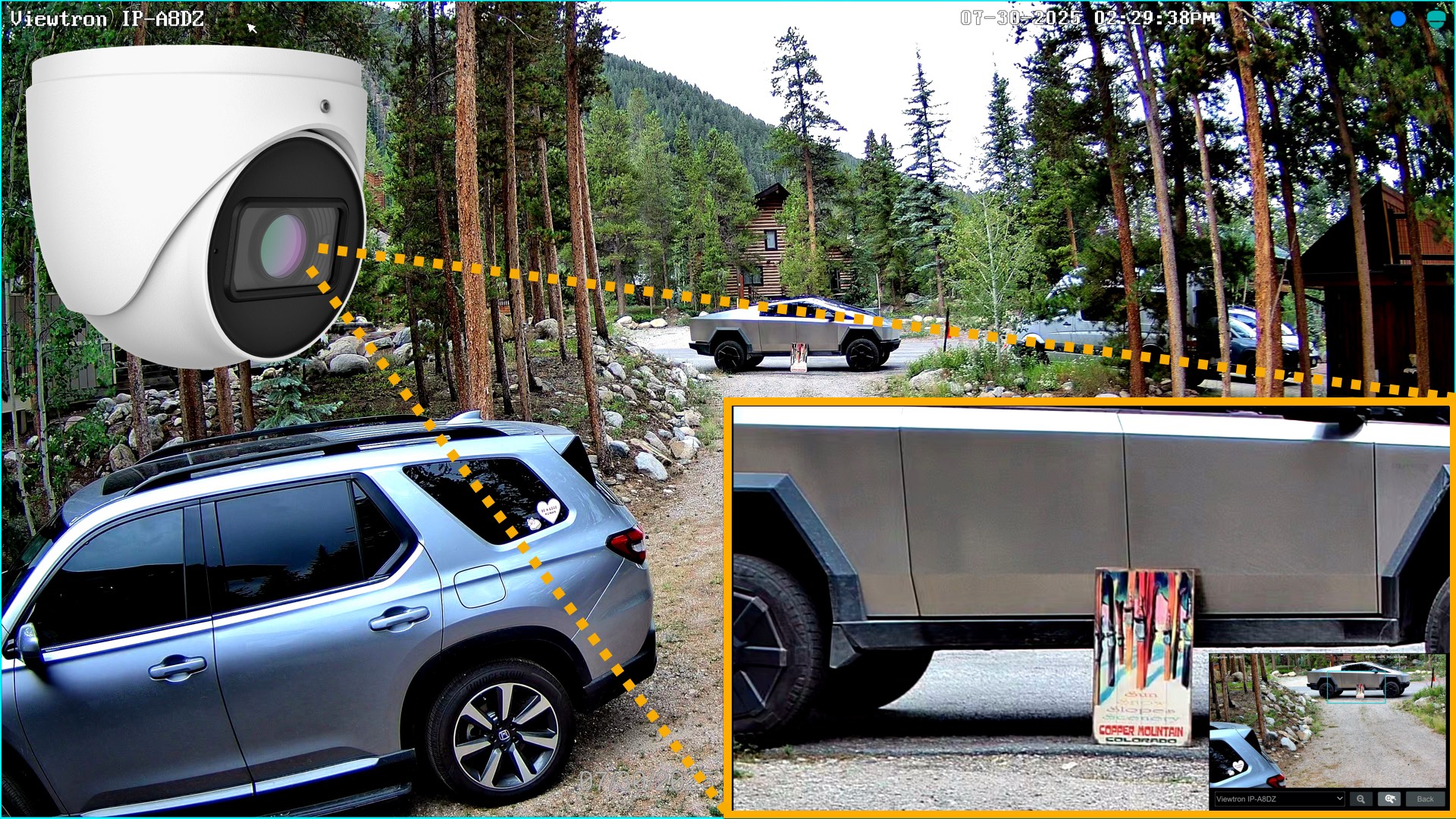
The edge of the driveway at my house is 80 feet away from where the camera is installed. I parked my truck at the edge of the driveway and placed a piece of artwork leaning up against it. The artwork has some text on it which will be a good focal point to text the varifocal lens.
2.8mm Lens Setting

This is what the angle of view and distance to the truck looks like with the lens set to the widest angle, 2.8mm. Please click on the image to see the full 4K video resolution recorded by the Viewtrom NVR.
12mm Lens Setting

This is what the angle of view and distance to the truck looks like with the lens set to the most narrow / zoomed in angle, 12mm. Please click on the image to see the full 4K video resolution recorded by the Viewtrom NVR.
Optical Zoom on NVR at 2.8mm Lens Setting

The Viewtron NVR has an optical zoom function that lets you zero in on specific areas of the video. I used the optocal zoom function to see if I could read the word on the artwork at the 2.8mm lens setting. You can see that the words are not legible. You can click on this above image to see the full 4K video resolution recorded by the NVR.
Optical Zoom on NVR at 12mm Lens Setting

The above snapshot was captured with the lens set at the 12mm setting. The optical zoom on the NVR was used to zero in on the artwork and you can see that the words are readable. You can click on this above image to see the full 4K video resolution recorded by the NVR.
Motorized Varifocal Lens Controls from Mobile App
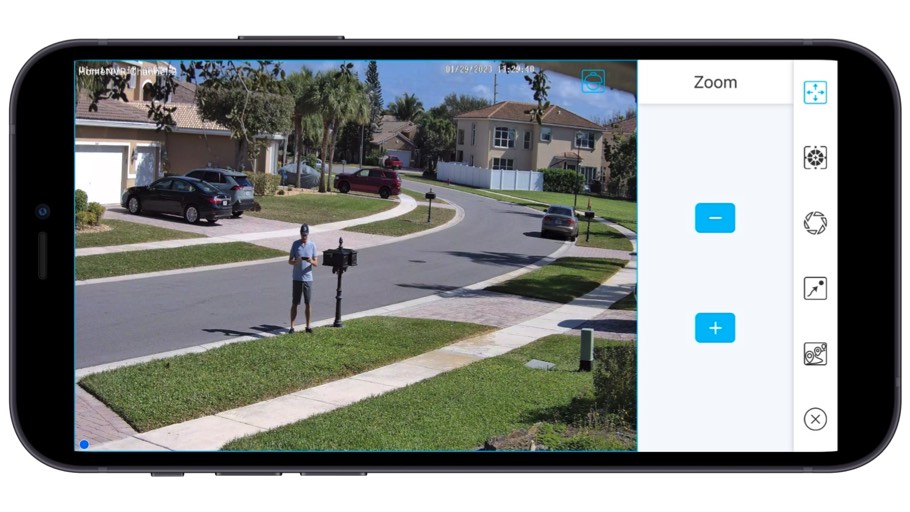
In addition to being able to adjust motorized varifocal lenses from Viewtron DVRs / NVRs, you can also adjust the zoom via the mobile app for iPhone and Android. Please watch the above video to see a demo.
2.8-12mm Varifocal Lens Summary
The 2.8 to 12mm motorized varifocal lens works great to focus on areas of interest up to 80 feet from where the camera is installed. The motorized lens can easily be adjusted from the Viewtron NVR that the camera is connected to and also from the mobile app for iPhone and Android. The optical zoom function on the Viewtron NVR allows you to digitally zoom into specific areas on the video surveillance image.
Security Cameras with Motorized Varifocal Lens (IP and CCTV)
You can adjust the motorized varifocal lens on all Viewtron cameras from the Viewtron DVR / NVR, from the mobile app, and desktop VMS software. The process is the same for our network IP cameras that have motorized lenses and our coax CCTV / BNC cameras. You can find all of our Viewtron security camera models with motorized varifocal lens here.
Have Questions / Need Help?
If you have any questions about this video / article, you can reach me via email at mike@viewtron.com. Me and the team at CCTV Camera Pros can design a system for your home or business. We provide free phone consultations, systems designs, and quotes. You can learn about all of our Viewtron security camera systems here.
Video Transcript
Good morning, everyone. Mike from CCTV Camera Pros here. I’m going to use my home security camera system this morning to give you a quick demo of how the motorized zoom works on one of our network IP cameras. This is one of our Viewtron AI security cameras, but the motorized zoom controls work the same on these Viewtron cameras, whether it’s an IP camera or an HD BNC camera. The controls are the same. I’m going to show you how to do it directly on the DVR or NVR using the mouse controls. I’m also going to show you how to do it using the mobile app for iPhone and Android, and then I’m going to show you how to zoom in and out using the desktop software for Mac. And it’s the exact same for Windows.
Before I go into the demo, let’s talk about why motorized zoom cameras exist. Primarily, it’s for installation, so these are meant to replace the old-style varifocal lens where you had to manually turn a focus ring and an angle ring and then manually focus it, looking at a test monitor. These motorized zoom controls let you just press a button in and out, and then the lens automatically focuses for you. It’s very convenient, especially for a single installer to deal with. If you already have the DVR or NVR installed, you connect the camera, pull up the mobile app, use that as a test monitor, and you can adjust the angle of view right from the mobile app, and it focuses for you. That’s the primary use.
Secondary, some customers do use this to zoom in and out after installation. It’s not ideal, because it just goes straight in and out. And you’ll see when I demo the camera that monitors my driveway, there’s a wide-angle view and you could see across the street, but the camera’s angled down, so when you zoom in, the area just comes way in and zoomed, and it zeros in on my driveway, so you can’t move left and right. It’s just straight in and out. Anyway, let’s get to the demo now. I’ll run through it directly on the NVR, then the mobile app, then the desktop software.
Here’s the live security camera view on my Viewtron NVR. And I’m going to be controlling this camera’s zoom here, so I’m going to switch to the full camera view, and then click on this PTZ icon. That brings up the PTZ controls. And I’m just going to put them off to the side over here. And then the only controls that are applicable to this camera are the zoom in and out. So I’m going to go ahead and take the zoom level in a bit. And I’ll pause there, and you can see that the motorized zoom lens automatically focuses when I stop. And then I’ll go in further.
Actually, I’m going to zoom in all the way. There’s the most narrow zoomed-in angle. And, again, it automatically focused. And then we’ll back it back out. Pause it there for a second, let it focus, and then we’ll bring it all the way back out to the widest angle, which on this camera is 2.8 millimeter. When I’m done, I can just close out these PTZ controls, and I can double click to switch to the multi-camera view on my NVR again.
Next, I’m going to go through the same process on the mobile iPhone app. This is the live view from my iPhone, and, again, I’m going to go into the full camera view for the motorized zoom camera that we’re using. And then when I tap on the screen, I can select the PTZ controls. And the difference here, obviously, I’m not using a mouse, so I’m actually spreading the screen. So the opposite of pinching. I’m actually taking my fingers and pushing outward towards those arrows to zoom in. And it’s a little slower. The network at my house, I’m actually having some trouble. So it’s a little bit slower than directly on the NVR, but you could see even with my network being messed up right now, the experience is pretty good. So I’m all the way zoomed in now, and you can see the auto focus again.
Now, if I want to switch to a full screen view, I can close those PTZ controls out temporarily, and then I just brought them back in. And now I’m going to do the opposite to zoom out. Now I’m pinching the screen. So pulling the screen together to zoom back out. And I’ll pause along the way again just so you can see the auto focus kick in. And then I’m going to stretch and zoom all the way back out to the widest angle that this IP camera supports. When I’m done, I can click that X icon in the lower right, tap on the screen to hide all the controls, and now I’m back at the live view. And then I can tap and select the multi-camera live view.
Last, I’m going to demonstrate the video management software for Mac. So I can tap on the screen, just like directly on the NVR, but I’m on my Mac PC now, and then click on the PTZ icon to bring up the PTZ controls. And then, again, the only controls that are applicable are the zoom in and out. And, by the way, the Windows software is identical to this. So although I’m using my Macintosh PC, the user interface for the Windows video management software is identical to this. So, again, just going to zoom in a bit, and now I’m zooming back out to the widest angle, and the lens will auto focus. And when I’m done, I could just close those PTZ controls out by clicking on that X.
I hope this video has been helpful in showing you how to control the motorized zoom lens using one of our Viewtron IP cameras. And, again, it’s the same process for our BNC and coax cameras, and no additional cable is required. Those zoom controls go right over the same coax camera that’s handling the video transmission. If you want to learn more about these Viewtron security camera systems, DVRs, NVRs, IP cameras, and HD BNC cameras, please visit www.cctvcamerapros.com/viewtron. Thank you for watching.