How to Connect IP Camera to TV with or without a DVR
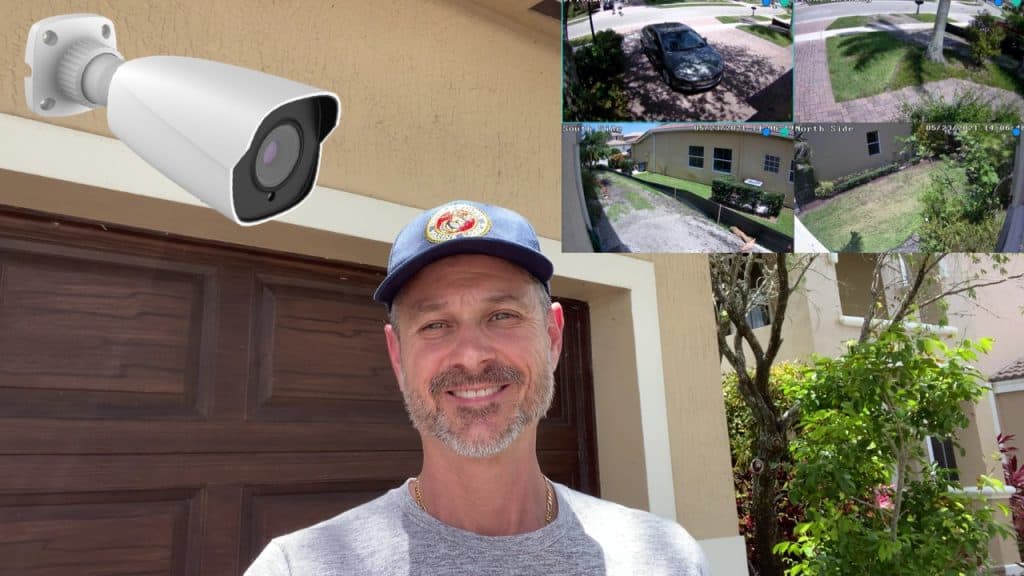
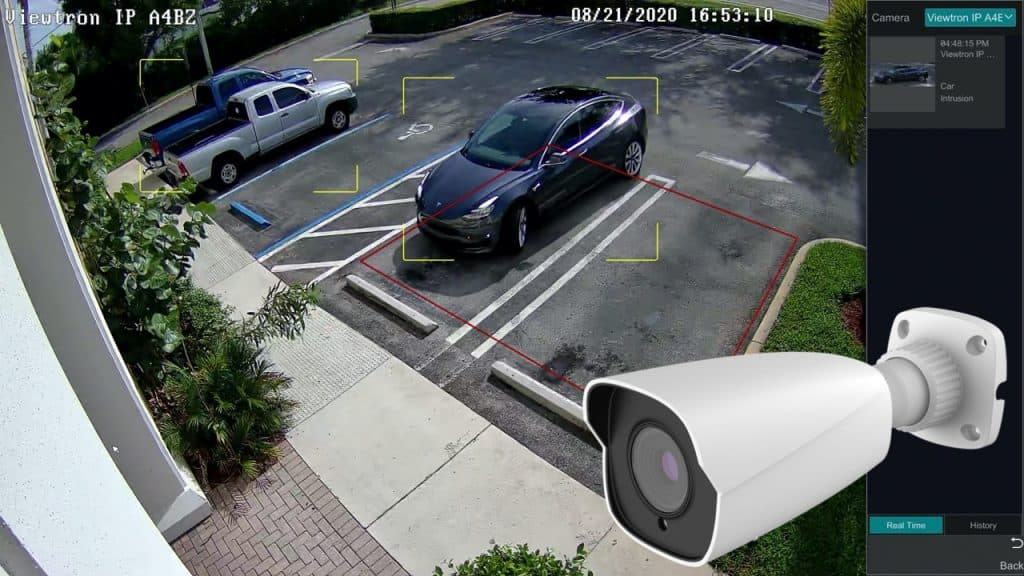
These are solutions for customers that want to connect an IP camera to a TV without a DVR / NVR for a real-time live view. Watch the above video to see how it works. This Viewtron IP camera to HDMI decoder lets you view one or more IP cameras live on a TV. You can connect to multiple TVs if you want, and you can do that with or without using a recorder. The decoder is available as a hard wired model and as a WiFi model with 4K output.
Which guide do you need?
- IP / PoE cameras, with or without an NVR: you are in the right place. This page shows all of the ways to connect them to a TV.
- Step-by-step setup with screenshots: see how I set up the IP to HDMI decoder with my Viewtron NVR.
- Coax / BNC cameras and no DVR: see how to connect a CCTV camera to a TV without a DVR.
Viewtron IP Camera to HDMI Decoder
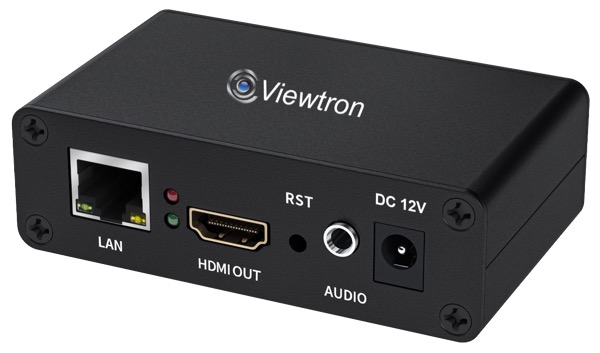
The Viewtron IP camera to HDMI decoder enables you to display live video from any of our Viewtron IP cameras on a standard television or computer monitor. It decodes the RTSP video stream from IP cameras and converts it to an HDMI output. RTSP stands for Real Time Streaming Protocol. You can also display the entire screen from the HDMI output of a security DVR by using one of these Viewtron HDMI to IP encoders.
Which IP Camera to TV Setup Do You Need?
Here is a quick comparison of the options.
| Setup | Network connection at the TV | HDMI output to TV | Cameras on one TV | Best for |
|---|---|---|---|---|
| IP-HDMI-D4 decoder | Hard wired Ethernet | Up to 1080p | 1 to 4 | A TV with a network cable nearby |
| IP-HDMI-D4K decoder | 2.4GHz / 5.8GHz WiFi or hard wired Ethernet | Up to 4K | 1 to 4 | No network cable at the TV, or a 4K TV |
| IP-HDMI-E1 encoder + D4 or D4K decoder | Same as the decoder you choose | 1080p (encoder) | Everything your DVR / NVR screen shows | More than 4 cameras, or your recorder’s full multi-camera screen on a TV in another room |
Both decoders accept IP camera streams from 720p up to 8mp / 4K, and both support custom screen layouts.
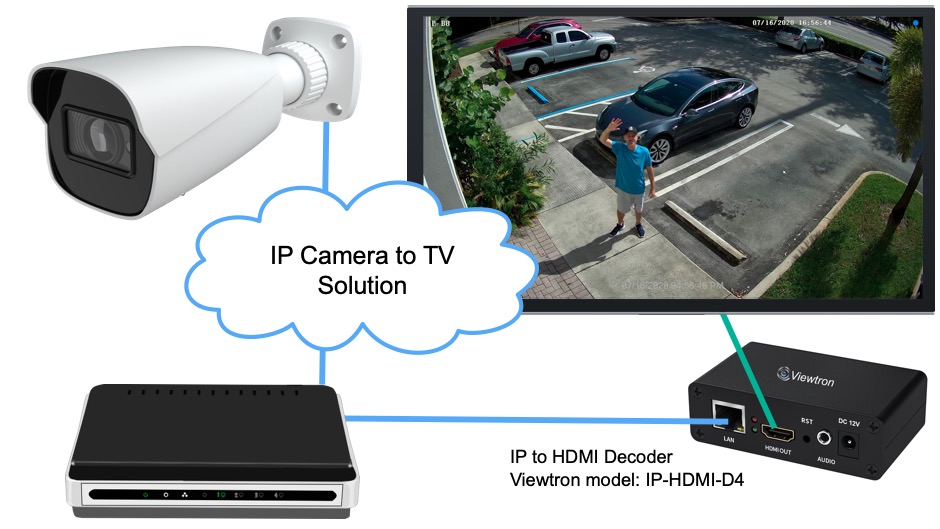
Single IP Camera to TV Wiring Diagram
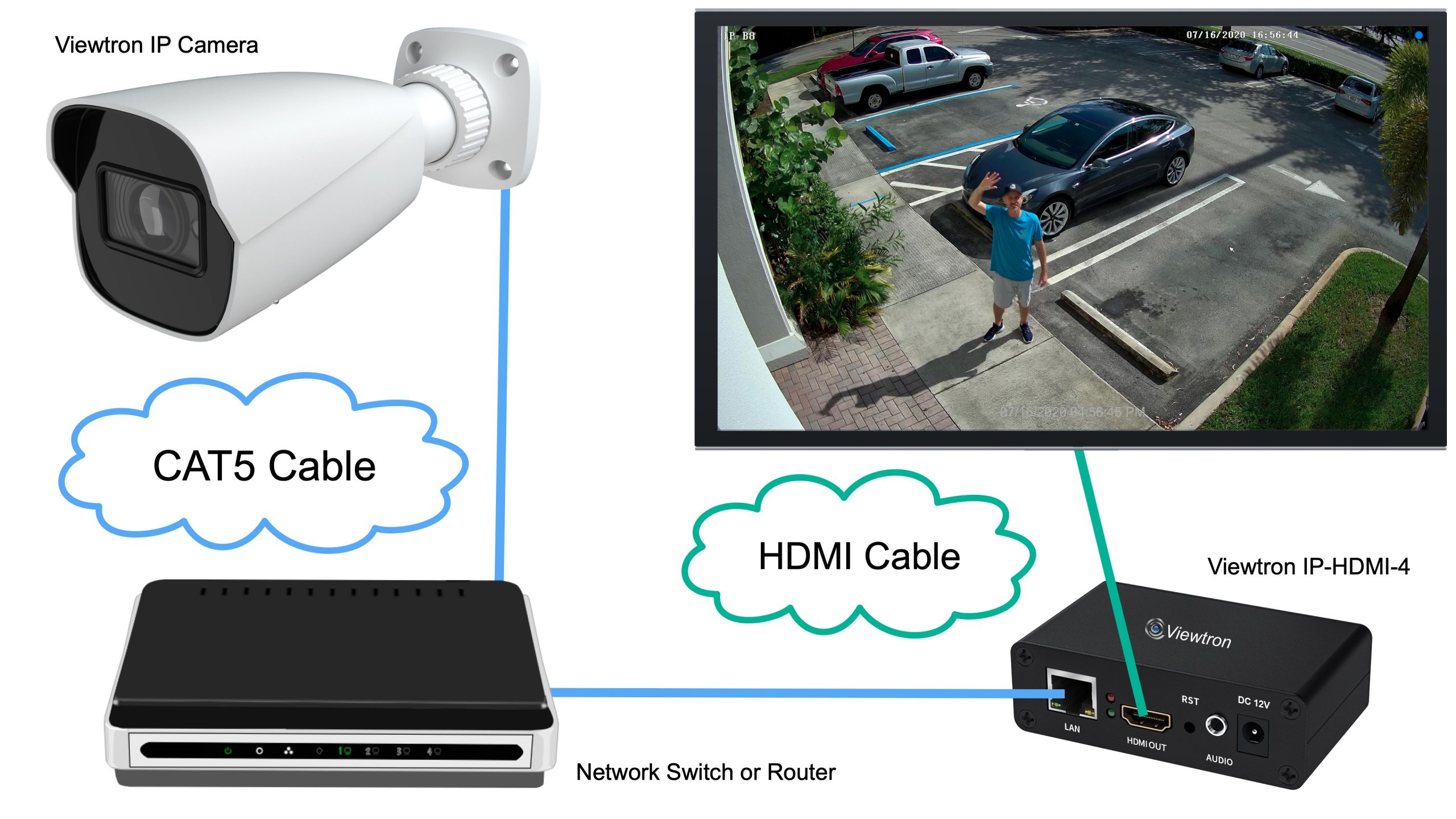
Here is a wiring diagram for the simplest setup.
- The Viewtron IP camera connects via Cat5 cable to your network switch or router.
- The Viewtron IP to HDMI decoder connects to that same network switch.
- The RTSP stream is setup via the decoder’s web interface.
- The decoder pulls the camera’s RTSP video stream over the network and decodes it.
- The HDMI output of the decoder connects to the HDMI input of your TV.
- The decoder can be located anywhere on the same network as the camera.
That is all! The decoder automatically detects the video stream and displays the live view on your TV. You can find detailed IP camera to TV decoder setup instructions here, including the RTSP URL format for Viewtron IP cameras. If there is no network switch or router where the camera and TV are, you can also connect the IP camera directly to the decoder through a PoE injector.
Display One IP Camera on Multiple TVs
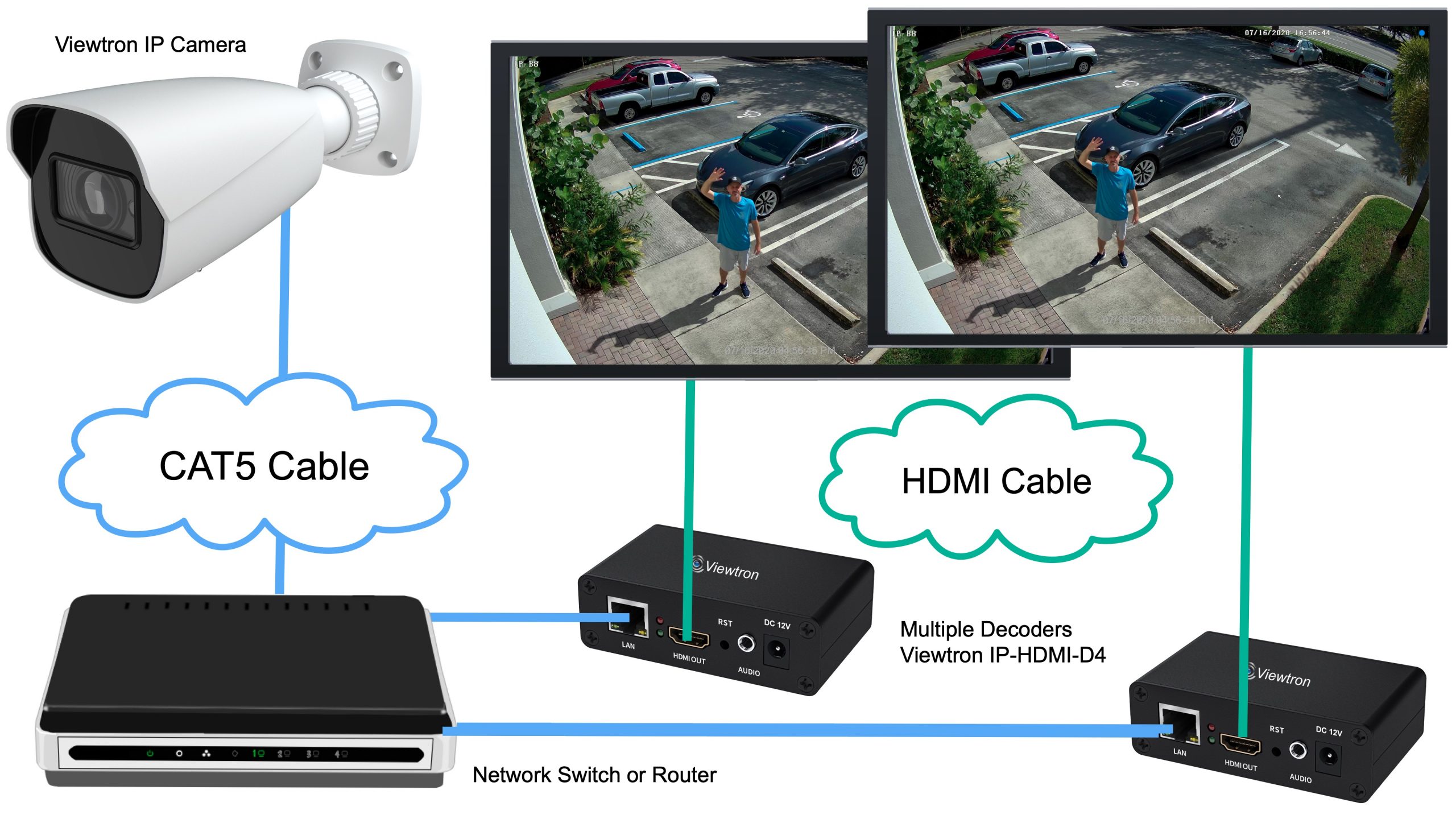
If you want that same security camera feed showing on two or three different TVs throughout your home or business, simply add more decoders. Each Viewtron decoder connects to your network and pulls the same video stream from your IP camera. One camera can feed as many decoders and TVs as you need. This is perfect for lobbies, waiting rooms, or anywhere you want multiple displays showing the same live view.
Display Multiple IP Cameras on One TV
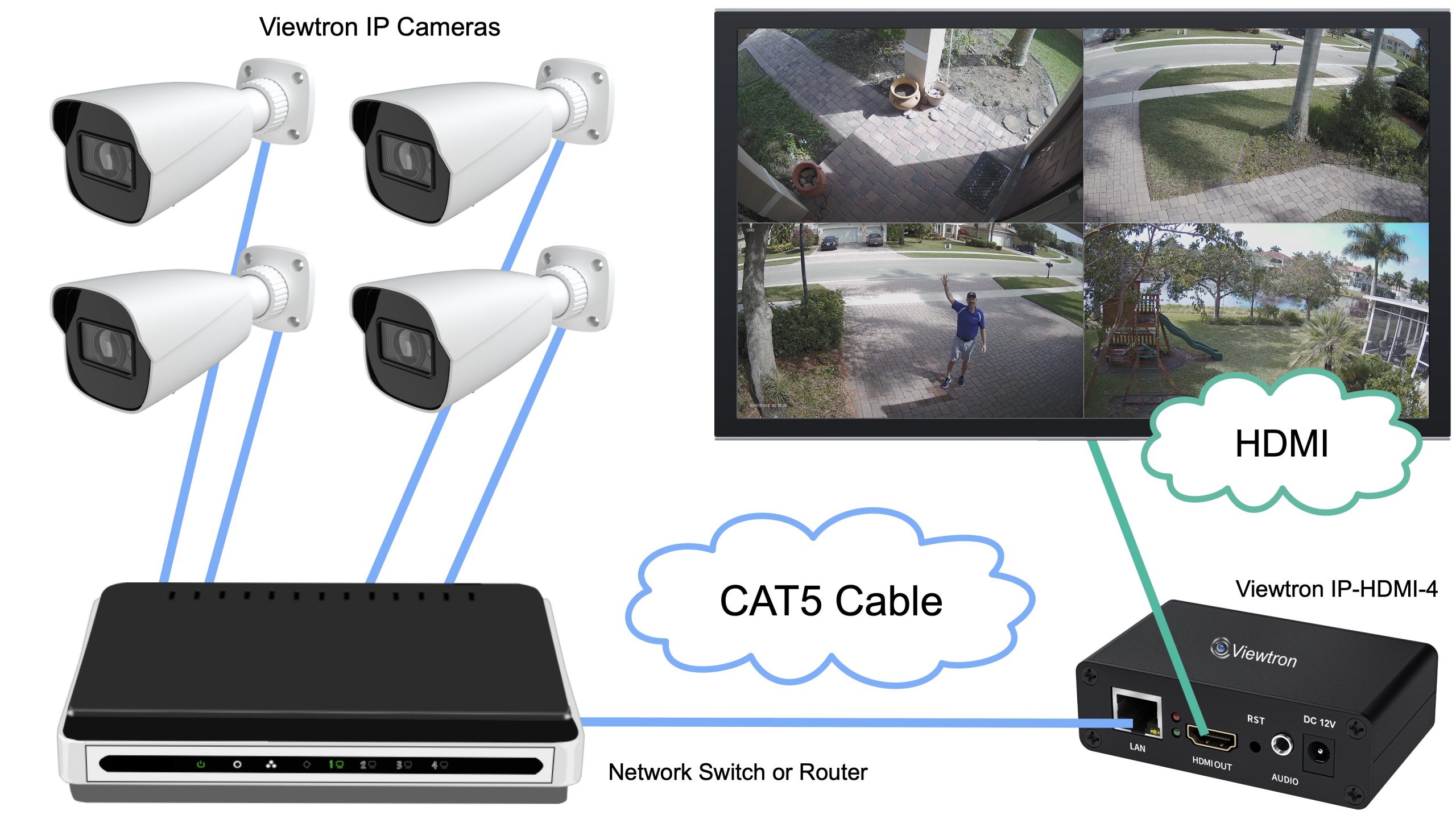
The Viewtron IP-HDMI-D4 decoder is not limited to decoding and displaying just one camera. It actually supports up to 4 RTSP streams. Connect up to 4 IP cameras to your network, and the decoder can pull in all of their video streams simultaneously, displaying them in a grid layout on a single TV. This is basically a video multiplexer for IP cameras. You can display one, two, three, or four cameras on one TV. You can also customize the layout. Here is how to change the channel layout on the IP-HDMI-D4. If you need to display more than 4 cameras at a time, you can use our HDMI to RTSP encoder solution, which is explained below.
IP Cameras with NVR Recording and Live TV Display
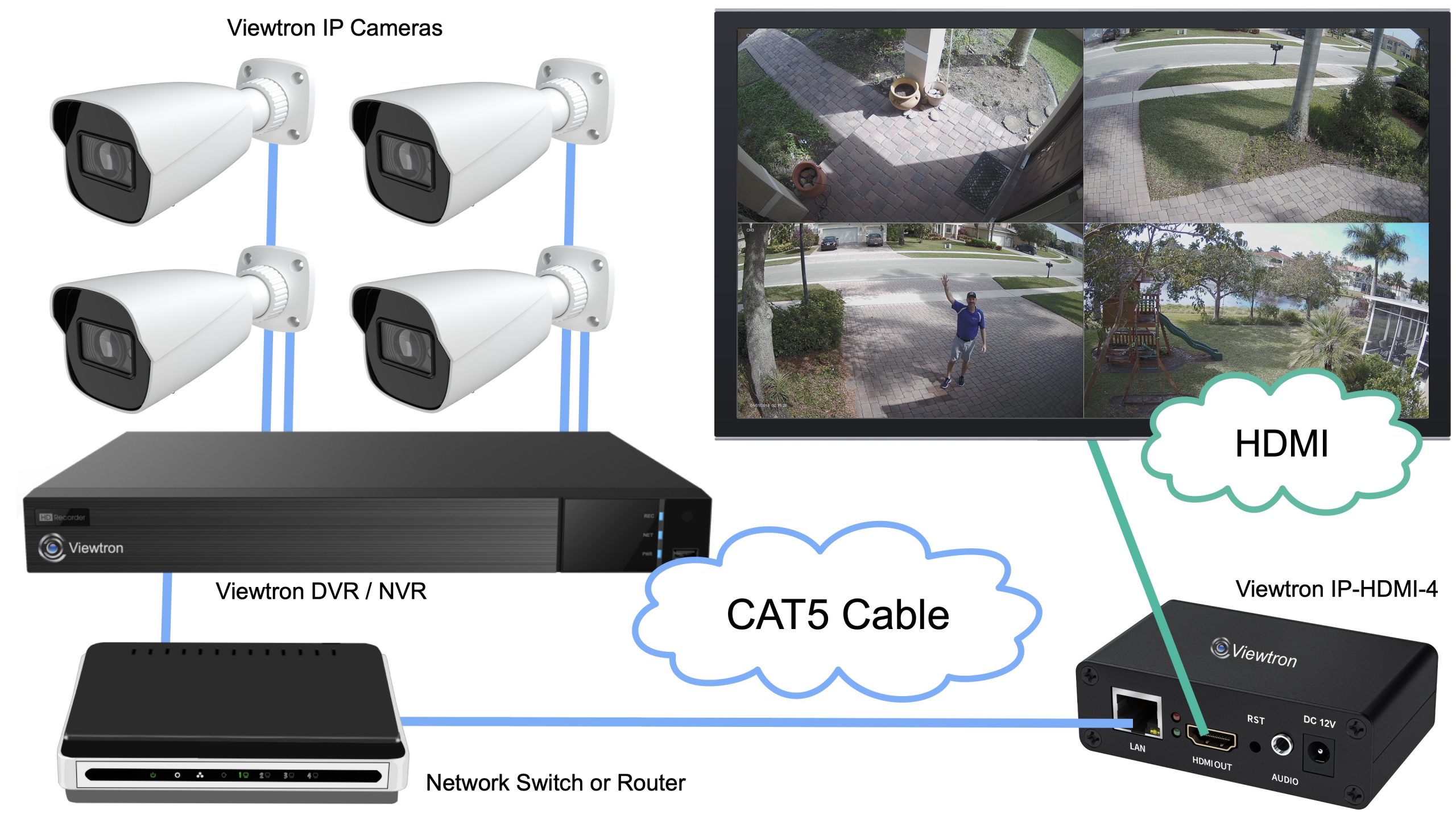
It is actually really common for customers to want to record video centrally on multiple IP cameras, but then also display them on a monitor that is not located near the DVR or NVR. Here is how this works.
- Your Viewtron IP cameras connect to the POE ports on your Viewtron NVR.
- The NVR handles all your recording, alerts, and notifications.
- Viewtron NVRs expose the raw RTSP video streams of all connected cameras on the network. You enable this in the NVR settings. Here is the RTSP URL format for Viewtron DVRs / NVRs.
- The IP to HDMI decoder connects to your network and pulls those streams through the NVR.
- The decoder displays them on a TV wherever you need it, even if that TV is nowhere near your recorder.
You can find step-by-step instructions to pull an RTSP stream from a Viewtron NVR / DVR using the IP-HDMI-D4. You can also watch me set this up at my house in this security camera to TV setup video.
This setup is extremely common in retail. For example, a department store might have 30 IP cameras all recording to a central Viewtron NVR. They want one camera at the entrance displaying a live view so customers see themselves as they walk in, knowing the area is under surveillance. With the IP to HDMI decoder, you can display just that one entrance camera on a lobby TV while all 30 cameras continue recording normally on the NVR. This is what we call a spot monitor for IP cameras.
Send Full HDMI Output Over IP Network
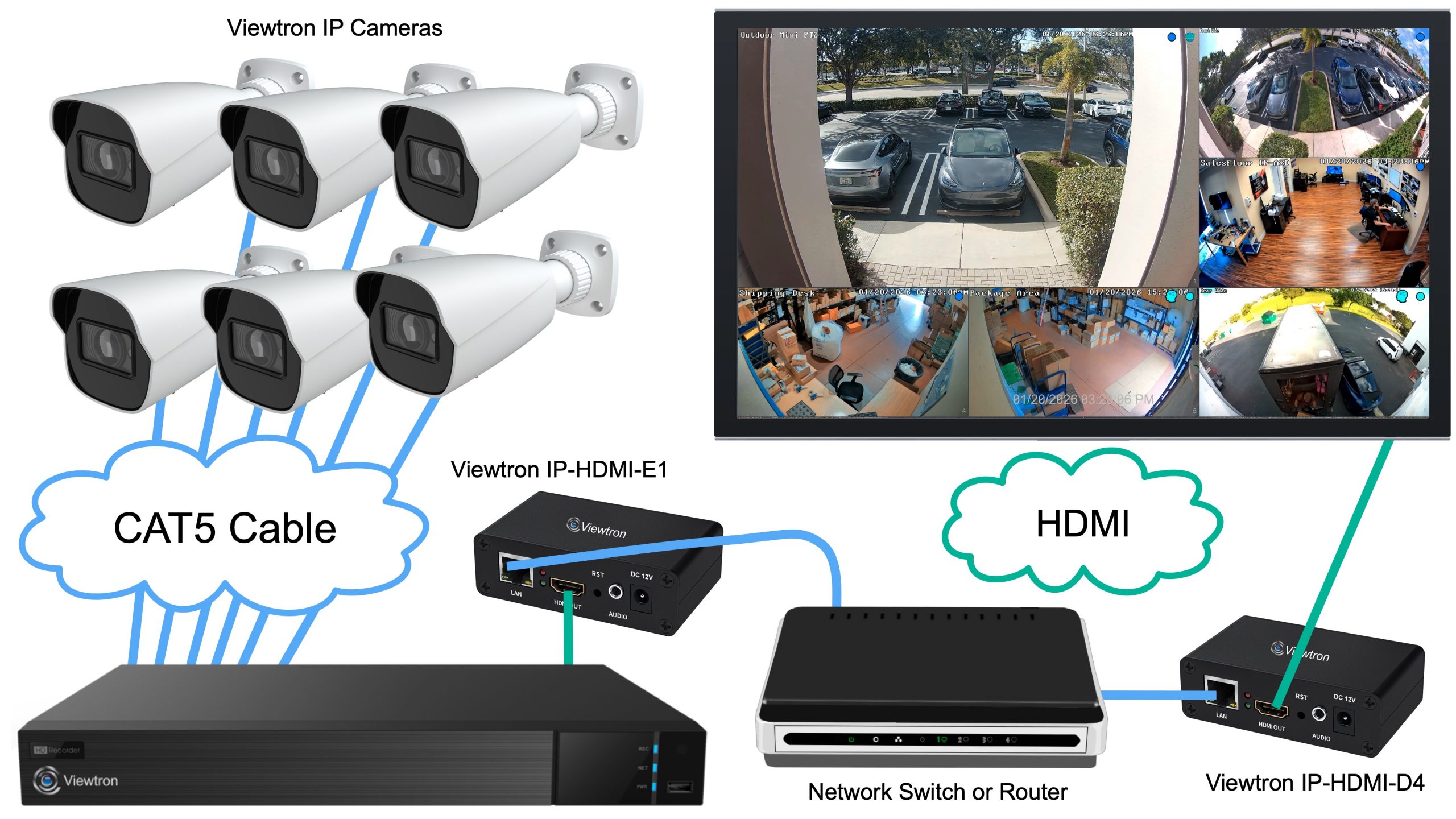
We also have a Viewtron HDMI to RTSP video encoder. This allows you to send an entire HDMI video output signal of a Viewtron CCTV DVR or IP camera NVR over the IP network to the decoder.
- Connect your IP cameras to your Viewtron NVR for standard video surveillance.
- Connect the HDMI output of the NVR to the Viewtron HDMI to RTSP encoder.
- The encoder converts that full HDMI signal into an RTSP stream on your network.
- The IP to HDMI decoder picks up that signal and displays the entire HDMI output on a TV.
- Add additional decoders if you want the same view on multiple monitors.
This works with any device that has an HDMI output, so you can use this with things other than security recorders if you want. Because the decoder displays whatever your recorder’s HDMI output is showing, there is no limit to the number of cameras that you can display this way. Here are the HDMI encoder / decoder setup instructions.
Display the HDMI Output from Security DVR on Multiple TVs
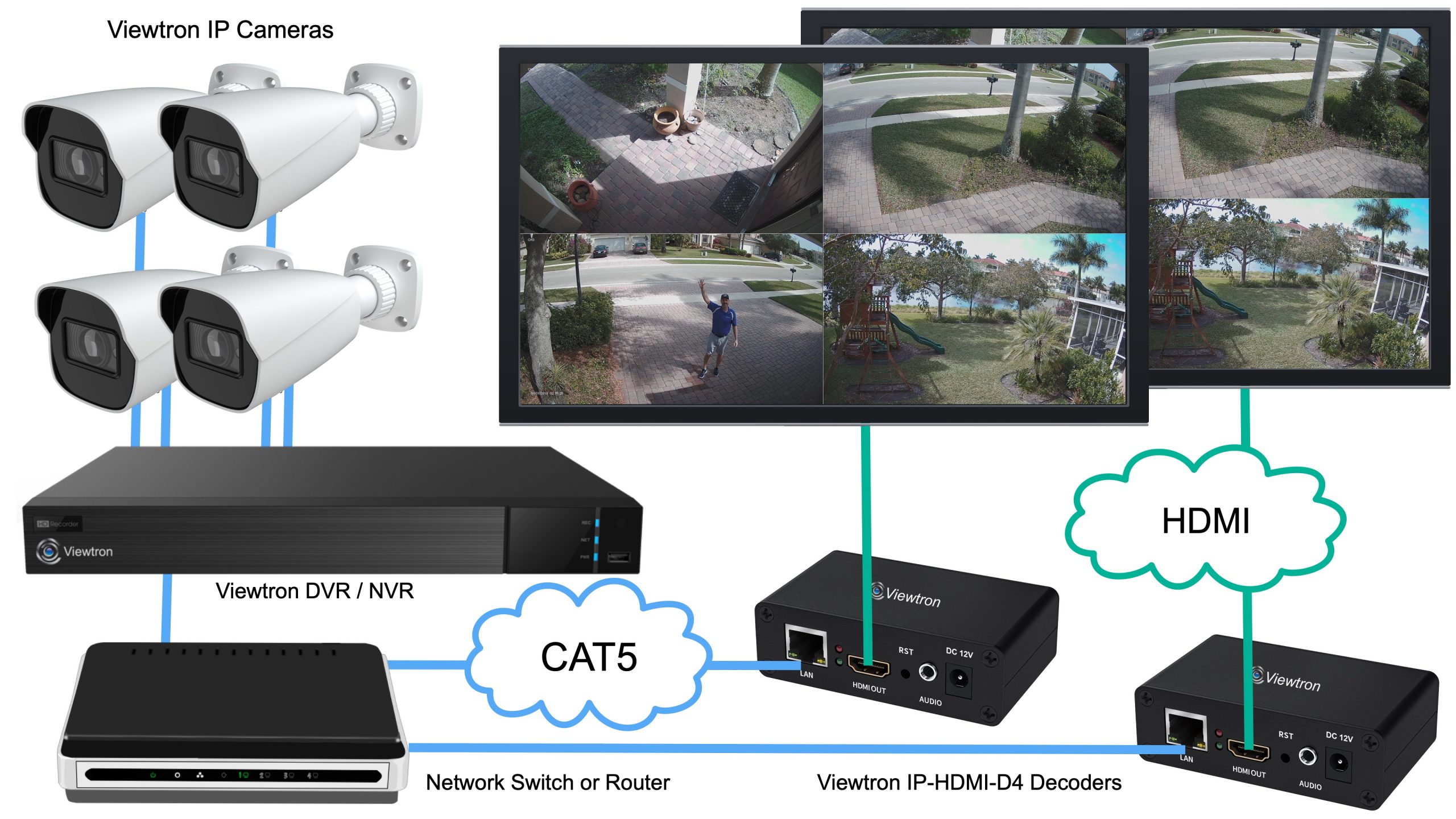
Add additional IP to HDMI decoders if you want to display the HDMI output of your security DVR on multiple TVs. One HDMI to RTSP encoder connects to the HDMI output of your DVR / NVR, and each TV gets its own decoder anywhere on your network. You can use hard wired IP-HDMI-D4 decoders, WiFi IP-HDMI-D4K decoders, or a mix of both. You can see another example of this in my HDMI over Ethernet monitor display demo.
If your TVs are close to your DVR / NVR and you do not want to send the video over your network, you can also use an HDMI over Cat6 splitter / extender to send the HDMI output of your recorder to two TVs, or a wireless HDMI transmitter.
Wireless IP Camera to TV Decoder with 4K Output
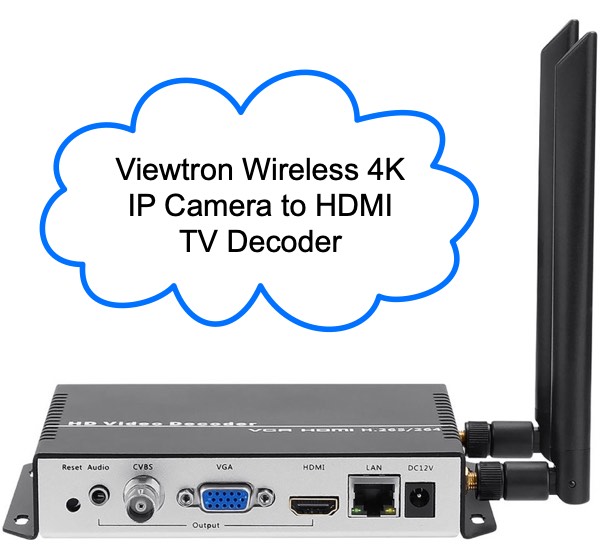
We also have a WiFi version of the decoder. The Viewtron IP-HDMI-D4K wireless IP camera to HDMI converter has all of the same features as the hard wired IP-HDMI-D4. It decodes 1 to 4 camera streams, supports custom layouts, and works with or without a DVR / NVR. It also has a built-in 2.4GHz / 5.8GHz WiFi radio, and it supports 4K HDMI output in addition to 1080p. This is a great option if you do not have a network cable run to your TV, or if you want to take advantage of a 4K TV.
The IP-HDMI-D4K also has a hard wired Ethernet port. You use that port for the initial WiFi setup. Here are the wireless IP camera to HDMI converter setup instructions.
Please note that it is the decoder that connects to your TV over WiFi. Your IP cameras still need to be connected to your network or to your NVR. If a camera is installed far from your network, for example at a barn, detached garage, or gate, you can connect it using a long range wireless bridge.
IP Camera to TV Display Over the Internet
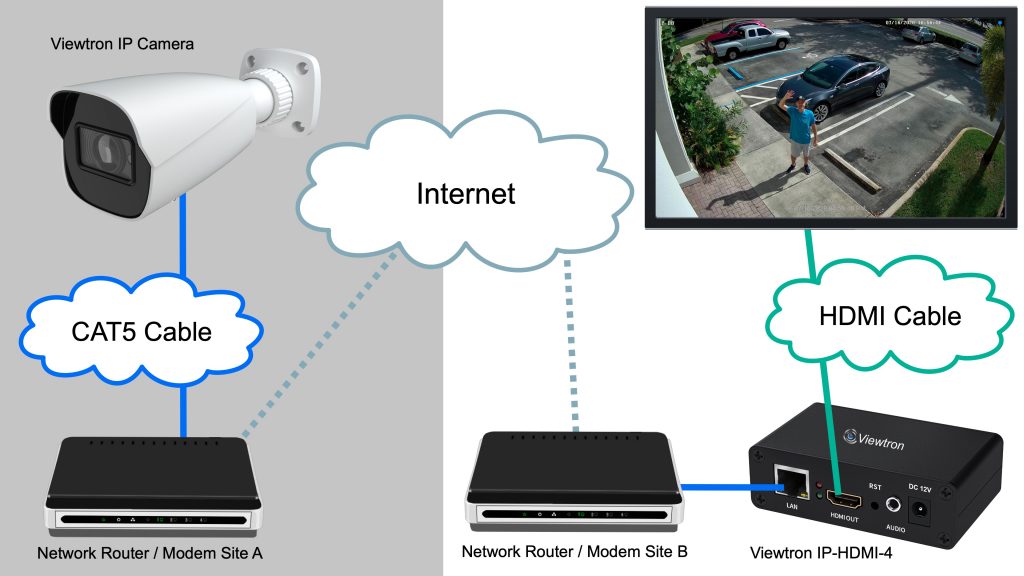
All of these configurations can work across the internet, not just your local network. You can display a live camera feed from one building on a TV in another building across town or across the country. Here is how to set it up.
- Assign a static IP address or DHCP reservation to your NVR (or to your IP camera if it is not connected to an NVR), so your port forwarding rule keeps working after a router reboot. Here is how to do that.
- Keep RTSP authentication turned on in your NVR. Do not check the Anonymous box in the RTSP settings. If your decoder and NVR are on the same local network, this is not a big concern because the stream is not exposed to the internet. It matters when you port forward for remote viewing.
- Set up port forwarding on the router at the camera location. Forward only the one RTSP port (554 by default) to your NVR (or to the camera). Nothing else needs to be opened. You can use our open port checker to confirm that the port is open.
- On the decoder at the remote location, enter the RTSP address with your NVR username and password in it, like this: rtsp://username:password@public-ip:554/chID=1&streamType=sub. Replace public-ip with the public IP address of the location where your NVR is installed.
A few important security tips. Use a strong, unique password on your NVR, because that password is what protects the port that you opened. Only forward the one RTSP port. And if you are a business that already has a VPN between your locations, you do not need to open a port at all. Just send the RTSP stream over the VPN and point the decoder to your NVR’s local IP address.
You can find complete instructions in our security camera to TV live view over the internet setup guide and in our port forwarding and remote access setup guide.
This can be applied to any of the previous installation scenarios. If you want to remotely access the entire HDMI output using the HDMI to RTSP encoder, you can. If you want one camera from one location and two or three from other locations, you can. It is extremely flexible.
Common Use Cases
Before we had the Viewtron IP camera to TV decoder and Viewtron HDMI to RTSP encoder, CCTV Camera Pros had already been providing security camera to TV live display systems to customers for many years. We previously supplied live view solutions based on our BNC to HDMI converter or CCTV multiplexers with BNC security cameras.
Here are some of the types of uses that we have supplied solutions for.
- Curling Club Live TV Displays
- Live Video Display Monitor for Dance Studio
- Live Video Monitor Display to Monitor Manufacturing Process
- Parent Waiting Area for Pediatric Dentist Office
- Parent Viewing Area for Karate Dojo
- Live Outdoor View for Disabled Elderly
- Nature Viewing Monitor to Display Outdoor Area in the Lobby of a Hotel
- Remote Camera View of Different Locations on TVs in Lobby of Hotel
- Livestock Display Monitor from Barn Camera System
There are endless use cases to display live video on a TV from indoor or outdoor cameras. If you need help brainstorming solutions for what you need one for, please reach out to me and the team anytime at info@cctvcamerapros.net.
IP Camera to TV Live View System FAQ
Here are some frequently asked questions that we receive related to our IP camera live view systems.
- Does this work with third-party IP cameras? Yes. This is a generic device that works with third-party IP cameras as long as they give you access to the camera’s raw RTSP stream. If your camera is ONVIF compliant, it will almost definitely work because ONVIF compliant IP cameras provide access to the raw stream.
- Does this work with Ring cameras? No. Unfortunately, Ring does not play nice with other manufacturers with interoperability. They close off their system and do not give you access to the RTSP stream.
- Does this work with Viewtron Hybrid DVRs? Yes. You can use this with coax CCTV cameras on a Viewtron Hybrid DVR because our DVR gives you access to the raw RTSP stream. You could also use the HDMI to IP converter and send the entire HDMI output over IP.
- Can I display different cameras on different TVs? Yes. If you want to display camera one on monitor one and camera two on monitor two, you can do that. You could display four cameras on monitor one and just a single camera on monitor two. The system is extremely flexible.
- Does the HDMI encoder work with devices other than security recorders? Yes. It works with any device that has an HDMI output.
- How do I know if my IP camera is compatible? Reach out to me with your IP camera’s make and model and I will help look into that for you. Email info@cctvcamerapros.net.
- Does the decoder record video? No. The IP to HDMI decoder is a live view device. If you want to record your cameras, connect them to a Viewtron NVR and use the decoder for the live TV display, like in the NVR setup above. If you are not sure which recorder you need, here is the difference between a DVR vs NVR.
- Can the decoder connect to my network over WiFi? Yes, if you use the IP-HDMI-D4K model. It supports 2.4GHz and 5.8GHz WiFi. The IP-HDMI-D4 connects to your network with a hard wired Ethernet cable.
- Can I display more than 4 cameras on one TV? Yes. Each decoder displays up to 4 camera streams. To display more, connect an HDMI to RTSP encoder to the HDMI output of your DVR / NVR. The decoder then displays whatever your recorder’s HDMI output is showing, so there is no limit to the number of cameras.
- Does it work with 4K cameras and 4K TVs? Both decoders accept camera streams up to 8mp / 4K. The IP-HDMI-D4 outputs up to 1080p to your TV. The IP-HDMI-D4K outputs up to 4K. The HDMI to RTSP encoder works at 1080p.
- How far can the TV be from the camera or NVR? The decoder can be located anywhere on the same network as your cameras or NVR, and it can even be at a different location over the internet. Standard Ethernet cable runs are limited to 328 feet (100 meters) per segment, so for longer runs you can add a network switch or use a wireless bridge.
Have Questions / Need Help?
If you have any questions about how to connect an IP camera to your TV for a live view, please email me at mike@cctvcamerapros.net anytime. Me and the team can also provide you with a free consultation and custom quote. We design these systems for customers all day. We do assessments of what customers have in place, what works with this Viewtron equipment, and what you should keep and what you should replace. We help you make a good decision if you are using some existing equipment, even if it is very old.
Click here to learn more about the Viewtron IP camera to HDMI decoder as well as the HDMI to RTSP encoder.
You can also text or call 1-561-433-8488.
Video Transcript
How to connect an IP camera to TV without a DVR. Hey everyone, Mike from CCTV Camera Pros here. And in this video, I’m going to introduce you to this new Viewtron IP camera to HDMI decoder that lets you view one or more of your IP cameras live on a TV. Actually, you can connect them to multiple TVs if you want, and you can do that with or without using a DVR or NVR recorder. I’m going to start with a real simple example of how to use this, and then there’s some more complex ways you could do it. Actually, there’s a whole bunch of ways that you can, including this right here, which is displaying nine IP cameras at the same time. So stay with me and let’s start with the most simple example first. So in this diagram you’ll see we have one of our Viewtron IP cameras hardwired to a network switch or router. And then we have the Viewtron IP to HDMI decoder connected to that same network switch.
And basically what’s happening is here is that the live video stream of the camera goes over the IP network and the decoder could be anywhere on that same network. It decodes the RTSP stream to an HDMI output and displays live video on a TV. If you want, you could add 2 decoders or more to this application and take that same live video stream from our IP camera on the network and decode it on two of the Viewtron decoder devices and send that live video out to two TVs. You could add a third decoder and add a third TV if you like. So next, this diagram is showing how you can have multiple IP cameras connected to the network using Cat5 cable. And again, the Viewtron IP to HDMI decoder is connected to that same network. And it’s pulling in all four of the IP cameras video streams, decoding them and displaying all four camera live on a grid at the same time. This is basically like a video multiplexer for IP cameras.
So next, it’s actually really common for customers to want to record video centrally on multiple IP cameras, but then also display them on a monitor that’s not located near the DVR or NVR. And they may just want to display one of the cameras on the system, or they may want to display multiple cameras. What this diagram is showing is that the Viewtron IP cameras are hardwired to the POE ports on the back of the Viewtron NVR. The Viewtron NVR is connected to the network router or switch. And then of course the Viewtron IP to HDMI decoder is connected to the network, just like in the other examples. The big difference here is that those cameras are not connected directly to the local network. They’re on their own network between just them and the NVR. However, Viewtron NVR and DVRs expose the raw RTSP video streams of all their connected security cameras on the network.
You can enable that in the NVR settings and give other IP devices direct access to the video stream over RTPS. By the way, RTSP stands for Real Time Streaming Protocol. So now the Viewtron IP decoder is pulling in the four camera streams, but through the recorder. And if you wanted to just display one of these cameras on a live monitor, but record all four of them on the NVR, you could do that too. That’s typical in a retail application. It’s typical for us to supply a security camera system for a department store. For example, that department store might have like 30 IP cameras all recording back to a central Viewtron NVR. But they want a single camera at their entrance displaying a live view, so that when customers come in, they know the area is under video surveillance. And they just want to display that one camera showing the customer a live view of them walking in.
It’s very typical. Okay, so obviously you can also add a second decoder for this type of installation with a DVR if you want to display any of your cameras live on more than one monitor. And by the way, if you want to display camera one on monitor one and camera two on monitor two, you could do that. You could display four cameras on monitor one and just a single camera on monitor two. The system is extremely flexible. Okay, so next we also have a new Viewtron HDMI to RTSP video encoder. And what that allows you to do is it allows you to send an entire HDMI video output signal over the IP network to the decoder. So in this case, what I’m doing is that I have six IP cameras hardwired to the Viewtron NVR for standard video surveillance and security applications.
I am recording video, managing alerts,, push notifications, et., but I’m sending the HDMI output of the NVR to the Viewtron HDMI to RTSP encoder. Now, the Viewtron IP to HDMI decoder can pick up that signal of the entire HDMI output. And the HDMI output of the Viewtron NVR can display as many cameras from the system as you want. So in this case, I’m displaying a six camera live view all over that HDMI signal and decoding it with the Viewtron IP to HDMI decoder. You can take that same system and add a second decoder if you want the entire HDMI output to go to a second monitor. Okay, so in this last example here, what I wanted to show is that the video streams that the IP to HDMI decoder consumes and then changes into HDMI, can be from IP cameras accessed remotely over the Internet. So everything here in the gray box on the left is showing a separate site from where the live view monitor and HDMI decoder are located. And basically the Viewtron IP camera is connected to a network router.
You set up port forwarding on that router to allow outside access to that camera’s RAW RTSP stream. And then you set up the Viewtron IP to HDMI decoder to connect to the stream, but now you’re connecting to it from remotely over the Internet. The setup is the same, but you have to set up port forwarding on the router to the IP camera. And by the way, this can be applied to any of the previous installation scenarios that I went through. If you want to remotely access the entire HDMI output using our RTSP to HDMI encoder. Sorry, I mean HDMI to RTSP encoder, you can. If you want one of the cameras to be from one location and the other two or three that you have connected from other locations, you can. It’s extremely flexible.
I want to mention a couple things before we wrap up this video. We have thoroughly tested this with all of our Viewtron IP cameras. It works with all of them, and you can mix and match all the different Viewtron IP cameras we have. But in reality, this is a generic device that’ll work with third party IP cameras as well. As long as they give you access to the camera’s RAW RTSP stream, it’ll work with them. And if you need help determining if your IP camera is compatible with this IP to HDMI decoder, you can reach out to me and the team anytime. Just send an email to me at mike@cctvcamerapros.net, and include your IP cameras make and model and I’ll help look into that for you. If your camera is ONVIF compliant, it’ll almost definitely work because I haven’t seen an ONVIF compliant IP camera that doesn’t give you access to the RAW stream that you’ll need.
So pretty much all ONVIF compliant IP cameras will work. Unfortunately, it doesn’t work with some of the super inexpensive plug and play residential cameras like Ring. Ring doesn’t wanna play nice with other manufacturers with interoperability so they close off their system and don’t give you access to the RTSP stream unfortunately. This system works with all of our Viewtron IP camera NVRs and with all of our Viewtron Hybrid DVRs. What that means is you can use this with coax CCTV cameras on a Viewtron Hybrid DVR because our DVR gives you access to the raw RTSP stream. Or you could use the HDMI to IP converter and send the entire output of the HDMI signal over IP. And this will work with our Viewtron recorders as well as third party recorders. It actually works with any device that has an HDMI output, so you can use this with things other than security recorders if you want. Guys, thanks for sticking with me till the end. I know that was a lot of different scenarios and a lot of information.
Me and the team here design these systems for customers all day. We do assessments of what customers have in place, if they have an existing system and what works with this Viewtron equipment, and what you should keep and what you should replace. We help you make a good decision if you’re using some existing equipment, even if it’s very old. You can reach out to me anytime for a free consultation. Free questions via email. You can also text me. My email address to get me directly is mike@viewtron.com if you want to learn more about the new Viewtron IP camera to HDMI decoder as well as the HDMI to RTSP encoder, if you want to send entire HDMI over IP, you can learn about both these products at www.viewtron.com/IPTV.
Thank you for watching.